Defining Advanced Options
Use the Template Properties: Advanced Options page to define advanced options for this template.
Navigation:
-
In the Setup Activity Guide WorkCenter, click the Template Properties task.
-
Select the Advanced Options page.
This example illustrates the fields and controls on the Template Properties: Advanced Options page. You can find definitions for the fields and controls later on this page.
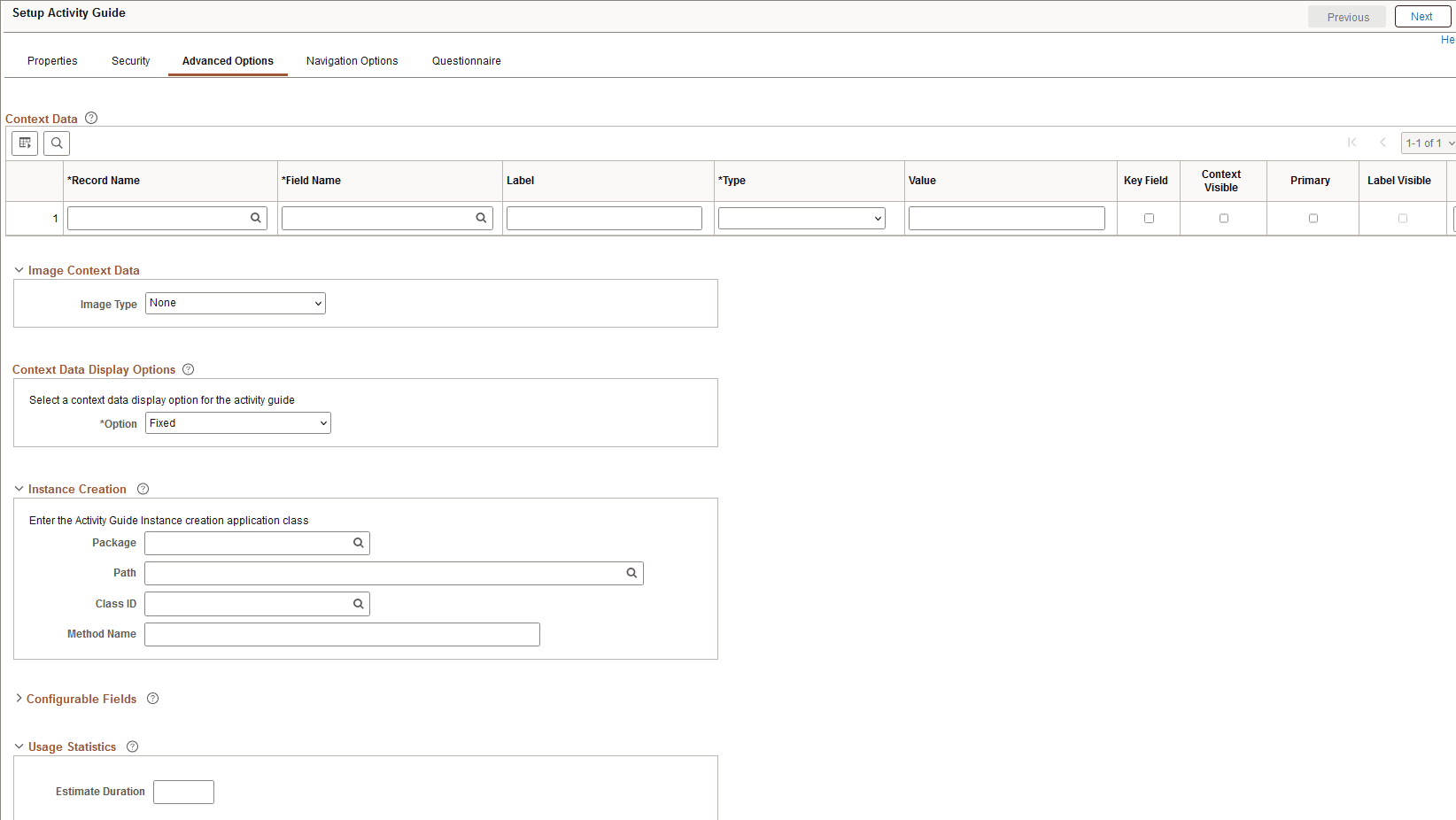
Context Data
Important:
If multiple activity guide instances will be generated from the same template (for example, a life events activity guide template), then you must define at least one key context field in order to identify and differentiate these activity guide instances.
You can define contextual data that will be passed to the activity guide instance when it is created. Contextual data defined as key fields will be used to uniquely identify each activity guide instance. For example, if the employee ID were defined as a key contextual field, then each activity guide instance will be created for a specific employee ID. Contextual data defined as non-key fields is not used to differentiate an instance, but can be passed to the instance nevertheless. For example, non-key data can be displayed in the activity guide pagelet by specifying the Context Visible option for the field. In this way, instead of displaying the employee ID, you could display the employee name in the pagelet.
| Field or Control | Description |
|---|---|
|
Record Name |
Specify the record name that is the source for the contextual field. |
|
Field Name |
Specify the name of the source contextual field. |
|
Label |
Enter a label for the contextual field. This label can be displayed along with the data value in the activity guide pagelet on the WorkCenter page. |
|
Type |
Select one of the following context types:
|
|
Value |
Enter the value when the context type is fixed value. Alternatively, select the system variable from the look up list when the context type is system variable. Note: No value is entered when the context type is runtime. |
|
Key Field |
Specify whether the contextual field is a key field. Note: Keys fields are used to uniquely identify an activity guide instance. |
|
Context Visible |
Specify whether to display the contextual data and labels in the activity guide. |
|
Primary |
For fluid activity guides only, specify whether this contextual data field is to be displayed as the primary field (that is, larger and in bold). Note: If the Label Visible option is selected for any field, then this selection is ignored. |
|
Label Visible |
Specify whether the labels are displayed in addition to the contextual data. Note: If this option is selected for any field, then labels are displayed for all visible contextual data fields. |
Image Context Data
You can specify a static or dynamic image to be displayed in each activity guide instance. Depending on the selected value of the Image Type field, additional fields are displayed.
| Field or Control | Description |
|---|---|
|
Image Type |
Select an image type:
|
|
App Class: Package |
Enter the name of the application package that contains the method to be invoked to dynamically return the image URL. |
|
App Class: Path |
Enter the names of each subpackage in the application class hierarchy that define the location of the application class. Separate subpackage names by a colon. If the class is defined in the top-level application package, enter or select the colon. |
|
App Class: Class ID |
Enter the name of the application class that contains the method to be invoked to dynamically return the image URL. |
|
App Class: Method Name |
Enter the name of the method to be invoked to dynamically return the image URL. |
|
Image Catalog: Image Name |
Select the static image from the database. |
|
Static:Static URL |
Specify the fully qualified URL to a static image. |
Context Data Display Options
You can select an option for how the context data is displayed.
| Field or Control | Description |
|---|---|
|
Option |
Select a context data display option:
|
|
Modal: Package |
Enter the name of the application package that contains the method to be invoked to dynamically return the URL for the content of the modal window. |
|
Modal: Path |
Enter the names of each subpackage in the application class hierarchy that define the location of the application class. Separate subpackage names by a colon. If the class is defined in the top-level application package, enter or select the colon. |
|
Modal: Class ID |
Enter the name of the application class that contains the method to be invoked to dynamically return the URL for the content of the modal window. |
|
Modal: Method Name |
Enter the name of the method to be invoked to dynamically return the URL for the content of the modal window. |
Instance Creation
You can identify a method that will be executed whenever an activity guide instance is created from this template. When an instance is created from the template, the instance properties and action item details are initially set based on the template definitions. Then, use this method to initialize instance properties, participants, and action item properties (such as status, due date, assignment, and so on), or even to hide or show action items.
| Field or Control | Description |
|---|---|
|
Package |
Enter the name of the application package that contains the method to be invoked at instance creation. |
|
Path |
Enter the names of each subpackage in the application class hierarchy that define the location of the application class. Separate subpackage names by a colon. If the class is defined in the top-level application package, enter or select the colon. |
|
Class ID |
Enter the name of the application class that contains the method to be invoked at instance creation. |
|
Method Name |
Enter the name of the method to be invoked to initialize the activity guide instance. |
Configurable Fields
You can also define labels for fields that will appear on the Related Data page for an action item. In the action item definition, use these additional fields to associate data that will be used by the related content service at run time.
For example, a configurable field could be used to pass a run control ID to the related content service (and its underlying component, a run control page). A different action item definition—in the same template even—could be defined to supply a different run control ID to the same related content service.
| Field or Control | Description |
|---|---|
|
Text Fields |
Enter the label for up to five configurable text fields. |
|
Yes/No Fields |
Enter the label for up to five configurable yes/no fields. |
Usage Statistics
The Activity Guide framework enables you to compute the duration of time in which a user completes a step in the guided process and the duration of a guided process in its entirety. This data can be indexed and can be used for analytics, if required.
At the template level and at the action item or step level, the Estimate Duration fields are configurable. However, at the instance level, the framework computes the actual duration of a step or instance based on the completion of the step or instance.
| Field or Control | Description |
|---|---|
|
Estimate Duration |
Specify the approximate duration in days that an user will take to complete the guided process. |
For more information, see Defining Action Item Details and Reviewing Usage Statistics.
Related Topics