Defining Action Item Details
Use the following tabs of the Action Item Details grid to define the details for each action item:
-
Use the General Information tab to specify the title of the action item, assign a related content service (which can also be assigned on the Service Configuration tab), choose a parent item, and configure related data.
-
Use the User Assignments and Status tab to maintain the action item's status and to whom it is assigned.
-
Use the Schedule Information tab to define the start date and time and due date and time for each action item.
-
Use the Service Configuration tab to associate related content service definitions with action items.
-
Use the Process Configuration tab to define the self-service process details for action items defined as a Process type.
-
Use the Usage Statistics tab to specify an approximate duration (in days) for each action item.
-
Use the Questionnaire tab to associate questions defined on the template to one or more action items.
-
Use the Audits tab to review audit information for each action item including a change log.
General Information Tab
Use the General Information tab to specify the title of the action item, assign a related content service (which can also be assigned on the Service Configuration tab), choose a parent item, and configure related data.
This example illustrates the fields and controls on the Action Item Details - General Information tab for an activity guide template. You can find definitions for the fields and controls later on this page.

| Field or Control | Description |
|---|---|
|
Hierarchy |
Displays the summary-detail (parent-child) relationship of the action items in the template or instance. |
|
Sequence |
Enter up to a four-digit sequence number to indicate this item’s position in the ordered list of action items. A sequence number must be unique within an activity guide template or instance. See “Sequence Numbers” in Understanding Creation and Maintenance of Action Items. |
|
Summary |
Select this option to indicate that this is a summary action item. Important: Important! You must select this option first and then save the action item. If you save the action item without selecting this option it will be created as a child action. Once an action item has been saved, it cannot be changed from a summary item to a child item, or vice versa. |
|
Content Type |
Select the content type for the action item. This column is duplicated on the Service Configuration tab and the content types are documented there. Note: The column is also editable on the Process Configuration tab. |
|
Assign Service |
Click this link to select an existing related content service definition of the specified content type. Note: This function is duplicated by the lookup button for the Service ID field on the Service Configuration tab |
|
Create Service |
Click the this link to create a new related content service definition for a component-based related content service only. See Creating a Component-Based Service Definition for more information. Note: This link is also displayed on the Service Configuration tab. |
|
Title |
Enter the title for the action item. Note: The default value is the name of the selected related content service. |
|
Choose Parent Action |
Click this to access the Look Up Parent Action Item page to change the parent for an action item within the hierarchy. |
|
Active |
Select this option to indicate that the action item is active. Clear this option to make an action item inactive. The action item definition remains in the template, and is copied to any instances generated from this template. However, an inactive action item will not be displayed to users. |
|
Fluid |
Select this option to indicate that the action item is associated with a fluid component. Note: For optimized activity guide types, this option is selected automatically for each action item. Deselect this option for an action item associated with a classic component. |
|
Configure Related Data |
Click this link to configure dependencies, related data, and pagelet button overrides for this action item. See Configuring Related Data for more information. |
User Assignments and Status Tab
Use the User Assignments and Status tab to maintain the action item's status and to whom it is assigned.
This example illustrates the fields and controls on the Action Item Details - User Assignments and Status tab. You can find definitions for the fields and controls later on this page.

| Field or Control | Description |
|---|---|
|
Item ID |
Displays the ID for the action item. |
|
Priority |
Select a priority for the action item: High, Low, or Medium. |
|
Required |
Select this option to indicate that an action item is required. For the status of an activity guide instance to be designated as complete, all required action items must have a complete status. Similarly, for a summary action item to be designated as complete, all required detail action items under it must have a complete status. |
|
Category |
Enter an optional category for this action item. Note: If the category does not exist already, it will be created for you when you save the action item. |
|
Percent Comp |
Specify a percent completion for this action item. |
|
Lock After Completion |
Select this option to prevent the action item from being updated after it has been marked complete. |
|
Status |
Select a value for the status of the action item. Typically, in an activity guide template, the initial value should be Assigned. Note: When viewing the action item list in an activity guide instance, the status for action items will be updated dynamically through user actions. |
|
Assignments |
Click the Assignments link to assign the action item on the Action Item Assignments page. |
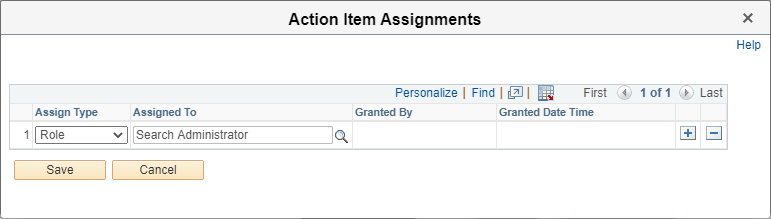
Action Item Assignments Page
Use the Action Item Assignments page to assign one or more users, roles, or a combination to the action item.
Navigation:
Click the Assignments link on the User Assignments and Status tab of the Action Item Details grid.
This example illustrates the fields and controls on the Action Item Assignments page. You can find definitions for the fields and controls later on this page.
| Field or Control | Description |
|---|---|
|
Assign Type |
Select the type of participant that you want to assign the action item to. Available values include:
|
|
Assigned To |
Select an assignee from the list of all users or roles in the system. Important: While you can select any user or role, only a user or role that has also been assigned Contributor privileges on the template or instance Security page will be allowed to complete the action item. The system will not validate your selection against the users or roles defined on the Security page. |
|
Granted By |
If the custom Grant button has been enabled, this field displays the ID of the user who granted access to this action item. Only instance administrators can revoke a grant by removing rows from this table. Note: This field is populated in activity guide instances only. This field should be populated by the system only, and never programmatically. |
|
Granted Date Time |
If the custom Grant button has been enabled, this field displays the date and time the grant was made. Note: This field is populated in activity guide instances only. |
Schedule Information Tab
Use the Schedule Information tab to define the start date and time and due date and time for each action item.
This example illustrates the fields and controls on the Schedule Information tab. You can find definitions for the fields and controls later on this page.

| Field or Control | Description |
|---|---|
|
Inactivate after Due Date |
Select this option to make the action item unavailable after the specified due date has passed. Note: An administrator can manually reset the action item in the activity guide instance. |
|
Start Date |
Select a start date from the calender, or enter a start date in the format specified by your user personalizations. |
|
Start Time |
Enter a start time. |
|
Due Date |
Select a due date from the calender, or enter a due date in the format specified by your user personalizations. |
|
Due Time |
Enter a due time. |
Service Configuration Tab
Use the Service Configuration tab to associate related content service definitions with action items.
Important:
Action items can be linked to specific local or remote components, PeopleSoft queries, PeopleCode programs (an application class or an iScript), self-service process definitions, or external URLs. Except for self-service process definitions, these links are made through the PeopleSoft Related Content Framework. Moreover, except for component-based related content service definitions, which can be created by clicking the Create Service link in the Action Item Details grid, you must explicitly use the Define Related Content Service page to create any other related content service definition prior to associating that service definition with an action item.
See Creating and Managing Related Content Service Definitions for more information.
This example illustrates the fields and controls on the Action Item Details - Service Configuration tab. You can find definitions for the fields and controls later on this page.

| Field or Control | Description |
|---|---|
|
Type |
Note: This column is also editable on the General Information tab and the Process Configuration tab. Select one of the following types:
|
|
Service ID |
Specify the ID for an existing related content service that will be executed for this action item. Note: The related content service definitions available for selection are filtered by the type selected. Note: This field is equivalent to the Assign Service link on the General Information tab. |
|
Service Name |
Displays the label of the service. |
|
Create Service |
Click the this link to create a new related content service definition for a component-based related content service only. See Creating a Component-Based Service Definition for more information. Note: This link is also displayed on the General Information tab. |
|
Test Service |
Click this link to test the related content service. See Testing Related Content Service Definitions for more information. |
|
Configure Context Data |
Click this link to define additional contextual data that will be passed to the related content service at runtime. |
|
Configure AWE |
Click this link to associate approvals with action item. |
Process Configuration Tab
Use the Process Configuration tab to define the self-service process details for action items defined as a Process type. Self-service processes are executed automatically either at instance creation or when all predecessor action items configured with a finish-to-start dependency are marked complete.
For more information about creating, selecting, and configuring self-service processes, see Selecting and Configuring Self-Service Processes.
This example illustrates the fields and controls on the Action Item Details - Process Configuration tab. You can find definitions for the fields and controls later on this page.

| Field or Control | Description |
|---|---|
|
Type |
Select Process to configure a self-service process as an action item. Note: The other values for this column are documented on the Service Configuration tab. This column is also editable on the General Information tab. |
|
Assign Process |
Click this link to select a process. See Selecting and Configuring Self-Service Processes for more information. |
|
Target Node |
Displays the source node for the process. |
|
Schedule Name |
Displays the schedule name associated with the action item. |
|
Process Run Status |
Displays the status of the process. |
|
Pause Before |
Select this option to pause the process before scheduling the process. For example, you may pause the process to validate or modify the input parameters before scheduling the process. |
|
Pause After |
Select this option to pause the process after the completion of process. For example, You may validate the process output before proceeding to the next. |
|
Skip on Error |
Select this option to enable display of the process status as Complete even if a process item runs into Error or No Success. |
|
Resume on Error |
Select this option to allow the users to reschedule process if it had stopped due to an error. |
|
Configure Input Parameters |
Select this option to enable the end-users to modify the run control parameters. This activates the Configure CI Parameters link that enable you to access the Configure CI Parameters page. Note: This option is valid only if the Pause Before option is selected. |
|
Configure CI Parameters |
Click this link to configure the component interface parameters. See Selecting and Configuring Self-Service Processes for more information. |
Usage Statistics Tab
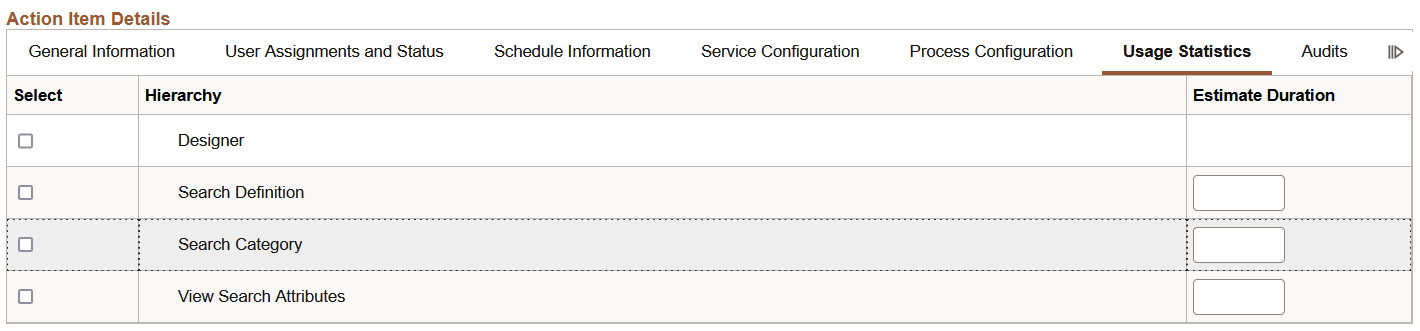
Use the Usage Statistics tab to specify an approximate duration (in days) for each action item.
This example illustrates the fields and controls on the Action Item Details - Usage Statistics tab. You can find definitions for the fields and controls later on this page.
| Field or Control | Description |
|---|---|
|
Estimate Duration |
Specify an approximate duration (in days) required to complete the action item or step. |
For more information, see Defining Advanced Options and Reviewing Usage Statistics.
Questionnaire Tab
Use the Questionnaire tab to associate questions defined on the template to one or more action items.
This example illustrates the fields and controls on the Action Item Details - Questionnaire tab. You can find definitions for the fields and controls later on this page.

| Field or Control | Description |
|---|---|
|
Question ID |
Select a defined question to associate with this action item. Note: If a question is associated with a summary item, then all the detail actions under that summary are made active or inactive based on a single answer. |
|
Answer |
Select the answer (Yes or No) that if provided by the user will set this action item to active in the activity guide instance. |
Audits Tab
Use the Audits tab to review audit information for each action item including a change log.
This example illustrates the fields and controls on the Action Item Details - Audits tab. You can find definitions for the fields and controls later on this page.

| Field or Control | Description |
|---|---|
|
Created By |
Displays the user who created the action item definition. |
|
Created Datetime |
Displays the date and time when this action item was created. |
|
Updated By |
Displays the user who last updated the action item definition. |
|
Last Updated Date |
Displays the date and time when the action item was last updated. |
|
Grants Log |
Click this link to view the action item’s grants log. Note: Grant data is runtime data and is therefore only available in action item instances, and not in templates. |
|
Change Log |
Click this link to view the action item’s change log. |
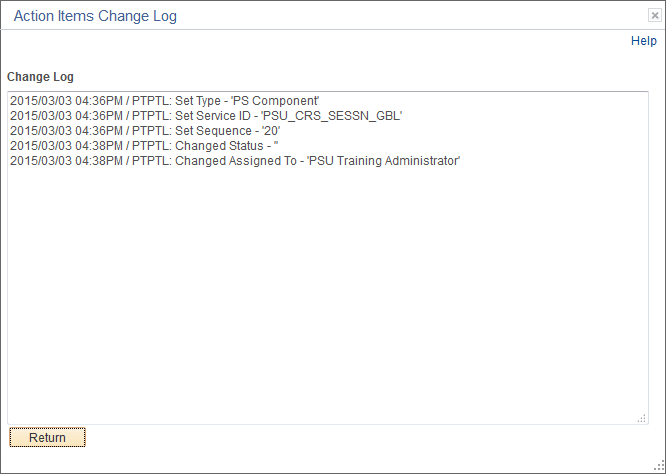
Use the Action Items Change Log page to view the changes to the action item definition.
This example illustrates the fields and controls on the Action Items Change Log page.
Use the Action Items Grants Log page to view grants and revocation of grants for the action item.
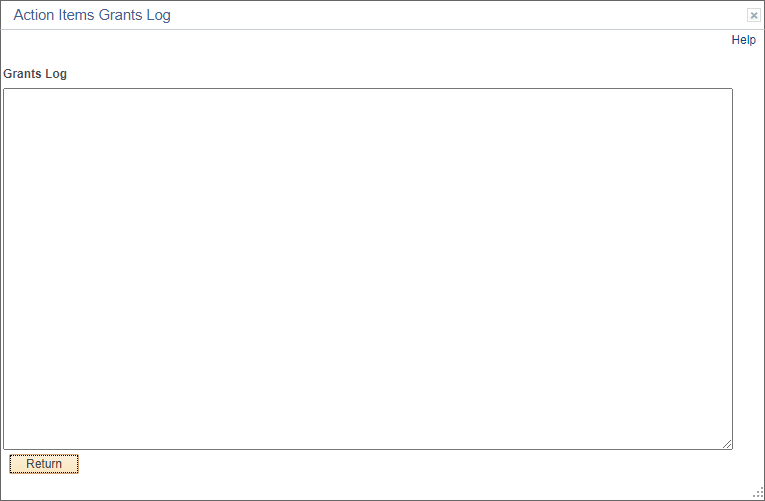
This example illustrates the fields and controls on the Action Items Grants Log page.