Maintaining the List of Action Items
Use the Action Item Details grid on the action item list page to maintain the list of action items.
Navigation:
-
On the Manage Activity Guide Templates page, click the title link for an existing template.
Note:
In addition, on the Manage Activity Guide Instances page, click the title link for an existing instance.
-
In the Setup Activity Guide WorkCenter, click the Configure Action Items task.
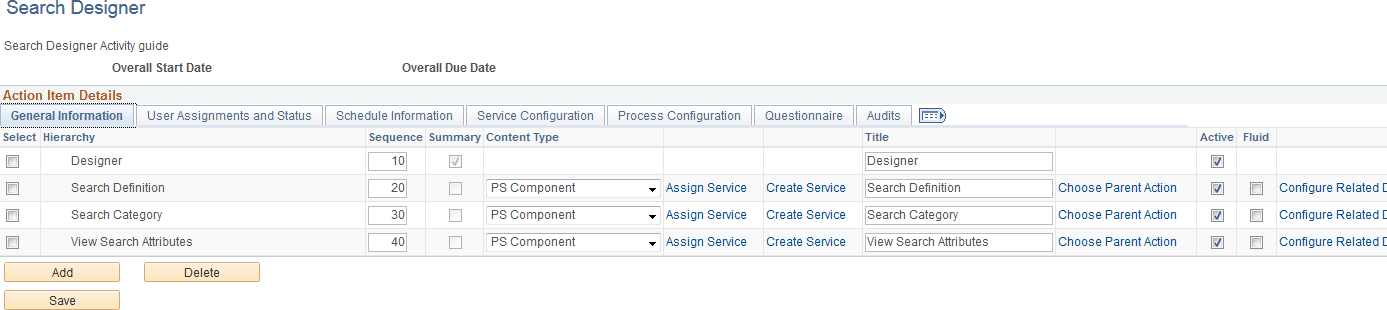
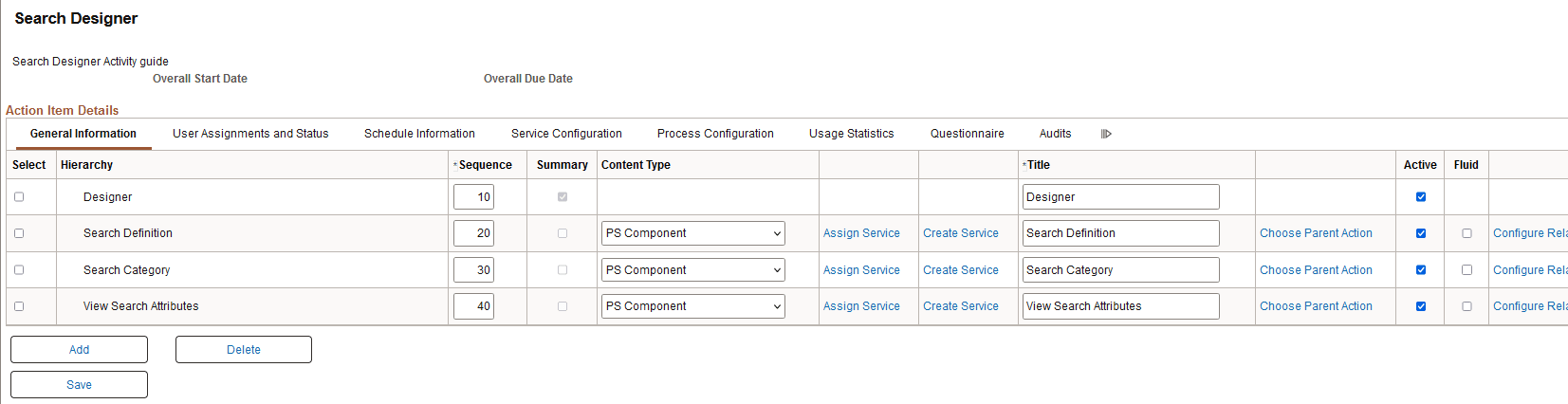
This example illustrates the fields and controls on the action item list page for an activity guide template. You can find definitions for the fields and controls later on this page.
| Field or Control | Description |
|---|---|
|
Overall Start Date |
Displays the start date of the activity guide template (as defined on the Properties page). |
|
Overall Due Date |
Displays the due date of the activity guide template (as defined on the Properties page). |
|
Select |
Select an action item to delete. Selecting a summary action item also selects any detail action items associated with it. |
|
Add |
Click the Add button to access the Add an Action Item page to create a new action item. |
|
Delete |
Click the Delete button to delete the selected action items. Note: There are no checks to prevent you from deleting an action item from an activity guide instance no matter its current status or relationship to other action items in the instance. |
|
Save |
Click the Save button to save updates to any action item details. |
Adding Action Items
Use the Add an Action Item page to add a new action item.
Navigation:
-
In the Setup Activity Guide WorkCenter, click the Configure Action Items task.
-
Click the Add button.
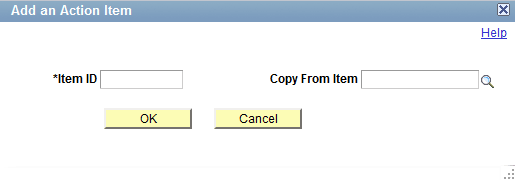
This example illustrates the fields and controls on the Add an Action Item page. You can find definitions for the fields and controls later on this page.
| Field or Control | Description |
|---|---|
|
Item ID |
Enter up to 10 characters as an identifier prefix. When you save the action item, the system will append digits to ensure that this identifier is unique within the template. Important: If you specify an identifier prefix that is already in use in another template, an error is generated. |
|
Copy From Item |
Select the ID for an existing action item within this template. This allows you to select an existing action item from this template to clone as a new action item. You can then modify the properties of the new action item. |