Generating Theme Style Sheets for Fluid Components
Use the Generate Theme Style Sheets page to create and maintain theme style sheet stubs for fluid components from original style sheets based on the specified pattern matching file.
Navigation:
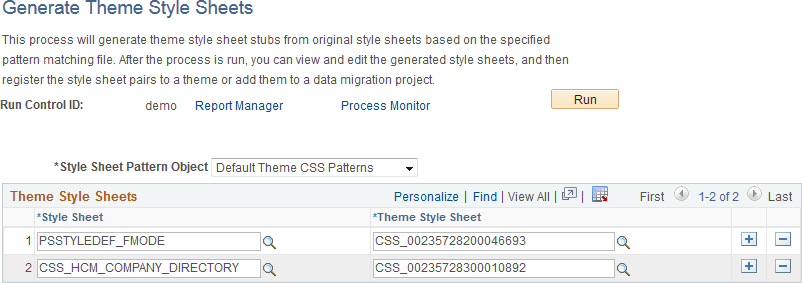
This example illustrates the fields and controls on the Generate Theme Style Sheets page before process execution.
| Field or Control | Description |
|---|---|
|
Style Sheet Pattern Object |
Select a style sheet pattern object. Currently, PeopleTools delivers one style sheet pattern object, Default Theme CSS Patterns, which will leave color attributes only in the generated style sheets. Note: By definition, a style sheet pattern object is an HTML definition that begins with the PTBR_CSSPTN_ prefix. |
|
Style Sheet |
Select an original style sheet from which the mapped theme style sheet will be generated. When the run control ID is first created, the system default style sheet for fluid components defined on the Branding System Options page will be added to the list. If none is defined, the PSSTYLEDEF_FMODE style sheet is added to the list. |
|
Theme Style Sheet |
Note: A unique, random name is generated initially when a style sheet is selected. Enter a unique name for the mapped theme style sheet to be generated. Note: You can use the prompt to look up style sheet objects already defined in the current system to avoid using a non-unique name. |
Click the Run button to execute the process. After process execution, additional options are displayed on this page.
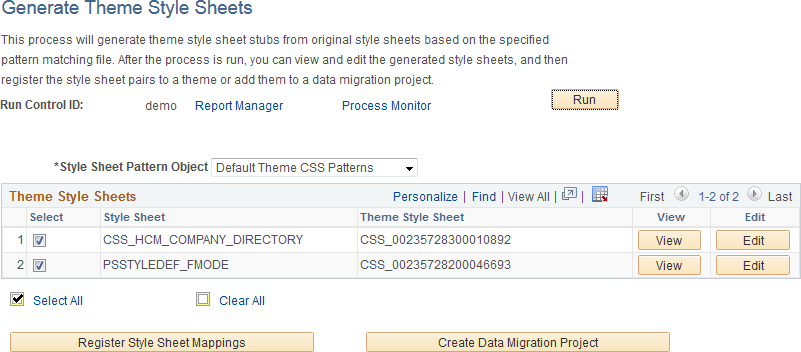
This example illustrates the fields and controls on the Generate Theme Style Sheets page after process execution.
| Field or Control | Description |
|---|---|
|
SelectSelect AllClear All |
Use the Select, Select All, and Clear All check boxes to select or deselect items for further processing. |
|
View |
Click the View button to view the content of the generated theme style sheet. Note: This button is displayed only for users who have read permissions on the style sheet object. |
|
Edit |
Click the Edit button to edit the content of the generated theme style sheet. See Adding and Editing Branding Objects for more information. Note: This button is displayed only for users who have both read and write permissions on the style sheet object. |
|
Register Style Sheet Mappings |
Click this button to register the selected style sheet pairs to a theme definition. At least one base style sheet/theme style sheet pair must be selected. |
|
Create Data Migration Project |
Click this button to add the selected theme style sheets and all images they use to a Data Migration Workbench project for migration to a different database. At least one base style sheet/theme style sheet pair must be selected. Note: A Data Migration Project Workbench project is also referred to as an Application Data Set (ADS). |
Register Fluid Theme Style Sheet Mappings Page
Use the Register Fluid Theme Style Sheet Mappings page to register a mapped theme style sheet to the specified theme definition. This page provides an alternative to manually selecting the style sheet pair on the Assemble Themes page.
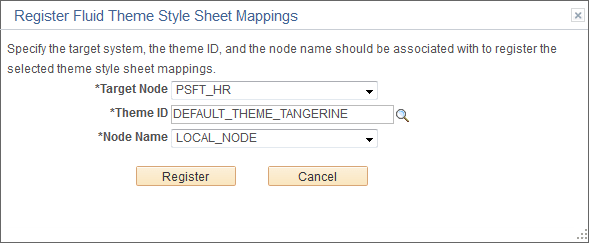
This example illustrates the fields and controls on the Register Fluid Theme Style Sheet Mappings page.
| Field or Control | Description |
|---|---|
|
Target Node |
Select the default local node to identify the target system. |
|
Theme ID |
Select the theme definition. |
|
Node Name |
Select the node to which the style sheet and theme style sheet is to be applied. You can select a specific node name, or one of the following values:
Note: The list of specific nodes includes non-local PeopleSoft nodes that have a defined content URI. |
Create Data Migration Project Page
Use the Create Data Migration Project page to add the selected theme style sheets and all images they use to a Data Migration Workbench project. You can use this project to migrate all of the theme style sheets and images to a different system—for example, if you generate the theme style sheets on one system and then must distribute and register these style sheets on other systems in a cluster.
Once the project is created, you will be given the opportunity to open the project in Data Migration Workbench.
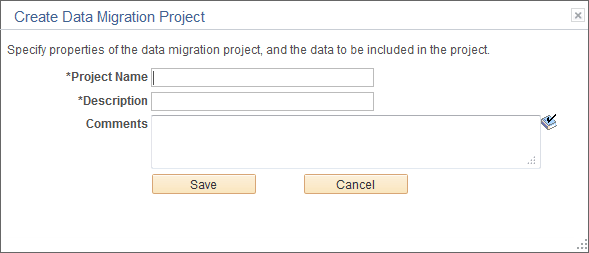
This example illustrates the fields and controls on the Create Data Migration Project page.
| Field or Control | Description |
|---|---|
|
Project Name |
Enter a name for the data migration project. |
|
Description |
Enter a description for the data migration project. |
|
Comments |
Enter any additional comments that will appear with the project in Data Migration Workbench. |