Managing Pagelet Attributes
Access the Content Ref Administration page. (Select Click the Edit link for the appropriate content reference.)
-
Select Pagelet in the Usage Type drop-down list box.
-
Use the Pagelet Attributes group box to select the default column for a pagelet, associate a help topic with the pagelet, set refresh time, and hide certain buttons from users.
-
Use the Content Reference Attributes group box to create banner pagelets and add images to pagelet headers
Use the Pagelet Attributes and Content Reference Attributes group boxes to enhance pagelets.
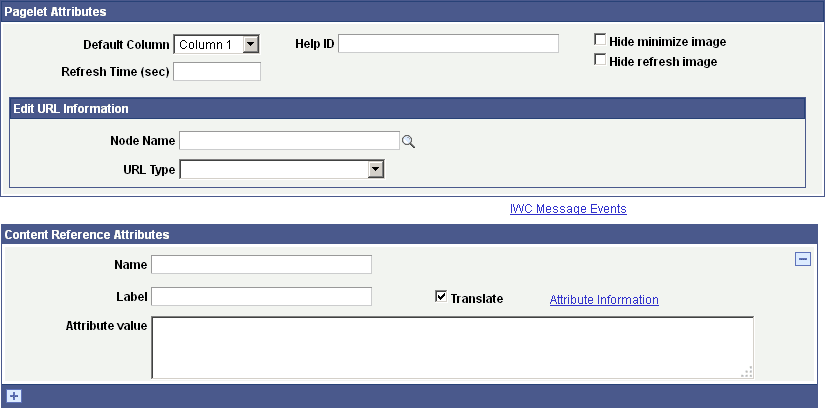
Pagelet Attributes
| Field or Control | Description |
|---|---|
|
Default Column |
Select the column in which the pagelet appears. |
|
Help ID |
Enter the help ID for the pagelet. When users click the Help link, the PeopleSoft system opens a new window displaying online help documentation for this item. Note: You must also configure a help URL on the Web Profile Configuration - General page. |
|
Refresh Time (sec) |
Enter the number of seconds after which the system auto-refreshes the pagelet. To activate the refresh timer, enter a value of 1 or greater. The timer refreshes the pagelet as soon as the user accesses the homepage and then automatically refreshes the pagelet every n number of seconds. Note: Homepages and dashboards use automatic refresh. |
|
Hide minimize image |
Select to hide the minimize button that normally appears in the pagelet header so that users are prevented from minimizing the pagelet. |
|
Hide refresh image |
Select to hide the refresh button to prevent users from refreshing the pagelet. If you implemented pagelet caching for this pagelet, a refresh button automatically appears in the pagelet header. |
|
Force Pagelet Refresh |
Some components can render themselves differently based on the column width. When a homepage has a two-column layout and the user moves a component-based pagelet to a different sized column by using the drag-and-drop method, this pagelet needs to be refreshed so that the content displays correctly. The drag-and-drop iScript that persists the pagelet changes forces a homepage refresh only when all of the following conditions are met:
|
Note:
When document.write or document.writeln commands are detected inside a pagelet, the whole homepage will
be refreshed instead of just that pagelet. This is required to properly
assemble that pagelet's content.
You can use a combination of a web profile setting and the PORTAL_NOBROWSERCACHE content reference attribute to determine whether an individual pagelet can be cached. See Configuring Caching and Implementing Homepage Caching.
Separately, you can also administer server-based caching. See Implementing Pagelet Caching.
Edit URL Information
Use the Node Name, URL Type, and additional URL-specific fields to specify a page to be used for personalizing this pagelet and to make the personalization button appear in the pagelet header. See Specifying a Component for Pagelet Personalization for an example.
| Field or Control | Description |
|---|---|
|
Node Name |
Select the node name. This node name can be different from the pagelet node name. Note: In a clustered environment, the node name should not be defined as LOCAL_NODE and must be set to the actual portal host node for the pagelet. |
|
URL Type |
Select the type of edit URL:
The additional URL entry fields appear based on the setting of this field. |
Content Reference Attributes
You can use the content reference attributes of a pagelet to change its character and appearance and to improve its usability.
Use content reference attributes to:
-
Configure pagelet help links.
-
Configure pagelet time-out settings.
-
Configure automatic pagelet refresh.
-
Suppress parallel pagelet loading (for pagelets with global variables).
-
Create banner pagelets.
-
Add icons to pagelet headers.