Navigation Collection Section Template
The Navigation Collection section template renders specified navigation collection as links by default. Administrators can import this section into any PeopleSoft landing page, sectionalized homepage, or sectionalized dashboard. The template leverages an application class that extends the DynamicLoader application class, ensuring dynamic and efficient data sourcing.
The navigation collection section template is not a ready-to-use section, unlike the recently visited and favorites section templates. After you import the section into a sectionalized homepage or dashboard, you must manually configure it for your navigation collection.
-
Section Name - Change from the default PT_NAVCOL_TEMPLATE to a unique name that describes your collection's purpose.
Note:
Avoid the PT_ prefix as it is reserved for PeopleTools-delivered objects.
-
Section Label - Set a meaningful label that reflects the navigation collection for end-users.
-
Section Image - Select an appropriate image or icon for the navigation section.
-
Loader Class Configuration Data - Replace NAVCOLID with the actual navigation collection name to drive the section tiles. To view the navigation collection name, navigate to Structure and Content, Portal Objects, Navigation Collections, and select Edit for the corresponding navigation collection. For example, the name for the Branding navigation collection is ADMN_BRANDING.
You can use this option to provide configuration data as a name-value pair that is supplied to the DynamicLoader application class. The configuration properties specific to the Navigation Collection section template are described later in the Configuration Data for the Navigation Collection Section Template topic.
To view the delivered Navigation Collection section template, navigate to , and select the corresponding Edit link.
This example illustrates the settings in the delivered Nav Collection section template. You can find definitions for the fields and controls later in this page.
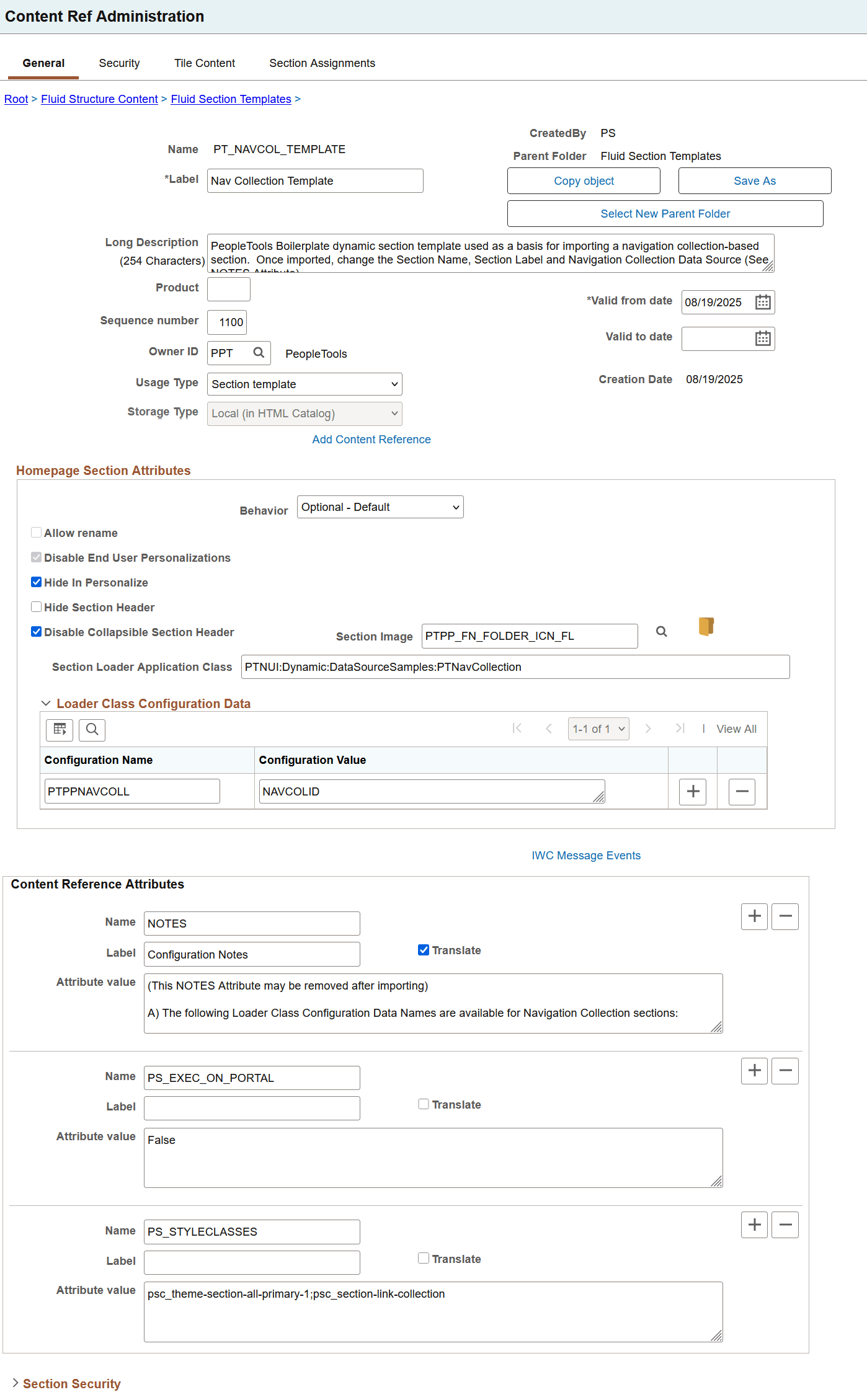
For descriptions of all the fields and controls on the Favorites section template page, see Creating a Section Template.
The following table describes the fields that you should take note of and change, if required, after you import this section template to a target landing page, homepage, or dashboard.
| Field or Control | Description |
|---|---|
|
Section Loader Application Class |
Use the PTNavCollection application class to dynamically load the specified navigation collection items in the section. It is an extension to the base class PTNUI:Dynamic:DynamicLoader. |
|
Content Reference Attributes |
|
|
Loader Class Configuration Data |
Enter configuration data as a name-value pair. See Loading Configuration Data in the DynamicLoader Application Class for more information. |
Best Practices
Follow these best practices for better performance:
-
Use navigation collection-based sections for small collections; large collections can impact performance, especially when loaded remotely.
You must exercise caution if you're including Menu folders in navigation collections because they can cause excessively large number of tiles to be created.
-
Avoid configuring navigation collections with excessive depth or size.
-
Some navigation collections may not operate properly within a section (especially those that load remotely), but the majority of the navigation collections should work as expected. You should remember to use navigation collections with a small number of items so as not to overload the homepage.
Examples of the Navigation Collections Section
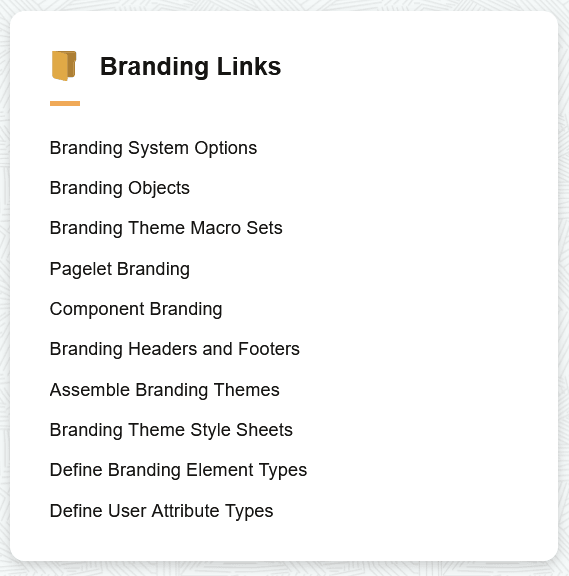
The navigation collections section with the default settings is rendered as shown in this screenshot.
-
psc_theme-section-all-primary-1
-
psc_section-link-collection
- In Loader Class Configuration Data, set PTPPNAVCOLL to ADMN_BRANDING. Note that the Branding navigation collection is used only as an example to render the section; it is not the default value.
This example illustrates the navigation collections section with default settings.
After importing the section template, in addition to the mandatory changes described previously in this topic, you may modify the style classes as shown in the following example:
In PS_STYLECLASSES, enter the style classes separated by a semi-colon (;).
-
psc_theme-section-primary-1
-
psc_theme-tile-transparent
-
psc_section-simple-list-collection
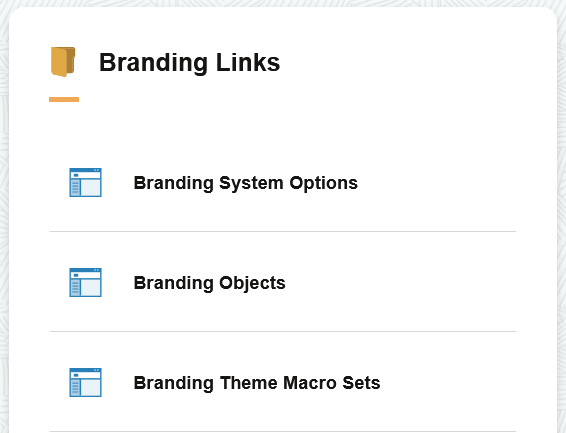
Based on styling from the example, the navigation collections section is rendered as shown here:
Configuration Data for the Navigation Collection Section Template
The following table contains the complete list of configuration property names and expected values for Navigation Collection.
Table 14-3 Configuration data
| Property Name | Value | Description |
|---|---|---|
|
PTPPNAVCOLL |
A string containing the content reference name of the navigation collection. |
Specifies the navigation collection definition that the system uses to render the section. Note: PTPPNAVCOLL is a required configuration property. |
|
IMAGENAME |
An image name. |
Specifies the image to display for each section entry that does not already have an associated image. This property is optional. If you do not specify an image, the system uses the default navigation collection image, PTPP_FN_CONTENT_ICN_FL. |
|
TILEPREFIX |
A character string used as the prefix for dynamically created tiles in the section. |
The default value is PTNVC. The value must not exceed six characters and must not contain special characters. Use a unique prefix within a landing page when necessary. For example, if you set TILEPREFIX to MYNC, a dynamically created tile will have the tile name MYNC000001. The system increments the numeric portion of the tile name for subsequent tiles; however, the numeric sequence is not guaranteed to begin with 1. |
|
MAXRESULTS |
A numeric value greater than 0 that specifies the maximum number of entries to display. |
Specifies the maximum number of items to display in the section. The default value is 0, which indicates that no limit is specified for this property. This property limits only the number of items presented in the section. It does not change how the system collects navigation collection items. The system collects and sorts all items before applying the display limit. Because the system still retrieves the complete navigation collection, configuring this property does not improve performance. |
|
MAXFETCH |
A numeric value greater than 0 that specifies the maximum number of entries to retrieve. |
Specifies the maximum number of items to retrieve from the navigation collection definition for the section. The default value is 100. This property limits the number of items that the system retrieves before sorting them. As a result, the displayed items might not represent the complete sorted navigation collection because the system sorts only the retrieved subset. Configuring this property can improve performance by preventing large navigation collections, particularly collections that contain menu links, from retrieving more items than are practical for display in a homepage section. |
|
MAXDEPTH |
A numeric value greater than 0 that specifies the maximum number of navigation collection levels to traverse. |
Specifies the maximum depth that the system traverses when collecting items to display. The default value is 0, which indicates that there is no depth limit. To display the same number of levels that appear in the Navigation Panel of the Navigation Collection component, set MAXDEPTH to 2. |