Favorites Section Template
The Favorites section template renders users’ favorite items as links by default. Administrators can import this section into any PeopleSoft landing page, homepage, or dashboard. The template leverages an application class that extends the DynamicLoader application class.
The Favorites items are available in the Quick Access Bar (QAB) and in the NavBar. In addition to these, PeopleTools enables you to add the Favorites items to a landing page, sectionalized homepage, or sectionalized dashboard as a section.
When you plan to use the Favorites section, you should note the following:
-
If a user has not saved any favorites, the section does not appear.
-
Permissions to access favorites data are the same as that for favorites within QAB and NavBar. If the user does not have permissions to access favorites data, the section does not appear.
-
All favorites items are displayed.
However, you can use the configuration property, MAXRESULTS, to limit the number of items to display in the section. This configuration property is described later in the Configuration Data for the Favorites Section Template topic.
If you want to display all favorites items in the section, you may have to design the section such that a scroll bar appears for users to view all the items. Application developers can enable vertical scrolling by limiting the height of a section. For information on adjusting section height to enable vertical scrolling, see Creating and Styling Sections.
-
An edit button (pencil icon) is available on the Favorites section to navigate to the Edit Favorites component. For more information on the Edit Favorites page, see Applications User’s Guide: Working with Favorites.
To view the delivered Favorites section template, navigate to , and select the corresponding Edit link.
This example illustrates the settings in the delivered Favorites section template. You can find definitions for the fields and controls later in this page.
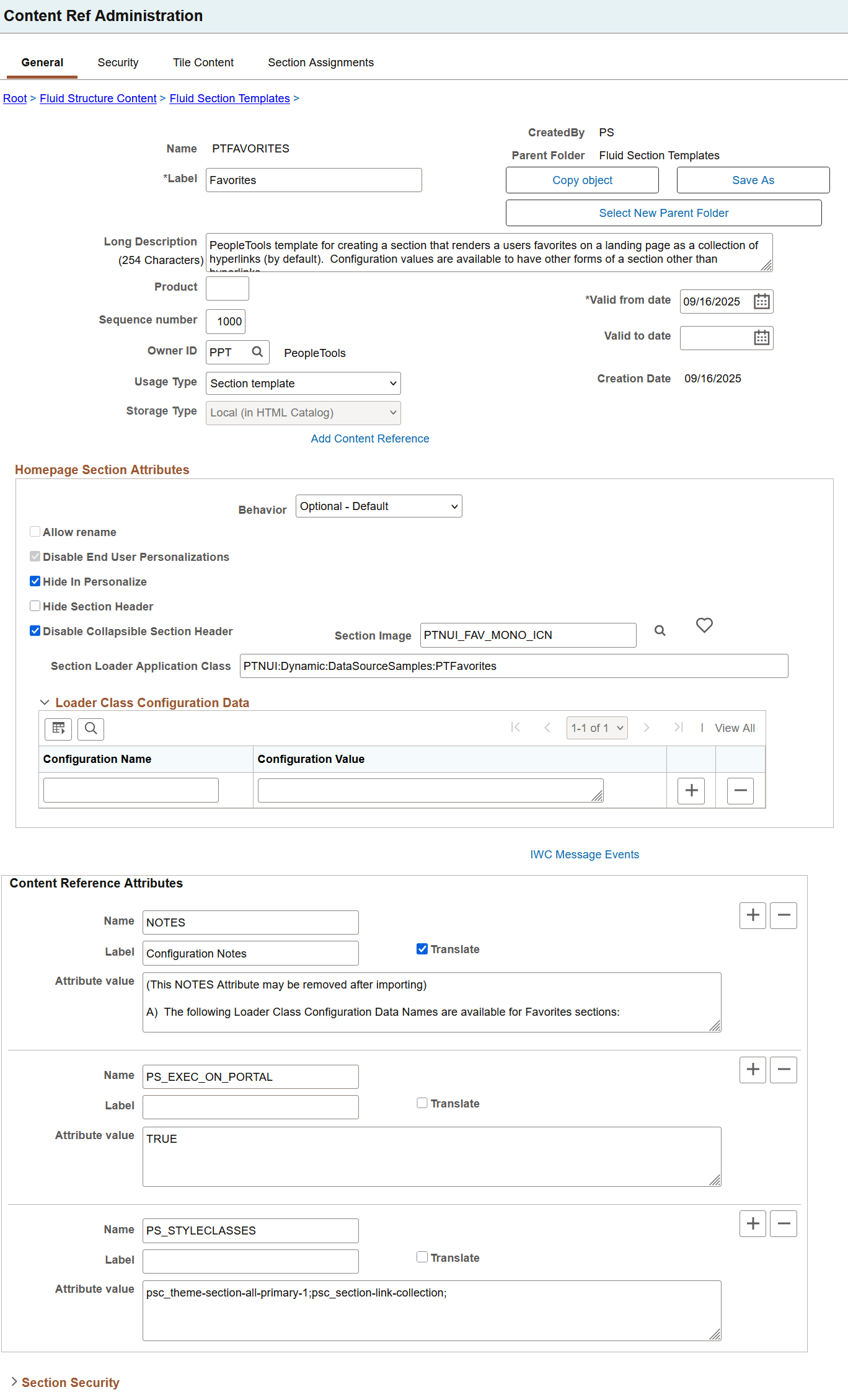
For descriptions of all the fields and controls on the Favorites section template page, see Creating a Section Template.
The following table describes the fields that you should take note of and change, if required, after you import this section template to a target landing page, sectionalized homepage, or sectionalized dashboard.
| Field or Control | Description |
|---|---|
|
Section Loader Application Class |
Use the PTFavorites application class to dynamically load the Favorites items in the section. It is an extension to the base class PTNUI:Dynamic:DynamicLoader. |
|
Content Reference Attributes |
|
|
Loader Class Configuration Data |
Enter the configuration data as a name-value pair. See Loading Configuration Data in the DynamicLoader Application Class for more information. |
Examples of the Favorites Section
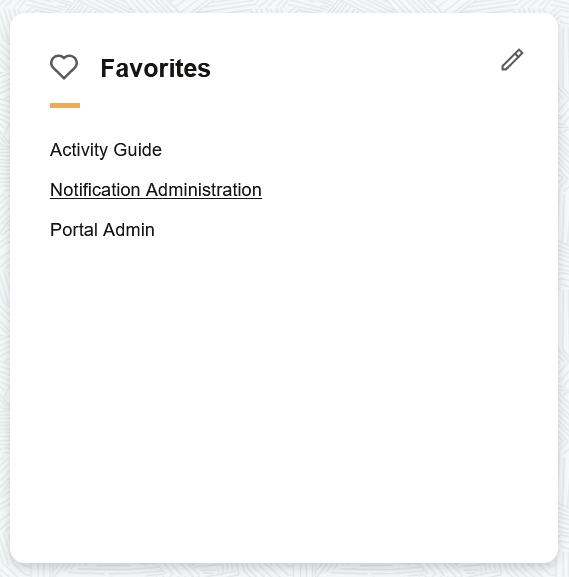
The Favorites section with the default settings is rendered as shown in this screenshot.
-
psc_theme-section-all-primary-1
-
psc_section-link-collection
This example illustrates the Favorites section with default settings.
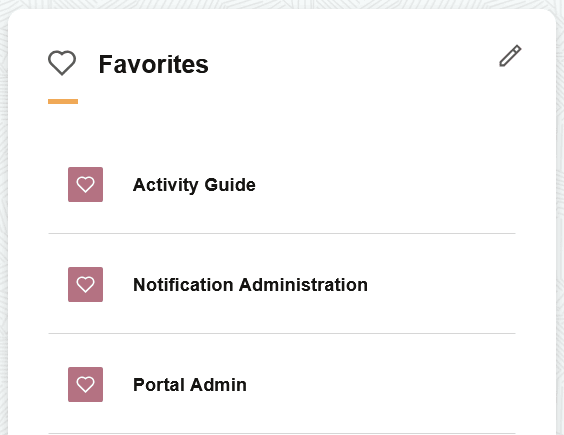
After importing the section template, you may modify the style classes as shown in the following example:
In PS_STYLECLASSES, enter the style classes separated by a semi-colon (;).
-
psc_theme-section-primary-1
-
psc_theme-tile-transparent
-
psc_section-simple-list-collection
By default, the favorites items are displayed as hyperlinks and do not have an icon associated with it. If you want to associate an icon for each entry, you can do that using the IMAGENAME property in configuration data, which is discussed later in this topic: Configuration Data for the Favorites Section Template.
This example illustrates the Favorites section post import with modified styling.
Configuration Data for the Favorites Section Template
The following table contains the complete list of configuration property names and expected values for Favorites.
Table 14-2 Configuration data
| Property Name | Value | Description |
|---|---|---|
|
IMAGENAME |
An image name or DEFAULT. |
Enter the name of an image or specify DEFAULT. When you specify DEFAULT, the system uses the same icon (PTNUI_FAVITEM_ICN) that appears in the Quick Access Bar and NavBar for favorites items. |
|
TILEPREFIX |
A character string used as the prefix for dynamically created tiles in the section. |
The default value is PTFAV. The value must not exceed six characters and must not contain special characters. Use a unique prefix within a landing page when necessary. For example, if you set TILEPREFIX to MYFAV, a dynamically created tile will have the tile name MYFAV000001. The system increments the numeric portion of the tile name for subsequent tiles; however, the numeric sequence is not guaranteed to begin with 1. Use different prefixes to distinguish multiple sets of recently visited tiles. For example, if you create two recently visited sections that use different tile presentations, assign a different prefix to each section. |
|
MAXRESULTS |
A numeric value greater than 0 that specifies the maximum number of entries to display in the section. |
The default value is 0, which indicates that no limit is specified for this property. |