Specifying Menu Display Options
After selecting the Menu option on the Select Display Format page, select the Specify Display Options page (Select On the Select Display Format page, click the Next button.)
This example illustrates the fields and controls on the Specify Display Options page for the menu display format. You can find definitions for the fields and controls later on this page.
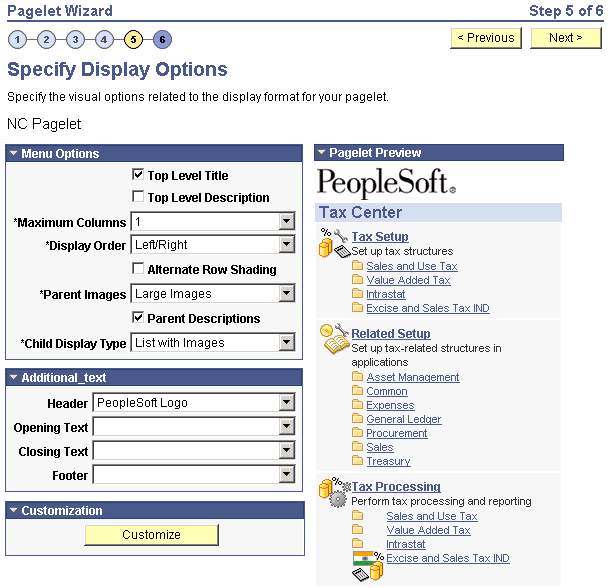
Menu Options
| Field or Control | Description |
|---|---|
|
Top Level Title |
Select to have the menu pagelet display the top-level title defined in the underlying navigation collection. |
|
Top Level Description |
Select to have the menu pagelet display the top-level description defined in the underlying navigation collection. |
|
Maximum Columns |
Select the number of columns to display (options are 1 through 4) on the navigation collection menu pagelet. Narrow pagelets display contents in one column. Wide pagelets can display contents in up to four columns. |
|
Display Order |
Select the order in which you want navigation collection elements to appear on the menu pagelet. When you create a navigation collection, you define the order of folders and links in the collection using options in the Placement Properties group box on the Edit Folder page and the Edit Link page. Options are: Left to Right: Select to display the elements from left to right on the menu pagelet. Top to Bottom. Select to display the elements from top to bottom on the menu pagelet. |
|
Alternate Row Shading |
Select to display alternate row shading on the menu-formatted pagelet. |
|
Parent Images |
Select the type of images that you want to display for parent-level navigation collection elements (folders) on the menu pagelet. When you create a navigation collection, the collection definition includes specified large and small images that appear for parent-level elements in the navigation collection. Options are: Large Images: Select to have the menu pagelet display the large folder image defined for the underlying navigation collection. No Images: Select to prevent parent-level images from appearing on the menu pagelet. Small Images: Select to have the menu pagelet display the small folder image defined for the underlying navigation collection. |
|
Parent Descriptions |
Select to have the menu pagelet display parent-level folder descriptions defined in the underlying navigation collection. |
|
Child Display Type |
Select the display type for child links on the menu pagelet. Options are: Comma Delimited: Displays the maximum number of child links separated by commas. List with Images: Displays the maximum number of child links accompanied by icons. This icon is the small content image selected in the navigation collection system or registry options for the underlying navigation collection. Simple List: Displays the maximum number of child links, one child link per row. No bullets, numbers, or icons appear in the list. |
Pagelet Preview
Displays a preview of the pagelet based on most display option settings on this page.
Related Topics