Specifying Table Display Options
After selecting the Table option on the Select Display Format page, select the Specify Display Options page ( On the Select Display Format page, click the Next button.)
This example illustrates the fields and controls on the Specify Display Options page for the table display format. You can find definitions for the fields and controls later on this page.

Table Options
Select options that will display grid lines, alternate row shading, and row numbers on the table-formatted pagelet.
Columns
| Field or Control | Description |
|---|---|
|
Column Name |
Displays possible column headings provided by the selected data source parameters. Use the drop-down list boxes to set the order in which the columns appear on the table-formatted pagelet. Use the Add button or the Delete button to add or remove columns. |
|
Alignment |
Specify the alignment of the text in the column. Options are Center, Left, and Right. |
|
|
Click the Link Options icon to display the Link Details page, where you can associate URLs with field values, which at runtime appear on the pagelet as active links that you click to access additional relevant information. |

Setting Thresholds
Access the Set Thresholds page by clicking the Set Thresholds button in the Table Options of step 5 in Pagelet Wizard.
This example illustrates the fields and controls on the Set Thresholds page. You can find definitions for the fields and controls later on this page.
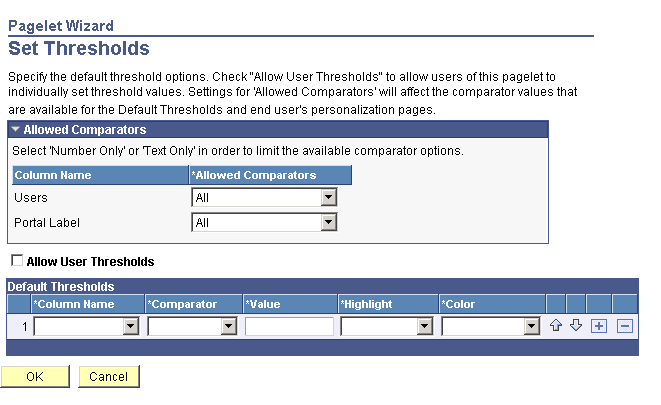
Use the Set Thresholds page to set the column alignment and threshold options.
| Field or Control | Description |
|---|---|
|
Allowed Comparators |
The system displays the column names and enables you to set the comparators for that column based on numbers, text, or both. |
|
Allow User Thresholds |
Select to enable users to set their own threshold values for the table from the Personalization page. |
Set the display order and attributes of each column. Use the up and down arrows to change the display order of the columns, if necessary. Each column threshold can have a unique color associated with it—duplicates are allowed. If more than one threshold rule applies for a given value, the rule that is positioned highest in the list is the one that is applied.
| Field or Control | Description |
|---|---|
|
Column Name |
Select the column name from the drop-down list box. |
|
Comparator |
Select a comparator value for each column. |
|
Value |
Enter the threshold value for the column. When this value is reached, the highlight and color attributes become active. |
|
Highlight |
If you choose to have highlighting for the threshold, select either the entire row or just a single cell. |
|
Color |
Select the color for the column. |
|
|
Use the arrows to move each individual column up or down in the table. |


Pagelet Preview
Displays a preview of the pagelet based on most display option settings on this page.