Upgrading OGL from a Previous Release
In PeopleTools 8.62 and later, new definitions are used to implement and configure OGL. You must disable any prior configuration before using these new definitions.
Upgrading from PeopleTools 8.61 to 8.63
To upgrade OGL from PeopleTools 8.61 to 8.63, first disable the prior configuration of OGL, and then enable it for the current release.
-
In Application Designer, run the PT_OGL_FL_AE Application Engine program to disable OGL on fluid pages. If output to log has been selected, review the log file for this message:
Oracle Guided Learning has been successfully disabled. (0,0) -
In the browser, go to PeopleTools, Portal, Branding, Branding System Options.
-
If the default branding theme is DEFAULT_THEME_FLUID_OGL, continue with step 3a. Otherwise if you have a custom branding theme and header, skip to step 4.
-
Change the default theme to DEFAULT_THEME_FLUID.
-
Check to see if you have any portal-specific overrides. Go to PeopleTools, Portal, Branding, Assign Branding Themes.
-
If you are presented with a standard PeopleSoft search page, no portal-specific overrides are in effect. Skip to step 3h.
-
Otherwise, modify each portal-specific override:
-
Change the default theme from DEFAULT_THEME_FLUID_OGL to DEFAULT_THEME_FLUID.
-
Review and update any user attribute-based theme assignments as appropriate.
-
Save your changes.
-
Sign out and sign back in for your changes to take effect. The prior configuration of OGL is now disabled for all classic pages in your system.
-
-
Go to PeopleTools, Portal, Branding, Branding Headers and Footers.
Note:
Access to the Branding Headers and Footers component requires the Secure Branding Administrator role.
-
Open your custom header definition.
-
Modify the definition of the basic HTML element that you added to inject OGL JavaScript. For example, the name suggested in the PeopleSoft implementation guidelines is PT_OGL_CL_JS:
-
Select the branding header element in the tree on the left—for example, select PT_OGL_CL_JS.
-
Click the Additional Options link in the Element Properties pane on the right.
-
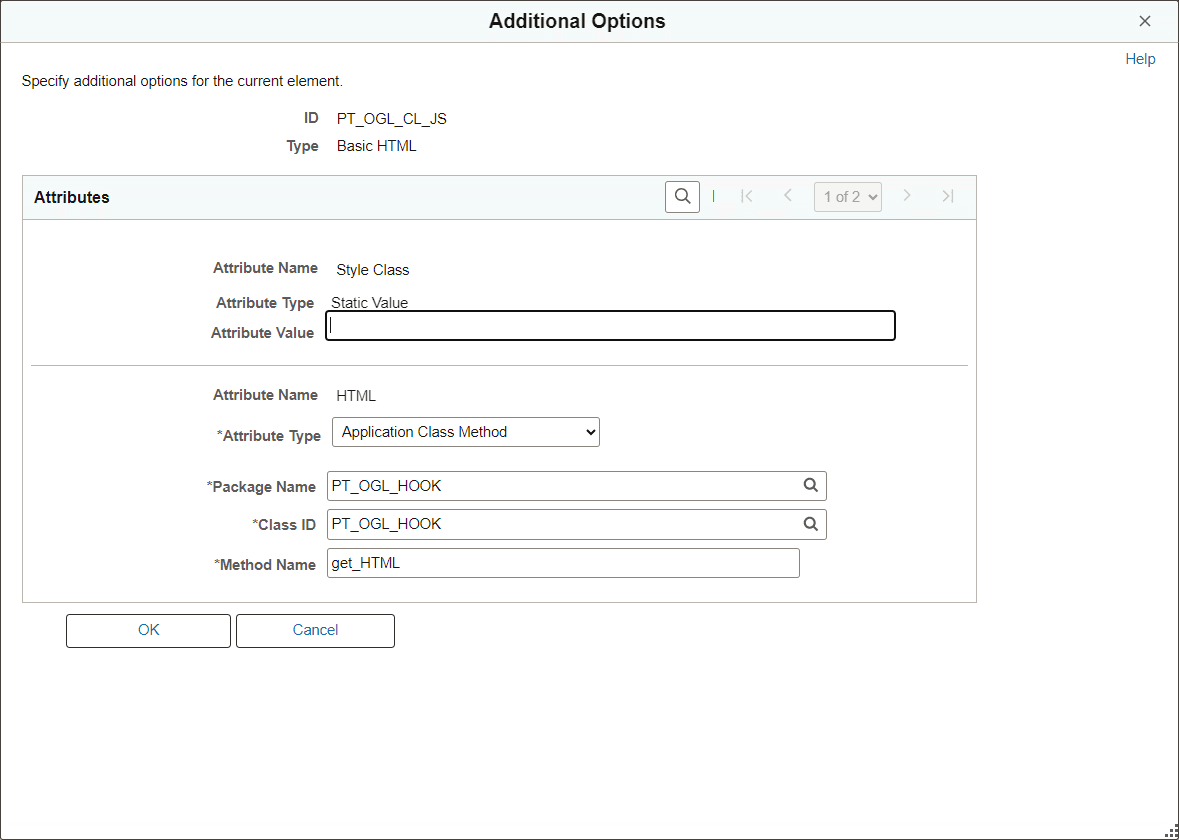
Update the package name to PT_OGL_HOOK and the class ID to PT_OGL_HOOK.
Note:
The method name remains get_HTML.
In this example of the Additional Options page, the application class has been updated to PT_OGL_HOOK.
-
-
Save the changes to your custom header definition.
-
Sign out and sign back in for your changes to take effect. The prior configuration of OGL is now disabled for all classic pages in your system.
- Follow the instructions in this chapter to enable OGL.
See Configuring OGL
OGL PeopleCode for Fluid Components with Search (Upgrading to PeopleTools 8.62)
If you manually configured SearchInit events on fluid components with search, you will need to manually update those configurations to use the PT_OGL_HOOK_RC service ID. See .Adding OGL PeopleCode for Fluid Components with Search.
Upgrading from PeopleTools 8.62 to 8.63
To upgrade OGL from PeopleTools 8.62 to 8.63:
- Go to PeopleTools, then Portal, and then OGL Configuration.
- Clear the Enabled check box to disable the PeopleTools 8.62 configuration.
- Follow the instructions in this chapter to enable OGL.
Note:
Ensure that the Package Name for the PeopleTools 8.63 OGL configuration is different from the Package Name used for PeopleTools 8.62.
OGL PeopleCode for Fluid Components with Search (Upgrading to PeopleTools 8.63)
If you manually configured SearchInit events on fluid components with search, you may want to manually remove those.