Working with MCP Server Modes
The MCP server supports two deployment modes: stdio mode and stream server mode.
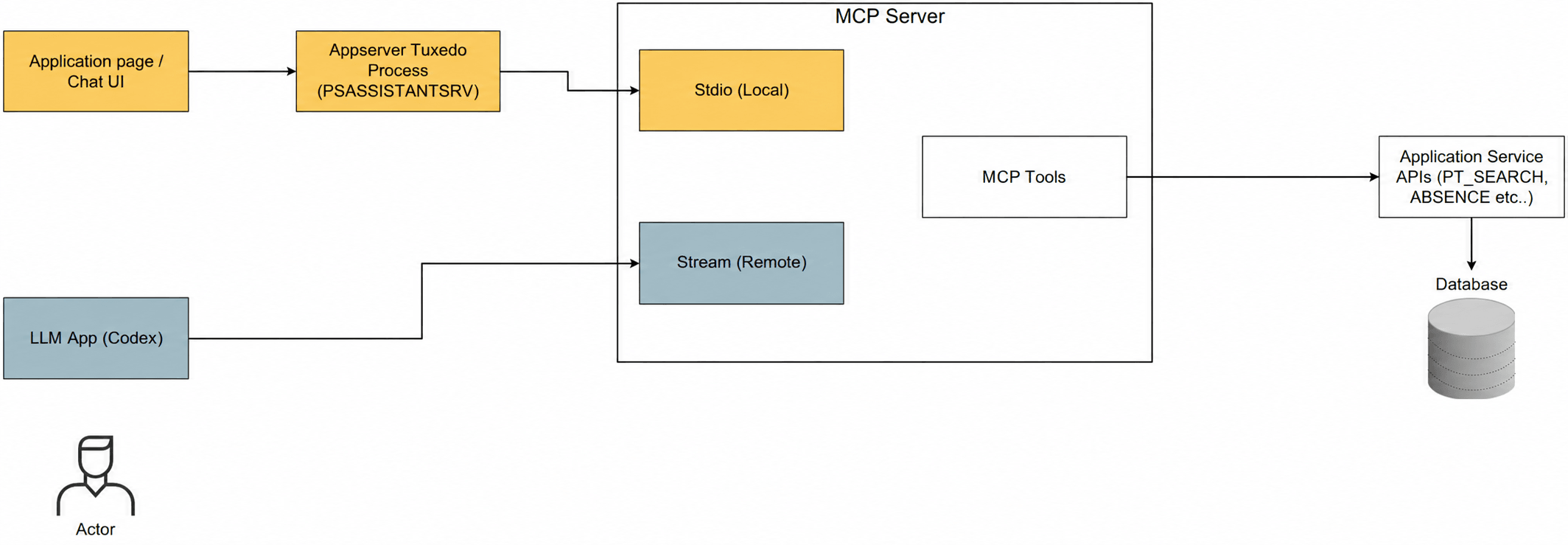
Use stdio mode for local PeopleSoft-managed integrations, such as Chat UI scenarios where the MCP server runs as part of the PeopleSoft-managed environment. Use stream server mode for standalone MCP Server deployments where external MCP-compatible clients, such as Codex, connect to PeopleSoft through a configured MCP endpoint.
Connecting through stdio Mode
Use the stdio mode when the MCP Server is configured as an Application Server Tuxedo process. In this mode, the MCP client starts the server as a local process and exchanges requests and responses through standard input and standard output.
Use this mode when the MCP client and the PeopleSoft Application Server run in the same managed environment. The stdio mode provides a direct, process-based connection suitable for local or tightly integrated deployments.
Use the following script to start the MCP Server in stdio mode:
$PS_HOME/bin/ps_assistant/psft_mcp_server.pyConnecting through Stream Server Mode
Use the stream server mode to connect an external LLM application, such as Codex, to the PeopleSoft MCP Server. In this mode, the MCP Server runs as an independent process and listens for client requests through its configured stream endpoint.
Use this mode for remote or shared integrations where the LLM application is not launched as part of the Application Server Tuxedo process. The stream server mode enables authorized external clients to connect to the PeopleSoft MCP Server and access the available PeopleSoft MCP tools through the configured server connection.
Use the following script to start the MCP Server in stream server mode:
$PS_HOME/bin/ps_assistant/psft_mcp_server_stream.pyFor stream server prerequisites, endpoint configuration, and security settings, see Configuring the MCP Server.