Setting Process Definition Options
Access the Process Definition Options page (). Select the Process Definition Options tab.
This example illustrates the fields and controls on the Process Definition Options page. You can find definitions for the fields and controls later on this page.
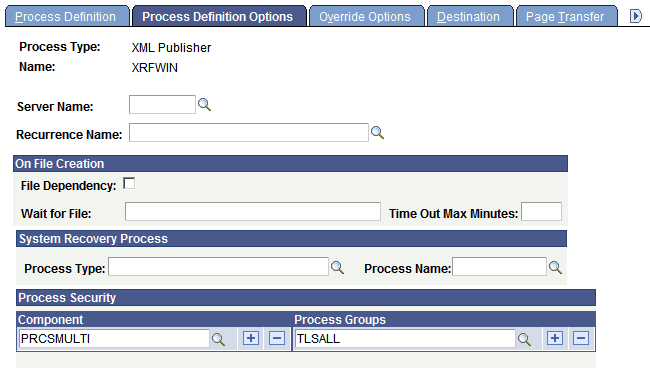
Use the Process Definition Options page to specify a location, server, component, or process group from which to run a process.
| Field or Control | Description |
|---|---|
|
(Optional) Server Name |
Specify a server on which the process should run. Specify the server name only to restrict this particular process to this server definition (or if you have only one server platform to submit your requests). Leave blank to have the process requested for the first server or default operating system that can process requests for the specified process class. This enables you to balance the load between multiple process servers because your request is initiated by the first available server on the default operating system. Important: For the system to evaluate values that are entered for the On File Creation feature, you must provide a server name. This is validated when you save your process definition. |
|
(Optional) Recurrence Name |
Specify a predefined recurrence definition for this process. |
On File Creation
| Field or Control | Description |
|---|---|
|
File Dependency |
Select to activate the On File Creation feature. If this option is activated, Process Scheduler checks for the existence of the file. If the file is found and no other process is using it, the process will run. If the file is not found or is in use, the process does not run but enters a Blocked state. Time counting starts at this point. Process Scheduler continues to check for the file. If the file is found and is not in use, then the process will run. If the file is not found or it is in use even after the time interval specified in Time Out Max Minutes, the process will go to Error state. If the Max Time Out Minutes field is left blank, the process scheduler does not schedule the process as long as the file is not found in the specified location. |
|
Wait for File |
Enter the location and name of the file that this process depends on. The process will not run until this file has been found if the file dependency option is activated. Processes on hold due to dependent files not being found appear on the Process Monitor with a run status of Blocked. When the dependent files have been located, blocked processes are released and queued. Note: This information can also be entered or changed at runtime if the File Dependency check box is selected. |
|
Time Out Max. Minutes |
Enter a time limit for the system to locate the dependent files. The system compares the current date time to the timestamp of the time that the process was queued. If the time limit is exceeded, the process is marked as Error and the restart procedure is attempted. |
System Recovery Process
| Field or Control | Description |
|---|---|
|
Process Type and Process Name |
Enter the type and name of an optional process that can be run if this process runs to an error. The original process will not restart until the system recovery optional process that is entered here has run. |
Process Security
| Field or Control | Description |
|---|---|
|
Component |
Attach the process to components. Adding a component to a process definition causes that process definition to appear on the Process Scheduler Request page when you select File, Run in that component, if you have security to run the process. |
|
Process Group |
Make the process definition a member of the group. A process definition can be a member of multiple process groups. Select an existing group, or add a new group by entering a unique process group name. To add new rows, click the Add button. Process groups are then assigned to security profiles in PeopleSoft Security Administrator, which enables you to specify the process requests that classes of users can run. |