Specifying Process Variables
To specify process variables:
-
Select
-
Select an existing run control ID or add a new run control ID.
-
Select Run.
This example illustrates the fields and controls on the Process Scheduler Request page. You can find definitions for the fields and controls later on this page.
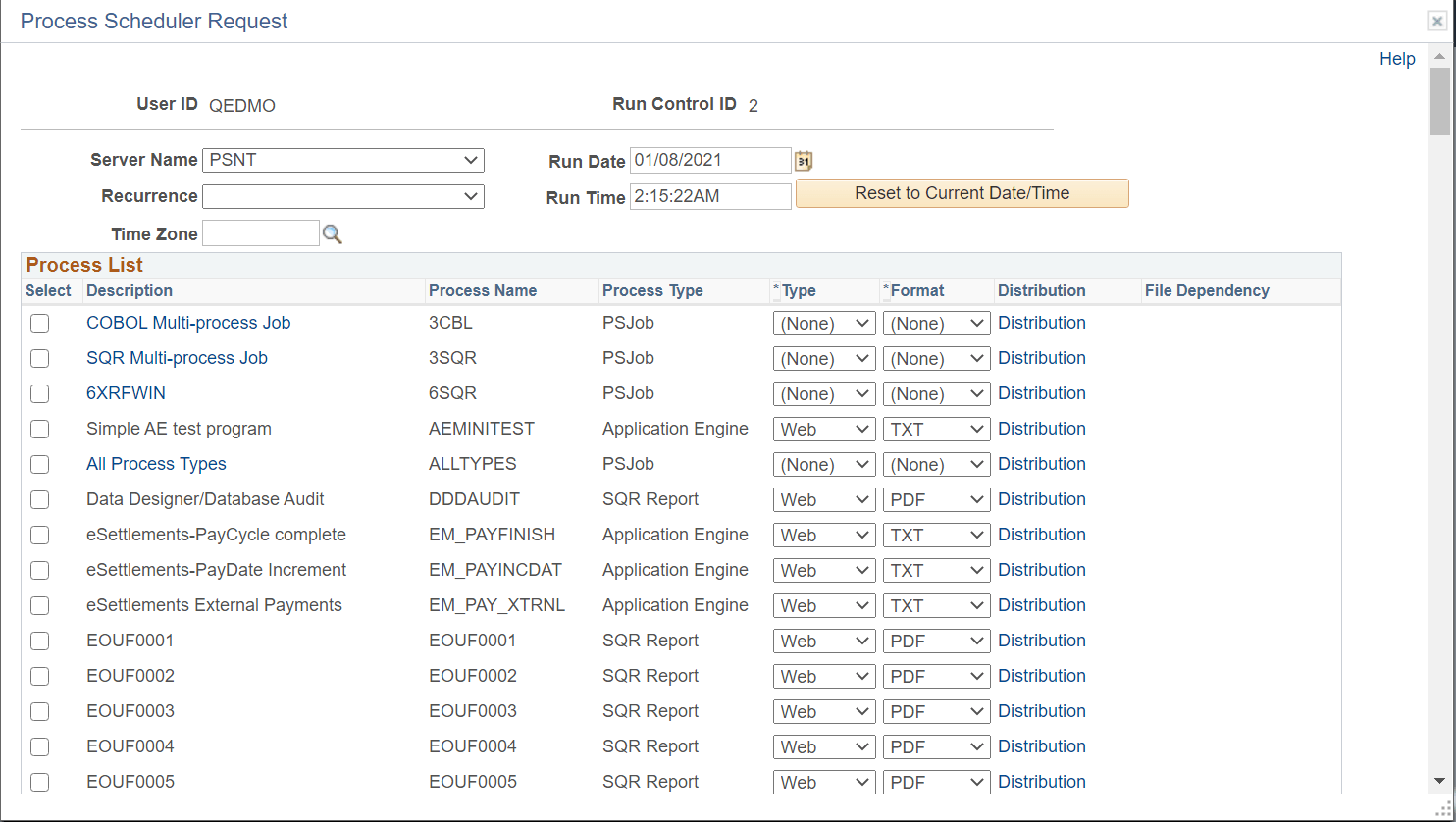
| Field or Control | Description |
|---|---|
|
Server Name |
Select the name of the server on which you want the process to run. Note: The Server Name drop-down list displays only the configured servers, listed in the Server List page, in Process Monitor. |
|
Recurrence |
Select the recurring time intervals for the process to run. For example, to run a process every weekday at 5:00 p.m., select the predefined recurrence definition M-F at 5pm. |
|
Time Zone |
Select the time zone in which the process will run. For example, you might be in Eastern Standard Time (EST) and schedule a process to run in Pacific Standard Time (PST). |
|
Run Date |
Select the date on which you want the process to run. |
|
Run Time |
Select the time when you want the process to run. |
|
Reset to Current Date/Time |
Select to reset the run date and time to the present date and time. |
|
Select |
Select a job or process to run. You can select multiple jobs and processes. |
|
Description |
Identifies a process or job. Jobs are listed as links. Click the link to display the Job Detail page, which shows all of the individual processes and jobs that are associated with the selected main job. |
|
Process Name and Process Type |
Identifies the name and type (such as COBOL) of the process as it appears in the process or job definition. |
|
Type |
Select the output type for this job or process. An output type that is selected for a process at the process definition level overwrites the output type, and the output type drop-down list box becomes unavailable. An output type that is selected for a job at the main job level carries through to the job items. An output type that is selected for individual job items overwrites the output type that is entered for the parent job. Output type for an BI Publisher report is set at the report definition level. Options set at that level may render the output type drop-down list box unavailable. File: Writes the output to the file that you indicate in the Output Destination field. Note: For PS/nVision, the Output Destination must contain the full path and the name of the file. Printer: Sends the output to a printer. You can enter a custom printer location in the Output Destination field if you have the appropriate security access. If the Output Destination field is left blank, the printer that is defined on the Process Profile Permissions page is used. If that printer is undefined, the default printer that is defined for the process scheduler is used. Email: Sends the output by email. To distribute a report to an email list, enter the appropriate information on the Distribution Detail page by selecting the Distribution link. By default, the output is sent by email to the person running the process. This option is available for SQR, PS/nVision, and BI Publisher. Web: Sends all output of the process to the report repository, including log and trace files. The format of the report is specified by the format list. Window: Sends the output to a new browser window. The status of the process now appears in the new browser window before the results are displayed. The different states can be Queued, Initiated, Processing, Success, Error, or Warning. All output for the process is also sent to the report repository, including log and trace files. The format of the report is specified by the format list. When multiple processes are requested, a new browser window is opened for each request. Note: This output type is not available if the user does not have REN server Report Window permission, or no active REN server cluster is available for Reporting. To grant access to the new browser window, the permission lists of the users must include full access for the Realtime Event Notification for Reporting Window and the WEBLIB_RPT web library with full access. |
|
Format |
Select the output format for this job or process. When an output format is selected for a process at the process definition level, it cannot be changed. Therefore, the Format drop-down list box becomes unavailable. An output format that is selected for a job at the main job level carries through to the job items. The format that is selected for individual processes or jobs that are attached to a job override the format that is entered for the parent job. Output format for a BI Publisher report is set at the report definition level. Options set at that level may render the output format drop-down list box unavailable. |
|
Distribution |
Select the Distribution link to access the Distribution Detail page, where you enter additional distribution information when the output type is Web, Window, or Email. Also use this page to select a folder name to which the output should be distributed when the output type is Web or Window. Note: If a job is assigned with a recurrence pattern the distribution list should be added as part of the job definition on the job definitions options page. Any changes made to the distribution list at runtime will only apply to the first iteration. |
|
File Dependency |
Select the File Dependency link to access the File Dependency page, where you can change the name of the file that is currently listed. Note: File dependency information is saved with the run control ID. Therefore, information that is changed in the process definition will not appear here. |
|
Output Destination |
Enter the file directory path or printer destination for the output. This field is available only when the output type that you select is File or Printer. If you select an output destination for a process at the process definition level, this field is populated with that output destination. Note: For PS/nVision, if the output type is File, the output destination must contain the full path and the name of the file. |
Related Topics