Adding Fields to Query Content
Use the Query page (QRY_QUERY) to add fields to the query content and add additional records by performing joins.
Navigation:
To access the Query page:
-
Select
-
Click the Create New Query link.
-
Click the Search button to find an existing record, and click the Add Record link for the desired record.
Note:
When you first access this page, if you have selected the record for an effective-dated table, a page informs you that an effective date criteria has been automatically added for this record. Click the OK button to close the page.
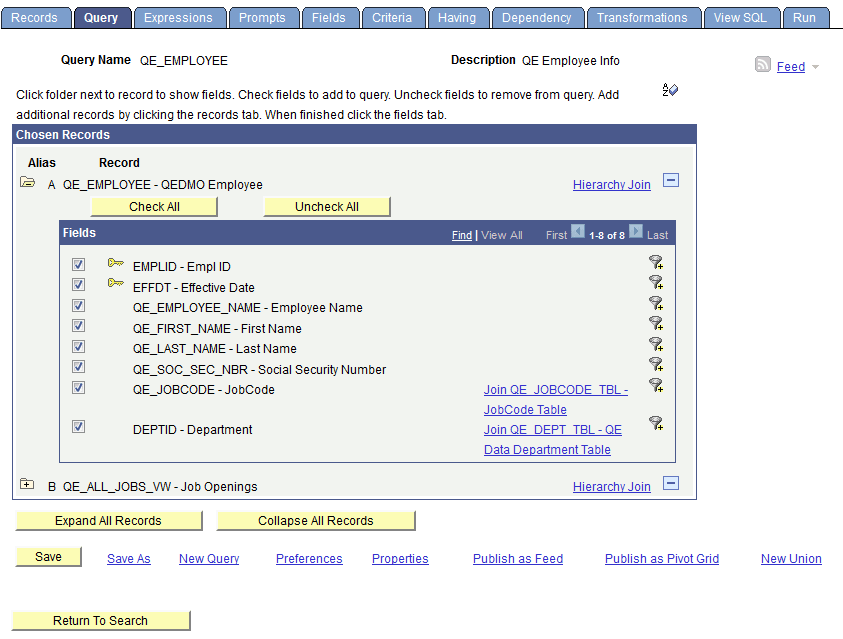
This example illustrates the fields and controls on the Query page. Definitions for the fields and controls appear following the example.
| Field or Control | Description |
|---|---|
|
|
Click the Sort button once to list fields in alphabetical order. Click the button again to return to the original sort. |
|
Alias |
The alias name that the system automatically assigns to the selected records. Note: You can select and add up to 676 records for each query. The record alias goes from A to Z for record number 1 to record number 26. When you add record number 27 and after, the record alias starts at AA and follows the pattern AB, AC, AD, and so on. The record alias doesn't include AS and TO, and ends with ZX, ZY, and ZZ. |
|
Hierarchy Join |
Click this link to join a child table to its parent table. |
|
Check All |
Click this button to check all fields in the record. After you select a field, the system automatically adds it to the query and you can view it on the Fields page. This button does not appear when the field names are hidden. |
|
Uncheck All |
Click this button to clear all fields in the record. |
|
Fields |
Select the check box to the left of each field that you want to add to your query content. |
|
Join <record name> |
Click the related record join link to join two records that are based on a shared field. For example, in the above example, the QE_DEPT_TBL record is related to the QE_EMPLOYEE record by the DEPTID field. |
|
Expand All Records |
Click this button to view all fields in the records This button appears only when there is more than one record listed. |
|
Collapse All Records |
Click this button to hide all fields in the records. This button appears only when there is more than one record listed. |

In the Query page, to add fields to your query:
-
Select the fields to add to the query either by clicking their Fields check boxes or by clicking the Check All Fields button.
-
When you have selected the desired fields, select the Fields tab.
Related Topics