Viewing Fields Selected for Output
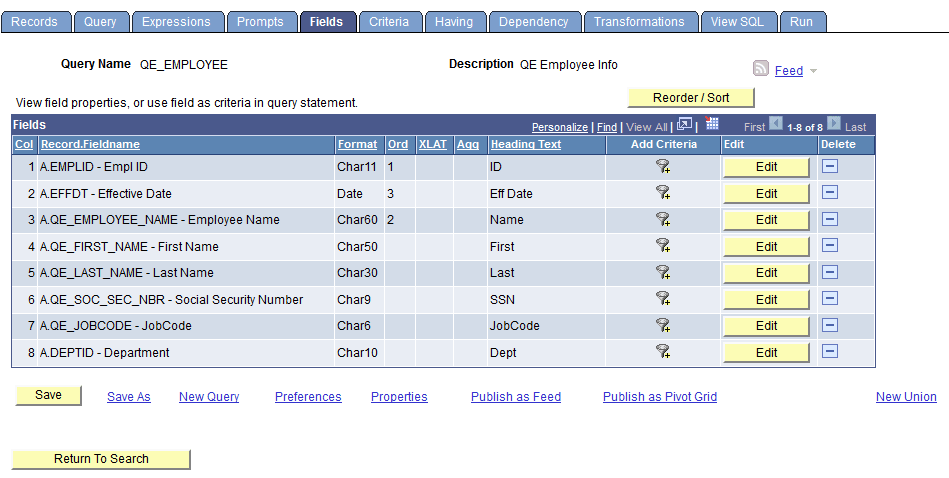
Use the Fields page (QRY_FIELDS) to view how fields are selected for output and the properties of each field. You can also change headings, order-by numbers, and aggregate values.
Navigation:
To access the Fields page:
-
Select
-
Click the Create New Query link.
-
Click the Search button to find an existing record.
-
Click the Add Record link for the desired record.
-
Select the desired fields, and then select the Fields tab.
This example illustrates the fields and controls on the Fields page. Definitions for the fields and controls appear following the example.
| Field or Control | Description |
|---|---|
|
Format |
Field type and length for each field listed. |
|
Ord (order) |
Shows one or more fields selected to sort your query output. If the field is the first sort field, a 1 appears, and the system sorts rows that are based on this field first. The second sort field that is selected is numbered 2, and so on. You can also specify a descending sort order. The letter D appears if you are sorting fields in descending order. |
|
XLAT (translate) |
Specifies the translate value that you want to appear in the query results: N (none), S (short), or L (long). The table you’re querying may include fields that use the Translate table. If so, the field itself contains a short code of some kind, for which the Translate table provides a set of corresponding values. For example, if the table includes an EFF_STATUS field, the value is A or I, which the Translate table translates into Active and Inactive. If a field has values on the Translate table, a letter appears in the XLAT column for that field. In your query results, you might want to display the translated value rather than the code (for example, Active instead of A). To instruct PeopleSoft Query to make this substitution, specify L as the translate value. Translate tables are effective-dated, so you must select which effective date to use for them. For most tables, PeopleSoft Query defaults to the current date, meaning that it uses the currently active list of Translate table values. However, if the table you’re querying is also effective-dated, PeopleSoft Query uses the value in the EFFDT field for a row. That is, for each row the query returns, PeopleSoft Query uses the Translate table values that were active as of that row’s effective date. If neither of these effective date options are what you want, you have two more options:
|
|
Agg (aggregate) |
Aggregate function for each field listed. |
|
Heading Text |
The heading assigned to appear at the top of the column for the query output for each field listed. |
|
Add Criteria |
Select the Add Criteria icon to access the Edit Criteria Properties page, where you can edit selection criteria properties for your query statement. |
|
Edit |
Click this button to display the Edit Field Properties page. |
|
Reorder/Sort |
Click this button to display the Edit Field Ordering page, which enables you to change the column order and/or sort order for multiple fields. |