Changing the Column and Sort Order for Multiple Fields
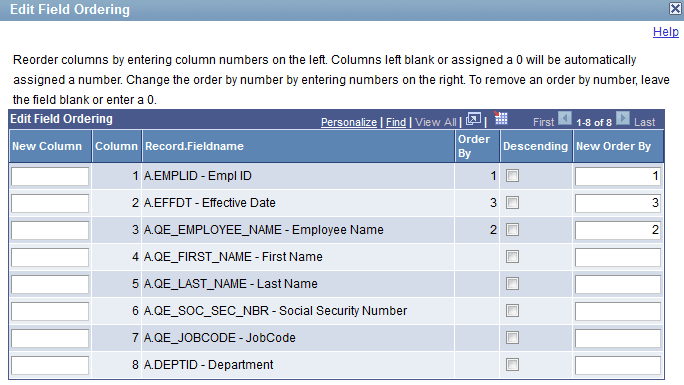
Use the Edit Field Ordering page (QRY_FIELDS_ORDER) to change the column and sort order for multiple fields.
Navigation:
To access the Edit Field Ordering page:
-
Select
-
Create a new query or search for an existing one.
-
Select the Fields tab, and click the Reorder/Sort button.
This example illustrates the fields and controls on the Edit Field Ordering page. Definitions for the fields and controls appear following the example.
| Field or Control | Description |
|---|---|
|
New Column |
Enter the new column number to reorder the columns. Columns that are left blank or assigned a zero are automatically assigned a number. |
|
Column |
By default, the fields appear in the same order as they are listed in the record on the Query page. |
|
Order By |
Indicates current sort order. |
|
Descending |
Select this check box to sort fields in the descending order. |
|
New Order By |
Enter the new sort order number to change the sort order. Enter zero to remove a sort order. If the field is the first sort field, enter 1 and the system sorts rows based on this field first. To designate the second sort field, enter 2, and so on. |