Editing Field Properties
Use the Edit Field Properties page (QRY_FIELDS_SEC) to format the query output; for example, to change column headings or display translate table values in place of codes.
Navigation:
To access the Edit Field Properties page:
-
Select
-
Create a new query or search for an existing one.
-
Select the Fields tab, and then click an appropriate Edit button.
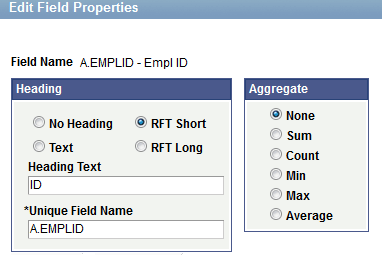
This example illustrates the fields and controls on the Edit Field Properties page. Definitions for the fields and controls appear following the example.
| Field or Control | Description |
|---|---|
|
Field Name |
The name of the field for which you are editing properties. |
|
Heading |
Select a column heading from the following options:
|
|
Unique Field Name |
Used for translations. There is no need to change the default value, which is the alias for the record followed by the record field name (for example, A.NAME or B.EMPLID). |
|
Aggregate |
If you are using aggregate values, select the aggregate function value for this field. An aggregate function is a special type of operator that returns a single value based on multiple rows of data. When your query includes one or more aggregate functions, PeopleSoft Query collects related rows and displays a single row that summarizes their contents.
|
Related Topics