Viewing and Editing Query Properties
Use the Query Properties page (QRY_PROPERTIES) to view and edit data about the current query such as the query name and description, record information about your query, and so on. You also use this page to define how the image fields are displayed in the query results.
Navigation:
To access the Query Properties page:
-
Select
-
Create a new query or search for an existing one.
-
Click the Properties link on any page of the Query Manager component except the Run page.
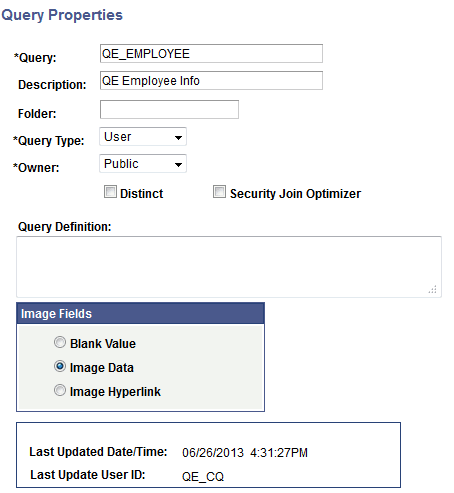
This example illustrates the fields and controls on the Query Properties page. Definitions for the fields and controls appear following the example.
| Field or Control | Description |
|---|---|
|
Query |
Use this field to edit the name of the query. The field can take 30 characters. The name can contain US ASCII alphabetic and numeric characters, as well as underscores. |
|
Description |
Edit the description of the query. |
|
Folder |
Enter the name of the folder in which you would like the query to reside. To create a new folder, enter the name of the new folder. |
|
Query Type |
Select Archive, Process, Role or User. Workflow queries are either Process or Role. |
|
Owner |
Select from the following options:
|
|
Distinct |
Select this option to eliminate duplicate rows in a query result. Some queries return the same row more than once because it satisfies the query in more than one case. For example, if you query the JOB record to return all JOBCODES, you receive multiple rows that look identical because some employees have the same JOBCODE. If you select the Distinct option, you receive each JOBCODE once. This option is not visible for union selections because unions are automatically distinct. Note: In Oracle databases, PeopleSoft LongCharacter fields use the CLOB data type when their length definition exceeds 1333. Since CLOBS and other binary data types are not valid columns for all operators, all queries including columns with LongCharacter field length definition that exceeds 1333 should not include the DISTINCT operator. |
|
Security Join Optimizer |
If two or more records being joined in the current query are associated with the same query security record, use this option to determine whether joins to that query security record must be optimized.
Note:The Security Join Optimizer applies only to records that share the same query security record. Records that reference different query security records are not optimized together. For left outer joins, the Security Join Optimizer is not applied. To preserve the correct semantics of the outer join, PS Query first joins the affected record to its query security record (using either inner join or inline view processing, depending on the database platform) before performing the left outer join. Consequently, left outer joined records do not participate in Security Join Optimizer processing. Because the Security Join Optimizer applies only to applicable inner joins, enabling this option may provide little or no benefit for queries that primarily contain left outer joins. Review the generated SQL to determine whether enabling the option is appropriate for your query. |
|
Query Definition |
Free text area that you can use to further describe your query. |
|
Image Fields |
Use this section to define how the image fields are displayed in the query results. The available options are:
|
Query Image Field Handling
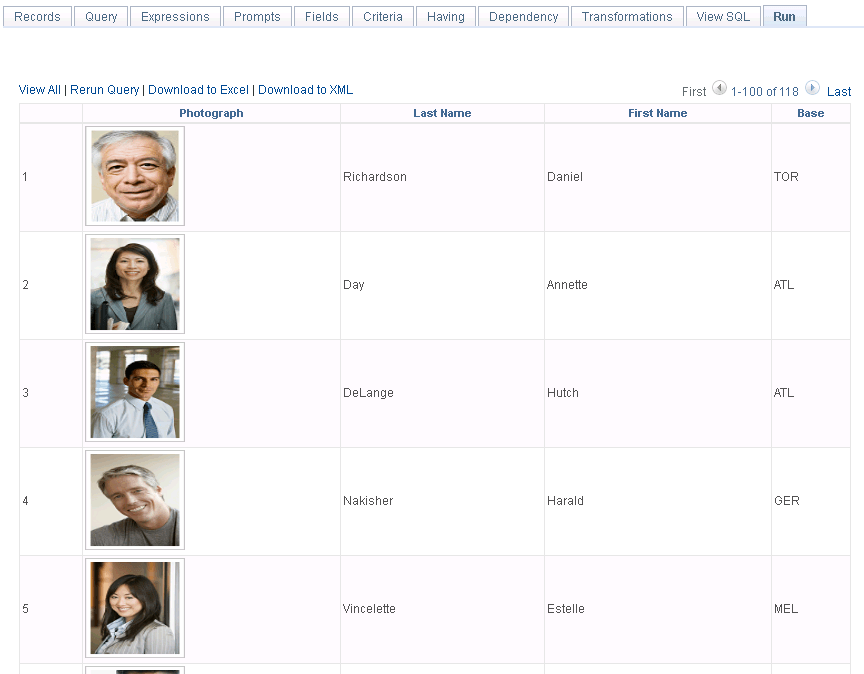
Query supports the use of image fields in the query definition. Setting the Image Fields property under the Query Properties page determines how these field values are displayed in the Query result set. If the image field property is set to Image Data, the image field value (binary image) will be displayed as an embedded image in the result set when you run the query to HTML output format. If you run a query to any other type of format (for example, XML or TXT), a Base64 encoded data string representing the image will be displayed instead. When setting the property to Image Hyperlink, a URL will be returned in place of the field value. When accessed, this URL will return the image as an image file in a new browser window.
Regardless of how the query is run, whether through PSQuery API methods (RunToRowset, RunToFile, and so on) or through the Query Manager or Query Viewer page, the image fields are handled the same way.
Note:
The above-mentioned image handling behavior applies to PeopleSoft Image type fields only. Although other field types such as Long Character, Attachment, and Image Reference are capable of storing image data, these field types are not handled by PSQuery in the same way.
Although all available Image Formats for an image field are supported for the query result set, only a subset of these formats can be successfully displayed as embedded images in Query HTML output. These are BMP, DIB, GIF, JPG, PNG and SVG.
Regardless of the size of the original image, the system resizes images to 100 pixels by 100 pixels in query output.
This example shows the query results after you run the query using the Run page in Query Manager, with the Image Fields property set to Image Data.
This example shows the query results after you run a query using the HTML link in Query Manager, with the Image Fields property set to Image Hyperlink.

Note:
When accessing a Query Image URL (Image Hyperlink), users must be signed into the PeopleSoft PIA environment and have the permission to view the images. If you are not signed into PIA, the sign-in page appears asking for your authentication. If you don’t have access to the images based on both Query Access List security and security joins defined by the underlying records in the query (row-level security), the required rows with image data are not returned and an error message appears.
Note:
If you set the Image Fields section to Image Data for a query, its online performance can be impacted by the size of the images and the number of rows returned.