Selecting Records
Use the Records page (QRY_RECORDS) to select the records upon which to base the new query.
Navigation:
To access the Records page:
-
Select
-
Click the Create New Query link.
-
Click the Search button.
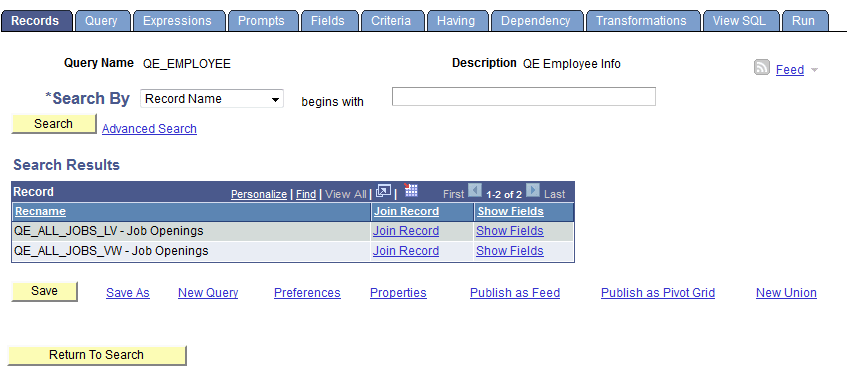
This example illustrates the fields and controls on the Records page.
Note:
In your PeopleSoft database, tables are represented as record definitions. In PeopleSoft Query, we refer to the record definitions as records.
To select a record in the Records page:
-
Find the record upon which to base the query.
-
If you know the entire record name, description, access group name, or field name included in the record, select the appropriate item in the Search By drop-down list.
Enter the name in the field (or click the Look Up button if searching by access group name). Then click the Search button to display a list of records that match your search criteria.
-
You can perform a partial search by entering part of the name in the Search By field.
Note:
Enter as much of the name as possible to find the correct record.
-
You can perform an advanced search by clicking the Advanced Search link.
You can perform a progressively narrower search by selecting conditions for the record name, record description, or field name contained in the record, and then entering an appropriate search string in the fields that correspond to your selections. For access group name, select a condition, click the Lookup Name button, and then select the access group name from the list of access group trees that appears.
-
If you want to view a list of available records, leave the field blank and click the Search button to display a list of up to 300 records.
By default, only the first 20 records appear on the page. To see more records from the list, use the navigation buttons and links located on the header bar. To display 100 records, select the View 100 link, and use the scroll-bar to go through the rest of the list.
-
-
If you want to view a record's fields, click the Show Fields link next to the record in question.
A page displays the record's fields. You can use this information to verify whether you want to base the query upon this record.
-
After viewing the fields, click the Return button to return to the Records page.
-
Click the Add Record link next to the record that you want to add to the query.
The Query page appears enabling you to select the fields from the selected record to add to the query.
Note:
In most cases, you select only one base record from this page. If you navigate back and select a second base record, you are creating an any join for the two records.
Related Topics