Editing Prompt Properties
Use the Edit Prompt Properties page (QRY_PROMPT_SEC) to edit the prompt properties.
Navigation:
-
Select Reporting Tools, Query, Query Manager.
-
Add a new query or search for an existing one.
-
Access the Prompts page.
-
Click the Add Prompt button or the Edit button on the Prompts page.
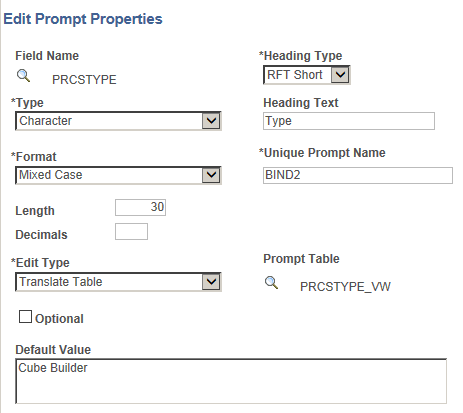
This example illustrates the fields and controls on the Edit Prompt Properties page. Definitions for the fields and controls appear following the example.
| Field or Control | Description |
|---|---|
|
Type |
Indicates the type of the field. |
|
Format |
Specifies the field format. Over a dozen formats are available, including Name, Phone, Social Security Number, and Zip Code. |
|
Length |
Indicates the field length. |
|
Decimals |
Defines the number of decimals that are allowed. |
|
Edit Type |
Defines the type of field edit for the specified field. No Table Edit is the default value. In general, you should use the same edit type that is used in the field record definition so that this edit type is consistent throughout Oracle's PeopleTools. |
|
Heading Type |
Select a heading type for the prompt from the following values:
|
|
Heading Text |
Displays the label for the text box where you enter the comparison value. To change the text, select Text from the Heading Type drop-down list, and then enter the new label in the Heading Text text box. |
|
Unique Prompt Name |
A default value that Query Manager generates for globalization. Only base language users can set this value to uniquely identify a query prompt parameter. |
|
Prompt Table |
If the edit type is Prompt Table, you can select a prompt table to use. If the edit type is Translate Table, the value in the drop-down list determines the values used. PeopleSoft Query assumes that the specified field has translate table values associated with it, and that the field is identified as a translate table field in its record definition. |
|
Optional |
Use this option to define whether the prompt is optional or required.
Note: A required prompt value must be validated based on the Edit Type list. Prompt with the Edit Type set to Yes/No Table cannot be set as optional prompt because there are only two valid values, Y and N. See the “Defining Optional Prompts” section later in this topic for more information about defining optional prompts. |
|
Default Value |
Use this field to set a default value for the prompt. The value in this field is used to populate the prompt when no other prompt value is selected or entered. For character fields, you can add a default prompt value that has up to 254 characters long. Note: Entering a default value for a prompt set the prompt to required. If the Optional option is selected, when you enter a default prompt value for the prompt, the Optional option is cleared and a message appears saying: “Optional prompt cannot have default value. Prompt is now set to be required.” Default prompt value is not a translatable field. Tree prompts cannot be used as the default or optional prompt values. |
To define prompts:
-
From the Prompts page, click the Add Prompt button to add a new prompt, or click the appropriate Edit button to edit an existing prompt.
The Edit Prompt Properties page appears.
-
Click the Look Up button next to the Field Name field to select a prompt field.
After you select a prompt field, the name of the field appears. PeopleSoft Query looks to the record definition for information about this field and completes the rest of the page based on its properties.
Note:
When using a prompt table on a field from a record definition with multiple keys, you must prompt for all higher-level keys before lower-level keys. PeopleSoft Query needs values for the higher-level keys to generate the correct prompt list. Because of this complication, you should not use multikey prompt tables.
Related Topics