Previewing Query Results Prior to Saving
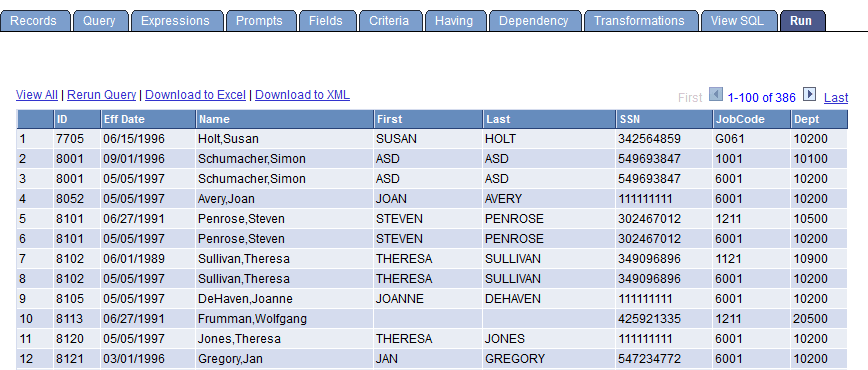
Use the Run page (QUERY_VIEWER) to view the results of your query prior to saving in order to verify that your query yields the results that you need. Continue to adjust and preview your query as necessary.
Navigation:
To access the Run page:
-
Select
-
Create a new query or search for an existing one.
-
From the Fields page, select the Run tab.
This example illustrates the fields and controls on the Run page. Definitions for the controls appear following the example.
| Field or Control | Description |
|---|---|
|
View All |
Click this link to view all rows and use scroll bar to navigate. |
|
Rerun Query |
Click this link to rerun your query preview. If you have made changes to your query since the last preview, you must rerun the query to see the effect of your changes. Note: If you do not want to rerun the query every time you want to preview it, deactivate the Enable Auto Preview feature. When this feature is active, your query automatically runs each time you select the Run tab. To activate Enable Auto Preview, click the Preferences link and then select Enable Auto Preview. The Preferences link is available on every page except the Run page. |
|
Download to Excel |
Click this link to download your query to Microsoft Excel. Note: To grant users access to download your query to Microsoft Excel, you must make sure that their permission lists include the WEBLIB_QUERY web library with full access. |
|
Download to XML |
Click this link to download your query result as XML format to another browser window. Note: To grant users access to download your query to XML, you must make sure that their permission lists include the WEBLIB_QUERY web library with full access. |
Query Results in Double-Byte Characters
In the Run page, the width of rows are automatically adjusted to show the query results. If the query results are in double-byte characters (for example, Japanese), rows may wrap vertically.
To view the row horizontal with no line break:
-
In PeopleSoft Application Designer, open the PTQUERYSTYLESUB definition.
-
Open the PSQRYRESULTSHDR style class properties.
-
In the Spacing/Alignment tab, select the Nowrap option from the White Space drop-down list.
See Application Designer Developer’s Guide: Setting Style Class Attributes, Application Designer Developer’s Guide: Specifying Spacing and Alignment.