Specifying Query Joins
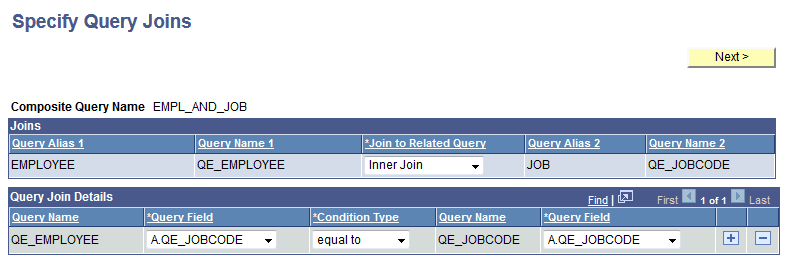
Use the Specify Query Joins page (PSCPQQRYJOINS) to define how selected queries (from the Select Base Query page) should be joined.
Navigation:
-
Select Reporting Tools, Composite Query, Composite Query Manager.
-
Select the Add a New Value tab.
-
Enter the basic information in the Specify Composite Properties page and click the Next button.
-
Select two base queries in the Select Base Query page and click the Next button.
This example illustrates the fields and controls on the Specify Query Joins page. Definitions for the fields and controls appear following the example.
| Term | Definition |
|---|---|
|
Joins |
This section displays the query names and query alias of the selected queries. You can select a join type from the Join to Related Query drop-down list. The available values are Inner Join and Left Outer Join. |
|
Query Join Details |
Use this section to select the query fields and condition type used to join the selected queries.
|
|
Next |
Click to advance to the Select Output Fields page. |