Using Process Monitor
The Process Monitor can be used to view the status of your process requests.
You can access the Process Monitor by clicking the Process Monitor link on the Schedule Query page or by selecting
Process Monitor consists of two pages: the Process List page and the Server List page.
-
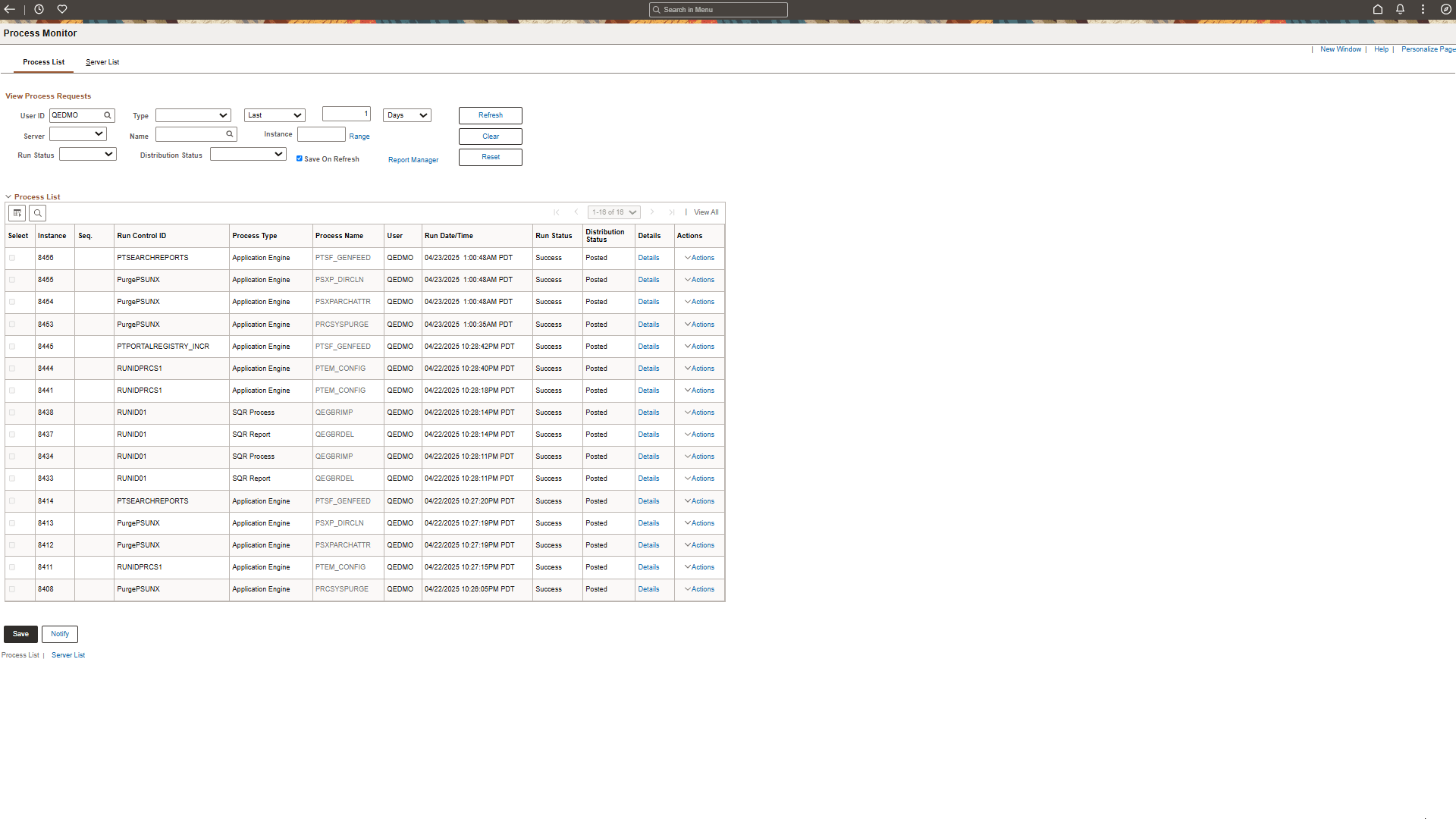
The Process List page enables you to monitor the process requests that you have submitted.
You can select filtering options—for example, process type and run status—to view only selected process requests. And you can click the Details link to view details that are associated with particular process requests.
-
The Server List page enables you to monitor the PeopleSoft Process Scheduler server agents within your system.
This example illustrates the fields and controls on the Process Monitor - Process List page. Definitions for the fields and controls appear following the example.
| Field or Control | Description |
|---|---|
|
User ID |
View the processes that were submitted by a particular user ID. Usually, you view by your own user ID. |
|
Type |
View by a particular process type—for example, Application Engine. |
|
Last |
Specify an interval of time by which to limit the process requests that appear in the list. Enter a numerical value in the edit box preceding the drop-down list, and then select a unit type from the drop-down list. Values are Days, Hours, and Minutes. |
|
Refresh |
Click to check the current status of a process. This button refreshes the list. |
|
Server |
Select to view processes that run on a particular server. |
|
Name |
View processes by a process name. |
|
Instance |
Specify a range of instances by which to limit the process requests that appear in the list. To limit the view to a single request, enter the required instance ID in the first text field. |
|
Run Status |
Select if you want to view processes by a specific status, such as Success or Error. |
|
Distribution Status |
Displays the distribution status for each individual job and process. Valid statuses are N/A, None, Generated (OS390), Not Posted, Posting, Pending, and Posted. |
|
Save On Refresh |
Select to save filter criteria changes when you click the Refresh button. |
|
Instance |
Displays the process instance, that is, the order in which the process appears in the queue. This number is automatically generated. |
|
Seq (sequence) |
This field is blank; it is not used for query processes. |
|
User |
The ID of the user who submitted the process. |
|
Details |
Click to open the Process Detail page. |