Defining Advanced Settings for String Facets
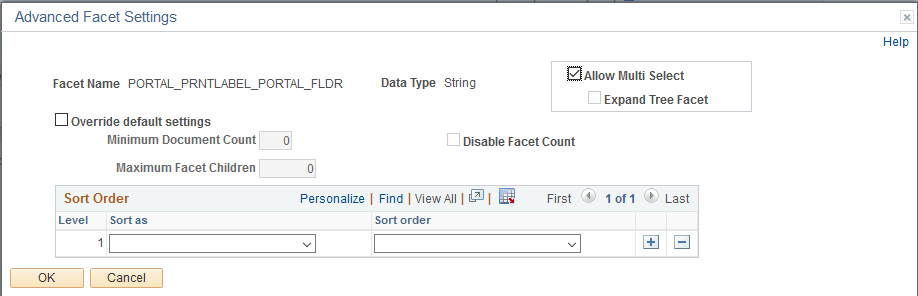
This example illustrates the fields and controls on the Advanced Facet Settings page (for string data types). You can find definitions for the fields and controls later on this page.
| Field or Control | Description |
|---|---|
|
Allow Multi Select |
By default, all facets enable you to choose multiple facet values on the Global Search results page and the component search results page to filter and narrow down the search results. Select the Allow Multi Select check box to enable multiple facet-values selection in hierarchical facets. If you deselect this option, single select applies to the current facet. Note: Selecting multiple facet values is supported only on fluid search pages; not on classic or classic plus search pages. |
|
Expand Tree Facet |
The Search Options page contains the Expand Tree Facet option to specify the setting at the system level. The default value is collapsed, that is, the Expand Tree Facet check box is not selected. Select the Expand Tree Facet option if you want the tree facets to be expanded. If you select this option, you are overriding the setting specified on the Search Options page, and the override setting applies to the current facet only. You can use this option to override the setting specified on the Search Options page. |
|
Override default settings |
Select to override the values entered on the Search Options page (). When selected the disabled settings on the page become enabled so that you can override the equivalent values entered on the Search Options page. The override values apply to the current facet only. If not selected, the values entered on the Search Options page apply. |
|
Minimum Document Count |
Set the minimum number of search results (documents) required to display a facet. Default is 1. |
|
Maximum Facet Children |
Set the maximum number of children to be returned for each facet node. Default is 100. Options to enter are:
|
|
Disable Facet Count |
Enables controlling the display of the result count (document count) for each facet node. For example, if 15 search results met a facet node’s criteria, (15) appears next to the facet label. Enter Y for Yes or N for No. |
|
Level |
In the case of a nested facet, you can add additional rows to the sort order grid, and set different sort options at each level. The Level column indicates the level to which the sort options apply (1, 2, 3, and so on). For multi-select facets, level 1 sort option is used for all levels. |
|
Sort as |
Select one of these options to specify how the facet should be treated:
|
|
Sort order |
Specify the sort order that best suits your selected Sort as option and how users expect to see the values displayed, ascending or descending. |