Importing a Dashboard
A newly created dashboard and visualization is an object in OpenSearch Dashboards. The dashboard and visualization must be imported in to the PeopleSoft database in order to apply the needed user privileges and to configure it as a tile or related information.
Note:
Only a PeopleSoft user with the Search Administrator role can perform the task of importing dashboards. In fact, the Search Administrator role is required to perform all the subsequent tasks.
Note:
Insights administration pages use the default search instance. If you configure more than one search instance, the search instance with the lowest number in priority is treated as the default search instance.
Use the Import Insights Dashboards page to import the newly created visualization and dashboard in OpenSearch Dashboards to the PeopleSoft database.
Access the Import Insights Dashboards page by selecting .
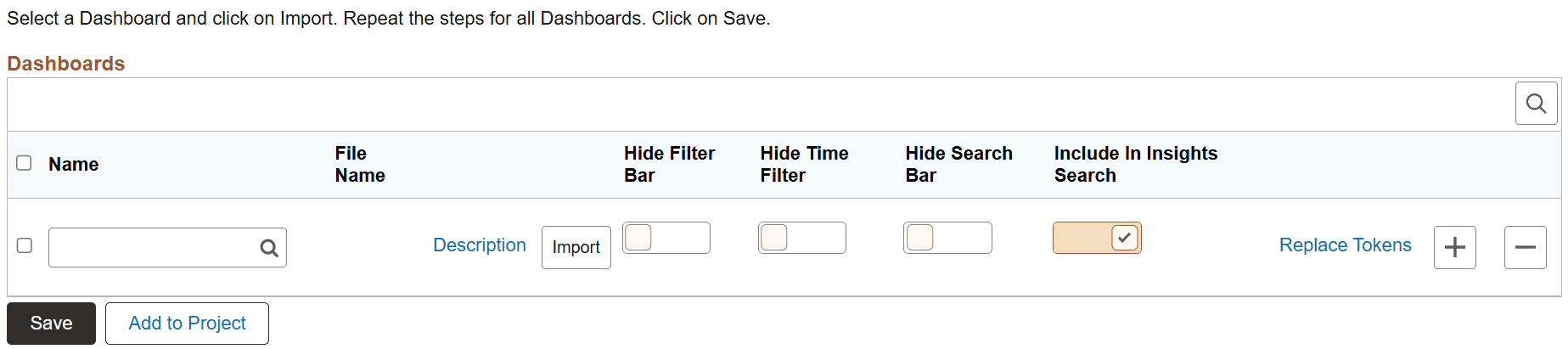
This example illustrates the fields and controls on the Import Insights Dashboards page. You can find definitions for the fields and controls later on this page.
| Field or Control | Description |
|---|---|
|
Name |
Choose a dashboard that you want to import. The dashboards that are created in OpenSearch Dashboards are listed here. The Import Insights Dashboards page also displays the applications-delivered dashboards that you have deployed. For information on applications-delivered dashboards, see Managing a Delivered Dashboard. |
|
File Name |
This field is populated when you select the Import button. This is the JSON file that OpenSearch Dashboards exports. Typically, the file name is the name of the dashboard with .json as the extension. |
|
Hide Filter Bar |
Enable the Hide Filter Bar button to hide the Global Filter bar from that dashboard. By default, it is disabled. |
|
Hide Time Filter |
Enable the Hide Time Filter button to hide the time picker from that dashboard. By default, it is disabled. |
|
Hide Search Bar |
Enable the Hide Search Bar button to hide the Search Query bar from that dashboard. By default, it is disabled. |
|
Include In Insights Search |
Enable the Include In Insights Search button to include the imported dashboard for indexing in the Insights Search Definition. If included, the dashboard becomes searchable in global search using Insights search group. Note: By default, dashboards with more than one visualization are included for indexing, while dashboards with only one visualization are not. However, you can enable or disable it at any time and save the page. |
|
Description |
Enables you to add or update the description of the dashboard. By default, the OpenSearch Dashboard’s description is displayed. However, the edit icon allows you to add or update the description. Once you edit the description, it's considered customization and will not be updated with the OpenSearch Dashboards description or ADS copy. Note: The description you enter appears in the Insights search suggestions. The description must be appropriate for end-user viewing. Make the description as informative, concise, and intuitive as possible. Note: The description is translatable. |
|
Import |
Imports the selected dashboard from OpenSearch Dashboards into the PeopleSoft database. If you modify a dashboard after it has been imported to PeopleSoft, you should re-import the dashboard to PeopleSoft. When you create a dashboard in OpenSearch Dashboards, you must import it into PeopleSoft. |
|
Replace Tokens |
Enables you to configure placeholder and replacement values for tokens used in the dashboard JSON. Click the Replace Tokens link to open the Replace JSON Tokens page and define the required values. For more information on configuring placeholders and replacement text, see the Configuring Replace JSON Tokens topic below. |
|
Save |
Saves the imported dashboard in the PeopleSoft database. |
|
Add to Project |
Enables you to add data set instances on the page to an existing or new ADS project. See Lifecycle Management Guide: Adding Data Set Instances from Object Designer Pages. |
Configuring Replace JSON Tokens
The Replace JSON Tokens page is used to configure placeholder and replacement values for tokens defined in the dashboard JSON. These tokens enable you to update environment-specific values, such as links or identifiers, during dashboard deployment without modifying the dashboard content. The system replaces the configured placeholder text with the specified replacement text when you deploy the dashboard.
Use the Replace JSON Tokens page to define the required placeholder and corresponding replacement values.
Access the Replace JSON Tokens page by clicking the Replace Tokens link on the Import Insights Dashboards page.
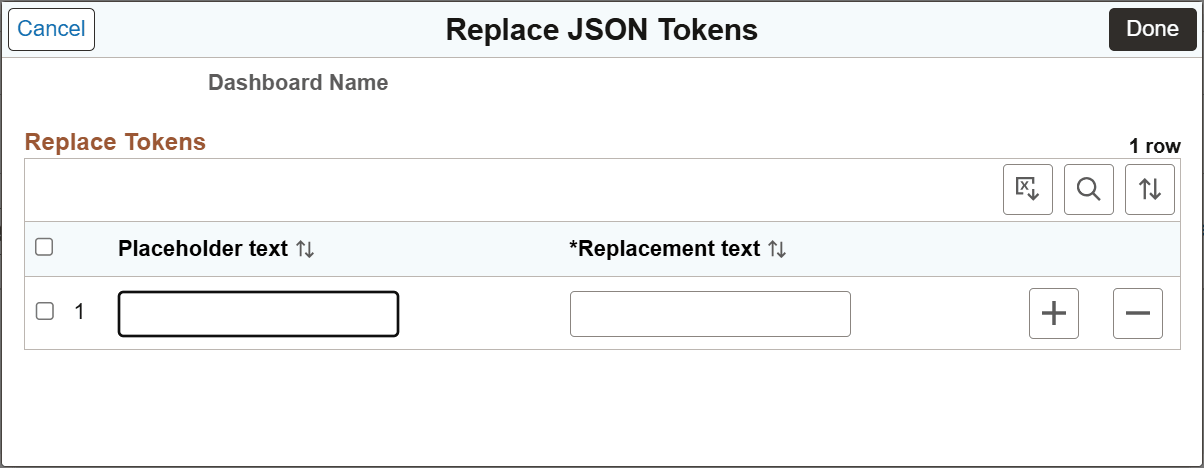
This example illustrates the fields and controls on the Replace JSON Tokens page. You can find definitions for the fields and controls later on this page.
| Field or Control | Description |
|---|---|
|
Dashboard |
Displays the name of the selected dashboard. |
|
Placeholder Text |
Enter the placeholder value defined in the dashboard JSON. During deployment, the system searches for this value and replaces it with the corresponding replacement text. Note: Placeholder text is case-sensitive and must be unique. Ensure that the placeholder text does not conflict with or replicate any existing JSON structure or token identifiers in the dashboard. |
|
Replacement Text |
Enter the value that replaces the placeholder text during dashboard deployment. This value is typically environment-specific and ensures that the dashboard reflects the correct configuration. |