Configuring a Dashboard
After importing the dashboard to the PeopleSoft database, the user with the Search Administrator role can configure the dashboard as a tile or related information in a component to enable end users to use the dashboard directly from PeopleSoft.
Note:
In addition to the Search Administrator role, you must also have the Portal Administrator role, which is needed to create content references.
Use the Configure Insights Dashboards page to configure dashboards as tiles or related information in a component.
Access the Configure Insights Dashboards page by selecting .
Configuring a Dashboard as a Tile
Search Framework provides the Configure Insights Dashboards page to enable you to create a content reference for a tile. In order to use this dashboard, end users should add the tile to their PeopleSoft home page using the personalizations option.
For more information, see Using a Dashboard.
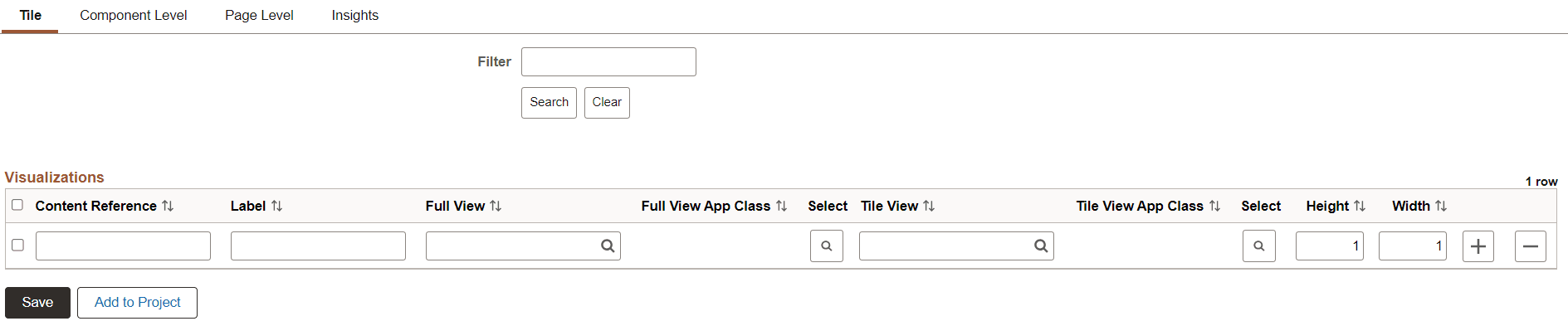
This example illustrates the fields and controls on the Configure Insights Dashboards - Tile tab. You can find definitions for the fields and controls later on this page.
| Field or Control | Description |
|---|---|
|
Content Reference |
Enter a unique name for the content reference of the tile. For example, JOB_POSTINGS_TILE. This name is not displayed to the end user. Before you enter a name for a content reference, refer to Portal Technology: Defining Content References. The content reference is stored in the PeopleSoft Applications folder at this location: . |
|
Label |
Enter a label for the tile. For example, Job Postings. The label appears as the tile header. |
|
Full View |
Choose an imported dashboard from the list. You may configure a dashboard with multiple visualizations for full view. This is a mandatory field. When a dashboard displays in full view in PeopleSoft, the Open in OpenSearch Dashboards link displays if the edit privilege for the dashboard is assigned to you on the Insights Privileges page. The Open in OpenSearch Dashboards link enables you to open the dashboard in OpenSearch Dashboards and edit the dashboard. A user with the view privilege can open the dashboard in PeopleSoft where you have options to filter the data or use the time picker to view data based on a time range. See Specifying User Privileges for more information. |
|
Full View App Class |
Choose an application class that contains PeopleCode to apply filters based on context and display visualization data accordingly. For more information, see Specifying an Application Class section later in this topic. If you do not specify an application class to filter data, OpenSearch Dashboards displays the default visualization data. |
|
Select |
Select to launch the Full View page to choose an application class. For more information, see Specifying an Application Class section later in this topic. |
|
Tile View |
Choose an imported dashboard from the list. When you configure a dashboard as tile view, the configured dashboard displays on the loading of the tile. This is a mandatory field. Note: Oracle recommends that you configure a dashboard that has a single visualization for tile view. |
|
Tile View App Class |
Choose an application class that contains PeopleCode to apply filters based on context and display visualization data accordingly. For more information, see Specifying an Application Class section later in this topic. If you do not specify an application class to filter data, OpenSearch Dashboards displays the default visualization data. |
|
Select |
Select to launch the Tile View page to choose an application class. For more information, see Specifying an Application Class section later in this topic. |
|
Height |
Specify the height of the tile. For more information on tile sizes, see Portal Technology: Step 4: Tile Layout Properties. |
|
Width |
Specify the width of the tile. |
|
Add to Project |
Enables you to add data set instances on the page to an existing or new ADS project. See Lifecycle Management Guide: Adding Data Set Instances from Object Designer Pages. |
Configuring a Dashboard as Related Information of a Component
Configuring a dashboard as related information of a component makes the dashboard appear in the right panel of the component. However, access to the component and dashboard data is controlled by the security privileges assigned to a user.
On the Configure Insights Dashboards page, select the Component Level tab to configure a dashboard as related information of a component.
This example illustrates the fields and controls on the Configure Insights Dashboards page - Component Level tab. You can find definitions for the fields and controls later on this page.

| Field or Control | Description |
|---|---|
|
Component Name |
Choose the fluid component to which you want to configure a dashboard as related information. |
|
Content Reference |
Choose the content reference name associated with the selected component. |
|
Full View |
Choose an imported dashboard from the list. You may configure a dashboard with multiple visualizations for full view. This is a mandatory field. When a dashboard displays in full view in PeopleSoft, the Open in OpenSearch Dashboards link displays if the edit privilege for the dashboard is assigned to you on the Insights Privileges page. The Open in OpenSearch Dashboards link enables you to open the dashboard in OpenSearch Dashboards and edit the dashboard. A user with the view privilege can open the dashboard in PeopleSoft where you have options to filter the data or use the time picker to view data based on a time range. See Specifying User Privileges for more information. |
|
Full View App Class |
Displays the selected application class, which contains PeopleCode to apply filters based on context and display visualization data accordingly. If you do not specify an application class to filter data, OpenSearch Dashboards displays the default visualization data. |
|
Select |
Select to launch the Full View page to choose an application class. For more information, see Specifying an Application Class section later in this topic. |
|
Tile View |
Choose an imported dashboard from the list. When you configure a dashboard as tile view, the related information tile displays the dashboard on loading of the component. Note: Oracle recommends that you configure a dashboard that has a single visualization for tile view. |
|
Tile View App Class |
Displays the selected application class, which contains PeopleCode to apply filters based on context and display visualization data accordingly. If you do not specify an application class to filter data, OpenSearch Dashboards displays the default visualization data. |
|
Select |
Select to launch the Tile View page to choose an application class. For more information, see Specifying an Application Class section later in this topic. |
|
Content |
Enables you to preview the dashboard in the component. |
|
Add to Project |
Enables you to add data set instances on the page to an existing or new ADS project. See Lifecycle Management Guide: Adding Data Set Instances from Object Designer Pages. |
Specifying an Application Class
PeopleSoft provides you the flexibility to filter the data in a visualization based on a context by using an application class (PTSF_INSIGHTS) that contains PeopleCode to apply filters.
For more information on using the application classes, see PeopleCode API Reference: FilterValues Class and PeopleCode API Reference: DashboardFilters Class.
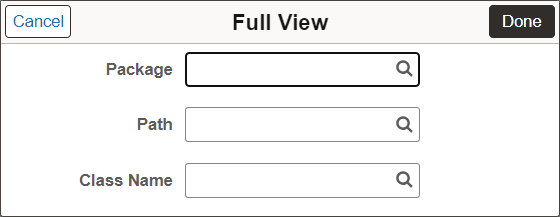
Access the Full View or Tile View page by selecting the search icon on the row.
This example illustrates the fields and controls on the Full View page. You can find definitions for the fields and controls later on this page.
| Field or Control | Description |
|---|---|
|
Package |
Specifies the root package where the application class is created. |
|
Path |
Species the path, represented by a colon (:). |
|
Class Name |
Choose the relevant application class. You must ensure that you choose the correct application class; if not an error message is displayed. |
Embedding a Dashboard in Applications Page
On the Configure Insights Dashboards page, select the Page Level tab to embed a dashboard in applications page.
Before you embed a dashboard, you must ensure that the prerequisite for embedding a dashboard in applications page is completed. You need to complete the following steps:
-
Open the applications page in Application Designer.
-
Insert an Embedded Related Content group box.
See Fluid User Interface Developer’s Guide: Setting Group Box Properties and Fluid User Interface Developer’s Guide: Working with Embedded Related Content.
-
In the Fluid tab of the Group Box Properties page, select Related Content as Group Box Type.
This example illustrates the fields and controls on the Configure Insights Dashboards - Page Level tab. You can find definitions for the fields and controls later on this page.

| Field or Control | Description |
|---|---|
|
Page Name |
Choose the applications page where you want to embed a dashboard. |
|
Component Name |
Choose the component name associated with the selected page. |
|
Content Reference |
Choose the content reference name associated with the selected component. |
|
Page Field Name |
Choose the page field name associated with the ERC group box. |
|
Page View |
Choose an imported dashboard from the list. When you embed a dashboard as a page view, the dashboard is displayed on loading of the applications page. The page view shows only one visualization as a tile view. Therefore, it is not recommend using dashboards with multiple visualizations in the page view. We can control the size and style of the embedded area within the page by applying regular fluid styles to group boxes. |
|
Full View |
Choose an imported dashboard from the list. You may embed a dashboard with multiple visualizations for full view. This is a mandatory field. When a dashboard displays in full view in PeopleSoft, the Open in OpenSearch Dashboards link displays if the edit privilege for the dashboard is assigned to you on the Insights Privileges page. The Open in OpenSearch Dashboards link enables you to open the dashboard in OpenSearch Dashboards and edit the dashboard. A user with the view privilege can open the dashboard in PeopleSoft where you have options to filter the data or use the time picker to view data based on a time range. See Specifying User Privileges for more information. |
|
App Class |
Displays the selected application class, which contains PeopleCode to apply filters based on context and display visualization data accordingly. If you do not specify an application class to filter data, OpenSearch Dashboards displays the default visualization data. |
|
Select |
Select to launch the Tile View page to choose an application class. For more information, see Specifying an Application Class section above in this topic. |
|
Interactive |
Enable the Interactive button to embed a dashboard in the applications page as interactive. For more information, see Embedding an Interactive Dashboard in Applications Page section later in this topic. |
|
Set Filters |
Select to launch the Set Filters page to apply additional filters apart from the time range. For more information, see Specifying Set Filters section later in this topic. |
|
Test Content |
Enables you to preview the dashboard in the applications page. |
|
Add to Project |
Enables you to add data set instances on the page to an existing or new ADS project. See Lifecycle Management Guide: Adding Data Set Instances from Object Designer Pages. |
Specifying Set Filters
You can use the Set Filters page to pass contextual data from the component buffer as a filter to the visualization, apart from the time range. Page field values can be used as filters. On the dashboard that is rendered, the applied filters are shown.
Note:
Set Filters can be configured for a maximum of five page field values.
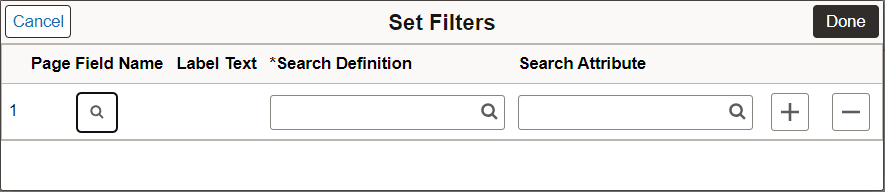
Access the Set Filters page by selecting the Set Filters button on the row.
This example illustrates the fields and controls on the Set Filters page. You can find definitions for the fields and controls later on this page.
| Field or Control | Description |
|---|---|
|
Page Field Name |
Choose the page field (in the applications page) which you want to apply as filter in the dashboard. |
|
Label Text |
Displays the labels of the Page Field Name. |
|
Search Definition |
Choose the search definition to which you want to apply the filter. |
|
Search Attribute |
Choose the search attribute to which you want to apply the filter. |
For more information on using a dashboard that is embedded in applications page, see Using a Dashboard that is Embedded in Applications Page.
Embedding an Interactive Dashboard in Applications Page
On the Configure Insights Dashboards page, select the Page Level tab to enable you to embed one or more PeopleSoft Insights and make them interactive on the applications page. To embed an interactive dashboard, you must enable the Interactive button.
Before you embed an interactive dashboard, you must ensure that the prerequisite for embedding an interactive dashboard in applications page is completed. You need to complete the following prerequisite in Application Designer:
-
Insert an Embedded Related Content group box and select Related Content as Group Box Type on the Group Box Properties page.
See Fluid User Interface Developer’s Guide: Setting Group Box Properties and Fluid User Interface Developer’s Guide: Working with Embedded Related Content.
-
Insert a hidden long edit box on the applications page. In the interactive process, this field acts as a control field.
-
Custom application logic is needed as FieldChange PeopleCode of a long edit box to process the filter applied.
This example illustrates the fields and controls on the Configure Insights Dashboards - Page Level tab. You can find definitions for the fields and controls later on this page.

| Field or Control | Description |
|---|---|
|
Page Name |
Choose the applications page where you want to embed a dashboard. |
|
Component Name |
Choose the component name associated with the selected page. |
|
Content Reference |
Choose the content reference name associated with the selected component. |
|
Page Field Name |
Choose the page field name associated with the ERC group box. |
|
Page View |
Choose an imported dashboard from the list. When you embed a dashboard as a page view, the dashboard is displayed on loading of the applications page. In the interactive dashboards page view, you can use dashboards with multiple visualizations. You must style the embedded area based on the page sizing required for your use case, using fluid styles applied to group boxes. |
|
Full View |
Choose an imported dashboard from the list. You may embed a dashboard with multiple visualizations for full view. This is a mandatory field. When a dashboard displays in full view in PeopleSoft, the Open in OpenSearch Dashboards link displays if the edit privilege for the dashboard is assigned to you on the Insights Privileges page. The Open in OpenSearch Dashboards link enables you to open the dashboard in OpenSearch Dashboards and edit the dashboard. A user with the view privilege can open the dashboard in PeopleSoft where you have options to filter the data or use the time picker to view data based on a time range. See Specifying User Privileges for more information. |
|
App Class |
Displays the selected application class, which contains PeopleCode to apply filters based on context and display visualization data accordingly. If you do not specify an application class to filter data, OpenSearch Dashboards displays the default visualization data. |
|
Select |
Select to launch the Tile View page to choose an application class. For more information, see Specifying an Application Class section above in this topic. |
|
Interactive |
Enable the Interactive button to embed a dashboard in the applications page as interactive. |
|
Set Control |
Select to launch the Interactive Insights Configuration page to apply the configuration required for the interactive dashboard. For more information, see Configuring Interactive Insights section later in this topic. |
|
Test Content |
Enables you to preview the dashboard in the applications page. |
|
Add to Project |
Enables you to add data set instances on the page to an existing or new ADS project. See Lifecycle Management Guide: Adding Data Set Instances from Object Designer Pages. |
Configuring Interactive Insights
PeopleSoft provides you the flexibility to set up the details required to make a dashboard interactive.
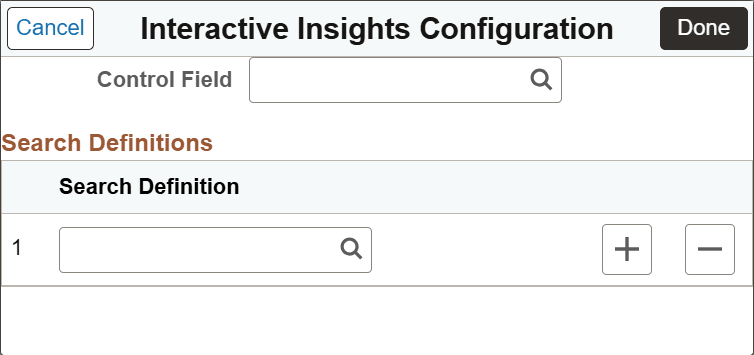
Access the Interactive Insights Configuration page by selecting the Set Control button on the row.
This example illustrates the fields and controls on the Interactive Insights Configuration page. You can find definitions for the fields and controls later on this page.
| Field or Control | Description |
|---|---|
|
Control Field |
Choose the field (in the applications page) that has a hidden long edit box at level 0. This field contains the custom PeopleCode that performs the necessary interactive changes on the page when a filter is applied to the page view dashboard. |
|
Search Definition |
Choose the search definition to which you want to apply the filter. When you provide the search definition, the system maps the right search attributes for the filter. |
For more information on using an interactive dashboard that is embedded in applications page, see Using an Interactive Dashboard that is Embedded in Applications Page.
Embedding a Dashboard in Fluid WorkCenter
On the Configure Insights Dashboards page, select the Insights tab to embed a dashboard in fluid WorkCenter pages.
This example illustrates the fields and controls on the Configure Insights Dashboards - Insights tab. You can find definitions for the fields and controls later on this page.
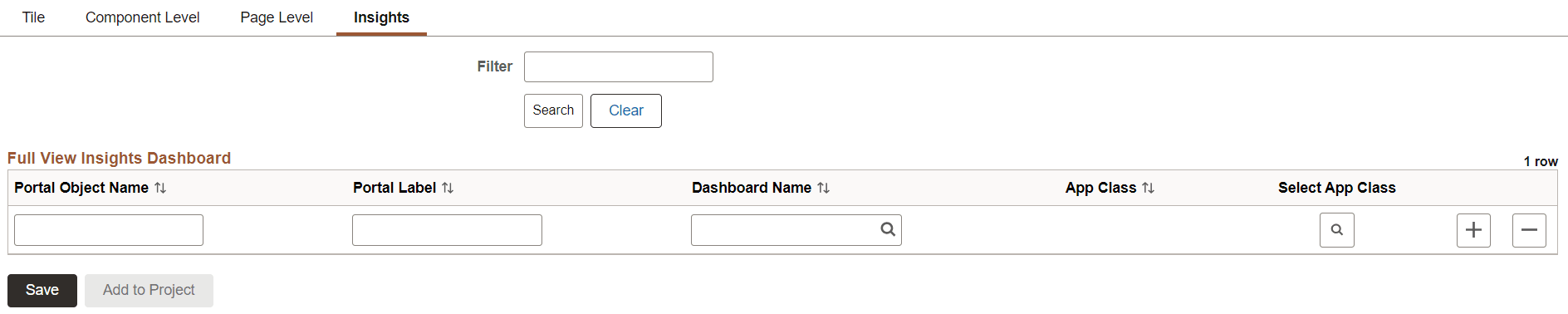
| Field or Control | Description |
|---|---|
|
Portal Object Name |
Enter the portal object name. |
|
Portal Label |
Enter the label for portal. |
|
Dashboard Name |
Choose an imported dashboard from the list. |
|
App Class |
Displays the selected application class, which contains PeopleCode to apply filters based on context and display visualization data accordingly. If you do not specify an application class to filter data, OpenSearch Dashboards displays the default visualization data. |
|
Select App Class |
Select to launch the Full View page to choose an application class. For more information, see Specifying an Application Class section. |
|
Add to Project |
Enables you to add data set instances on the page to an existing or new ADS project. See Lifecycle Management Guide: Adding Data Set Instances from Object Designer Pages. |
For more information on using a dashboard that is embedded in fluid WorkCenter, see Using a Dashboard that is Embedded in Fluid WorkCenter.