Using an Interactive Dashboard that is Embedded in Applications Page
After you embed an interactive dashboard, you can easily access and view the embedded dashboard in the transaction area of the application page.
This example illustrates the Applications Page after you embed an interactive dashboard.
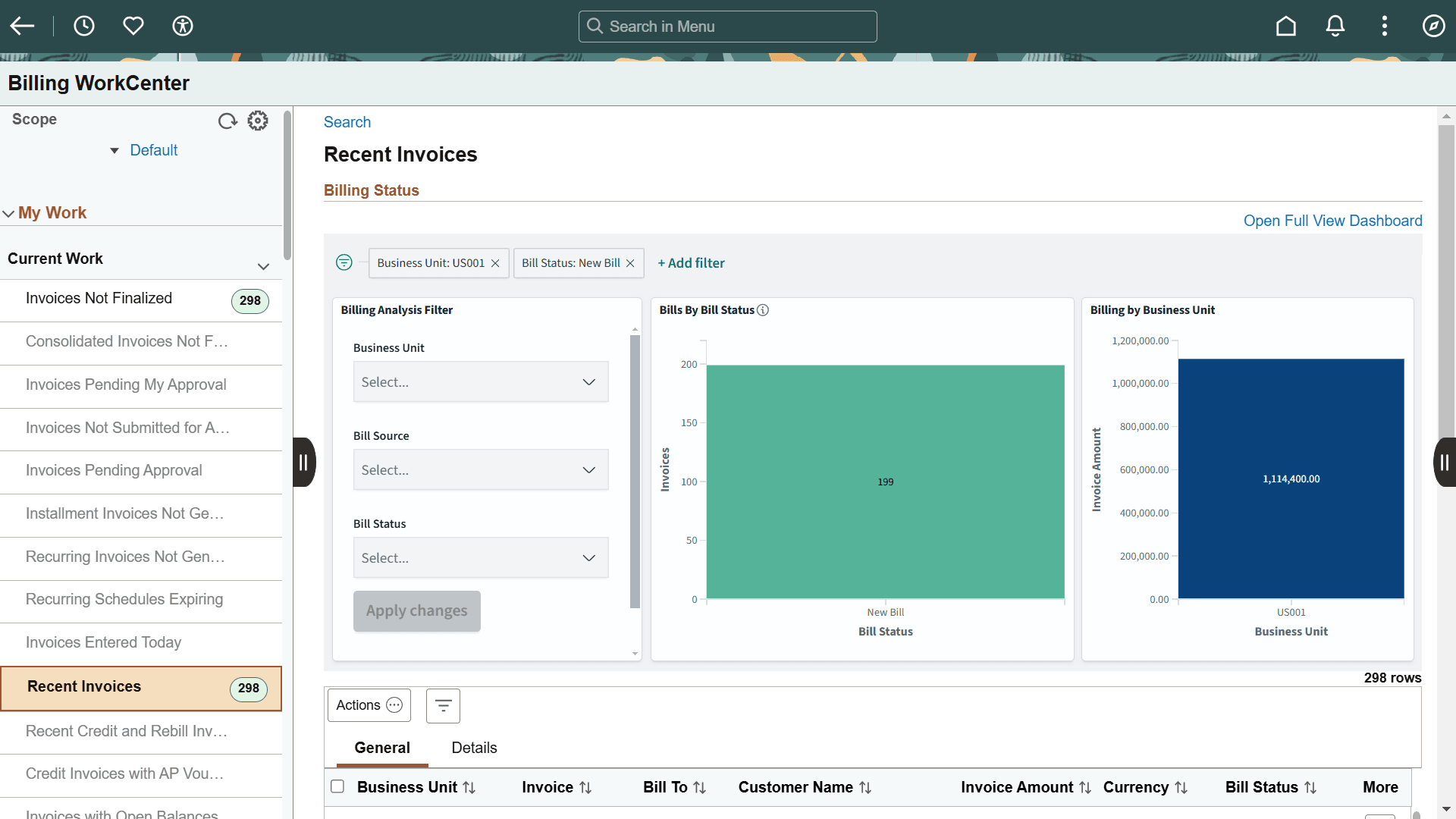
Once you embed an interactive dashboard, you can view the applied filters in your visualization. Additionally, the chart visualization, control visualization panel, and Add Filter link allow you to interact with the insights and apply filters.
Any change in the Insights triggers the PeopleCode associated with the control field, which then makes the necessary UI changes. The control field code allows you to fully control the interactive behavior.
Note:
Each filter change in the dashboard triggers a server request, which subsequently refreshes the dashboard to retrieve the latest available data securely. For real-time indexing-enabled search definitions, the data update is real-time after every refresh. For best page performance, it is recommended to use only one interactive dashboard per page.
In certain scenarios, the dashboard refreshes after a filter change. This is due to a full refresh issued by the component processor instead of a partial page refresh.
Example of control field code.
import PTSF_FILTERS:*;

Local PTSF_FILTERS:InsightConsolidatedFilters &Filter = create PTSF_FILTERS:InsightConsolidatedFilters(EOWC_EMB_IN_WRK.DESCRLONG.Value);

Local array of PTSF_FILTERS:Filter &insightFilters;
&insightFilters = &Filter.getFilterArray();

Local string &key, &attribute, &operator;
Local boolean &negate;
Local array of string &values;

For &i = 1 To &insightFilters.Len
    &key =  &insightFilters [&i].getKey());
    &attribute= &insightFilters [&i].getAttribute();
    &operator =  &insightFilters [&i].getOperator());
    &negate =  &insightFilters [&i].getNegate());
    &values = &insightFilters [&i].getValues().Clone();
End-For;
Switching Interactive Insights Dashboards
Dashboard switching enables applications to replace the configured Interactive Insights dashboard when an application page loads. Use this functionality when the same application page is used in different contexts and each context requires a different dashboard.
You can switch Interactive Insights dashboards by using one of these approaches:
- Using an application class
- Using the built-in PeopleCode functions
Use the application class approach when the dashboard override is handled through configured application logic and does not depend on page Activate PeopleCode. In such cases, define a method named GetOverriddenValues() in the corresponding application class. For more information, see OverrideConfiguredValues Class.
Use the built-in PeopleCode function when the application must switch the dashboard from page PeopleCode, such as the page Activate event. For more information, see SwitchInsightsDashboardand SetDefaultDashboard.