Specifying System-wide Configurable Search Properties
Use the Configurable Search Options page to specify system-wide configurable search properties.
You can also use this page to configure field labels and search attribute labels.
To specify configurable search properties at the CREF-level, use the Manage Configurable Search page. For more information, see Configuring a Search Page.
Note:
CREF-level configurable search properties specified for a configurable search page will overwrite system-level configurable search properties for that CREF.
Access the Configurable Search Options page by selecting .
This example illustrates the fields and controls in the Configurable Search Options page. Descriptions of the properties appear after the example.
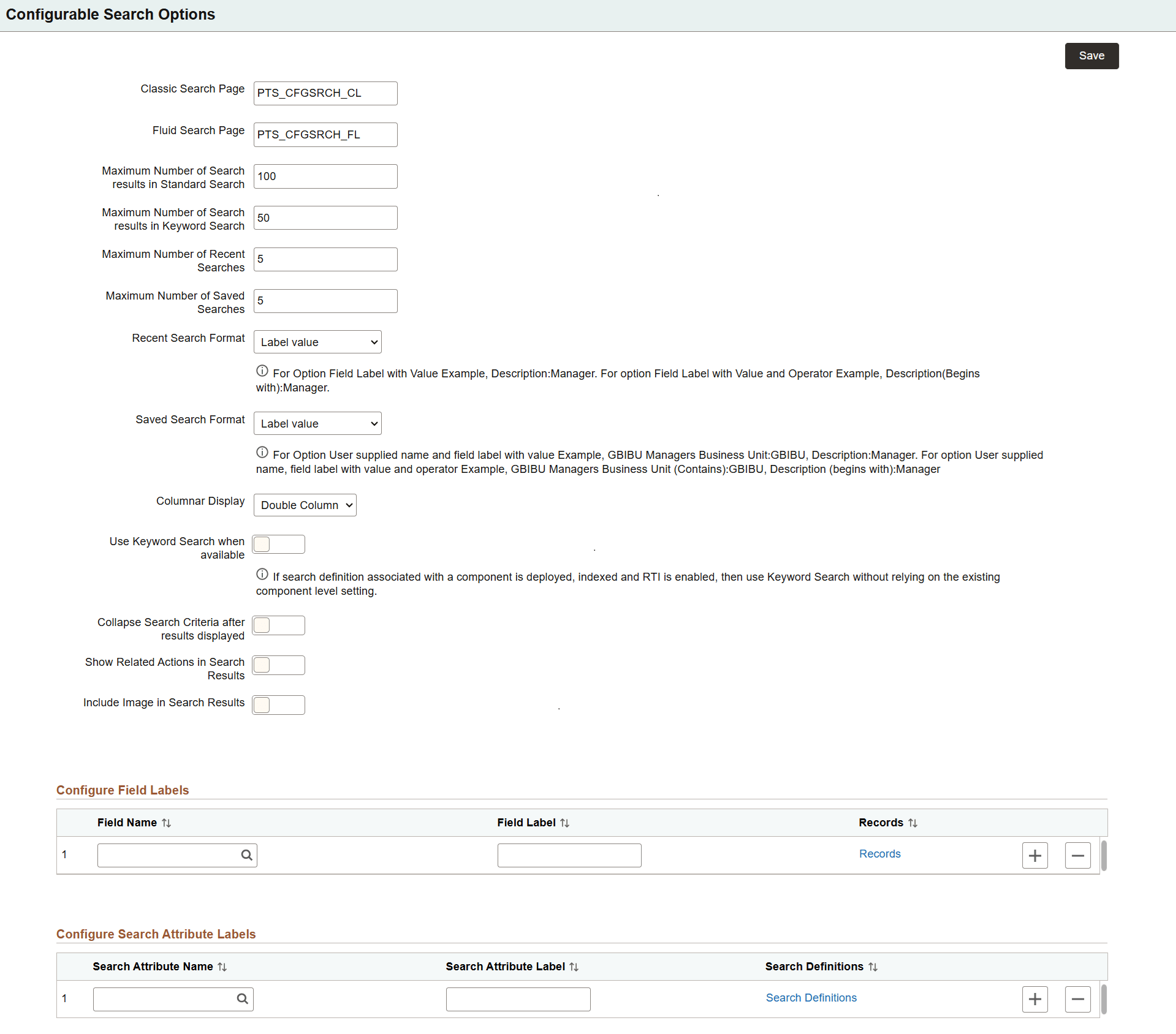
| Field or Control | Description |
|---|---|
|
Classic Search Page |
The search page that you specify here acts as the system-wide search page for classic components. Clone the delivered classic search page, PTS_CFGSRCH_CL, to create a custom search page. However, you may create your own search page without cloning the delivered search page. |
|
Fluid Search Page |
The search page that you specify here acts as the system-wide search page for fluid components configurable search. Clone the delivered fluid search page, PTS_CFGSRCH_FL, to create a custom search page. However, you may create your own search page without cloning the delivered search page. |
|
Maximum Number of Search results in Standard Search |
Specify the maximum number of search results that should be displayed while performing a standard search. You can choose between 0 and 999. The default value is 100. |
|
Maximum Number of Search results in Keyword Search |
Specify the maximum number of search results that should be displayed while performing a keyword search. You can choose between 0 and 999. The default value is 50. |
|
Maximum Number of Recent Searches |
Specify the maximum number of recent searches that should appear in the recent search display area. You can choose between 0 and 999. The default value is 5. |
|
Maximum Number of Saved Searches |
Specify the maximum number of saved searches that can be stored for a component. You can choose between 0 and 999. The default value is 5. |
|
Recent Search Format |
Select a display option for recent searches:
|
|
Saved Search Format |
Select a display option for saved searches:
|
|
Columnar Display |
Specify whether search criteria should be displayed as a single or double column. |
|
Use Keyword Search when available |
Select this option to automatically turn on keyword search as the search type when the following conditions are met:
|
|
Collapse Search Criteria after results displayed |
Select to collapse the search criteria fields after search results are displayed. |
|
Show Related Actions in Search Results |
By default, related actions are not displayed in search results even if related actions are configured for the component. Select this option to display related actions for the components for which related actions are configured. See Configuring a Search Page. |
|
Include Image in Search Results |
Select this option to display images with search results. |
Configuring Field Labels
On the Configurable Search Options page, use the Configure Field Labels section to override labels of the fields on CREFs that do not have Configurable Search enabled on the Manage Configurable Search page. You have the option to apply the configured label either system-wide or to selected records only. Use the Records link to open a secondary page where you can apply the configured field label to specific records. If no record is selected, the configured field label will be used system-wide for all records that use the field.
| Field or Control | Description |
|---|---|
|
Field Name |
Select a field to update its label. |
|
Field Label |
Enter a field label for the field. |
|
Records |
Select this link to apply the configured field label to selected records. This link opens a secondary page where you can choose the records to which the configured field label should be applied. |
Configuring Search Attribute Labels
On the Configurable Search Options page, use the Configure Search Attribute Labels section to override labels for the fields on CREFs that have Configurable Search enabled on the Manage Configurable Search page. You have the option to apply the configured label either system-wide or to selected search definitions only. Use the Search Definitions link to open a secondary page where you can apply the configured search attribute label to specific search definitions. If no search definition is selected, the configured search attribute label will be used system-wide for all search definitions that use the search attribute.
| Field or Control | Description |
|---|---|
|
Search Attribute Name |
Select a search attribute to update its label. |
|
Search Attribute Label |
Enter a search attribute label for the search attribute. |
|
Search Definition |
Select this link to apply the configured search attribute label to selected search definitions. This link opens a secondary page where you can choose the search definitions to which the configured search attribute label should be applied. |