Copying a User Profile
To copy a user profile:
-
Select to access the User Profiles search page.
-
Select the user ID that you want to copy.
-
Supply the information for the new profile.
This example illustrates the Copy User Profiles page.
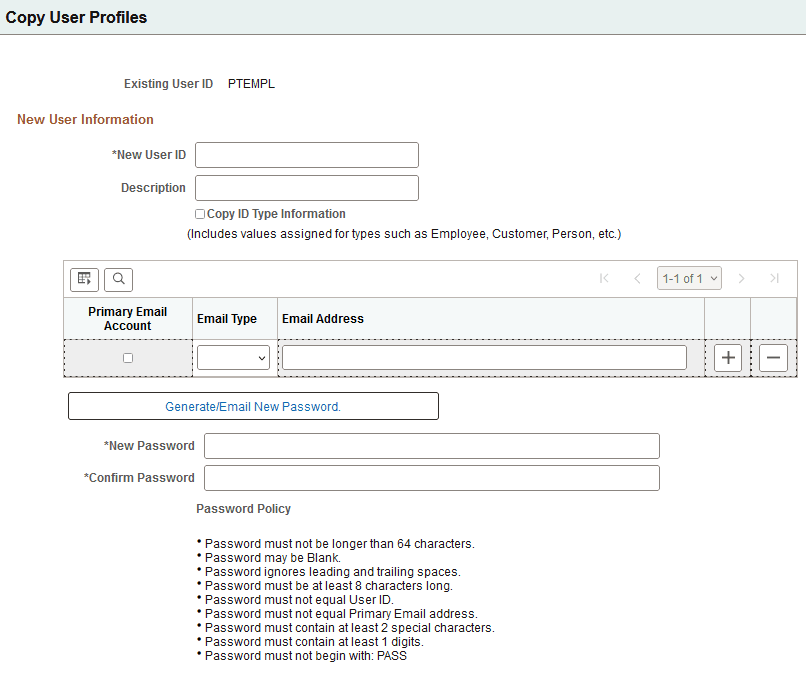
Field or Control Description New User ID
Enter the user ID.
Description
Enter a description if desired.
Copy ID Type Information
Select to copy values assigned for types such as Employee, Customer, Person, and so on.
If Copy ID Type Information is not selected, the system does not save the EMPLID value to the PSOPRDEFN table.
The only personalization data that is copied from My Preferences is what is found on the General Settings page. Personalization settings on other pages of My Preferences is not copied.
Primary Email Account
If a user is part of the workflow system or you have other systems that generate email for users, you can enter an email address for a user. The system allows only one email address per type. For example, you cannot enter two home email addresses.
If you enter multiple email accounts you must select one as the primary account.
Email Type
Select from Blackberry, Business, Home, Other, or Work.
The Blackberry email type is used with the Workflow/RIM technology.
Email Address
Enter the email address in this field.
New Password and Confirm Password
Enter and confirm the password that the new user ID should use to sign in to the system.
Follow the listed Password Policy rules.
Generate/Email New Password
Click to have the system generate a password. If there is an email address associated with the user profile, the system sends the generated password to that address.
For information on how end users can change their passwords see Changing Passwords.