Implementing OCI-IAM as the PeopleSoft Single Signon Solution
PeopleSoft applications support Oracle Cloud Infrastructure Identity and Access Management (OCI-IAM) as the single signon solution.
You can integrate OCI-IAM with PeopleSoft for single signon and multi-factor authentication. See Overview of IAM in the Oracle Cloud Infrastructure documentation.
To implement OCI-IAM as the PeopleSoft single signon solution:
-
Install and configure Oracle Identity Cloud Service App Gateway for single signon.
See Manage Oracle Identity Cloud Service App Gateways in the Oracle Cloud documentation.
-
In the PeopleSoft application, create IDCSPSFT as a new user profile and associate a low security role such as PeopleSoft User.
See Creating a New User Profile.
Note:
You can choose to use a different user profile, but ensure that the same user profile is specified for the web profile and in the getWWWAuthConfig() PeopleCode mentioned in the following steps.
-
In the user profile, access the ID page and select NONE as the ID type.
-
Save the user profile.
-
Access the web profile and enter IDCSPSFT as the public access user ID.
-
Using PeopleSoft Application Designer, open the FUNCLIB_LDAP record.
-
Right-click the LDAPAUTH field and select View PeopleCode.
-
Find the
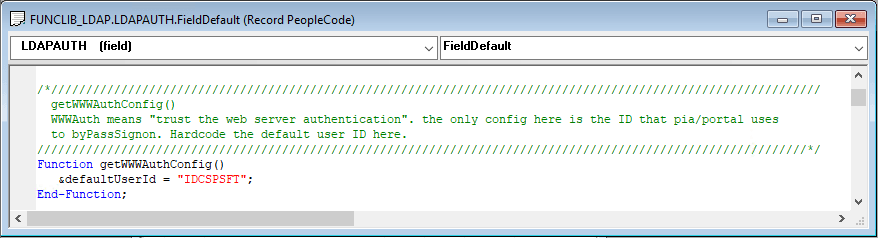
getWWWAuthConfig()function and verify that the value that is assigned to the&defaultUserIdis IDCSPSFT.This example illustrates the FUNCLIB_LDAP record in Application Designer showing getWWWAuthConfig function.
-
Save the record definition.
-
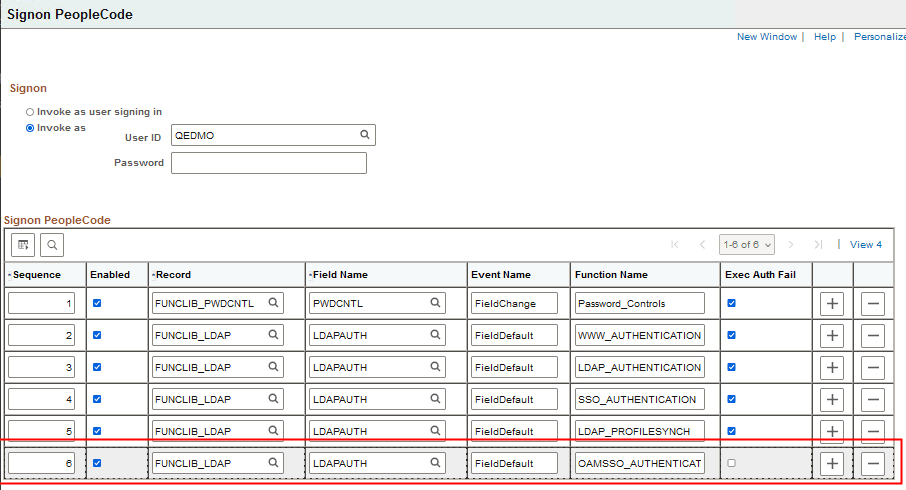
Access the Signon PeopleCode page () and enable the OAMSSO_AUTHENTICATION function—the Signon PeopleCode for OCI-IAM single signon.
This example illustrates the Signon PeopleCode page with the OAMSSO_AUTHENTICATION function enabled.
-
Save the page.
-
WebLogic users must disable basic authentication.
Access <PS_CFG_HOME>\webserv\<domain_name>\config and modify the config.xml file by adding this tag:
<enforce-valid-basic-auth-credentials>false</enforce-valid-basic-auth-credentials>For example:
<security-configuration xmlns:xacml="http://www.bea.com/ns/weblogic/90/security⇒ /xacml"> <name>peoplesoft</name> <realm>myrealm</realm> ....... <credential-encrypted>{3DES}dOa1fqoTbXxxxxxxxxxxxxxxxx</credential-encrypted> <enforce-valid-basic-auth-credentials>false</enforce-valid-basic-auth-⇒ credentials> </security-configuration> -
Be sure the logout page and expire page are configured correctly to work with the Oracle Access Manager logout mechanism.
See Portal Technology: Configuring Web Profiles.
See the Oracle Access Manager documentation.
-
Stop and restart the application server, web server, and HTTP server.