Setting Process Permissions
Access the Permission Lists - Process page (select and click the Process tab).
Just as you define permissions for the pages a user can access, you also must specify the batch (and online) processes that users can invoke through PeopleSoft Process Scheduler. Typically, process groups are arranged by department or task. For example, the batch programs used by your payroll department probably all belong to the PAYROLL process group, or a similarly named group.
When you create a process permission list, you add the appropriate process groups so that a user belonging to a particular role can invoke the proper batch programs to complete their business transactions. You do this using the Process Group Permission page.
You use the Process Profile Permission page to specify when a user or role can modify certain PeopleSoft Process Scheduler settings.
Note:
You grant Process Profile permissions directly to the user profile and Process Group permissions through permission lists.
Process Group Permissions
Access the Process Groups page (click the Process Group Permissions link on the Permission Lists - Process page).
This example illustrates the fields and controls on the Process Group Permission page.
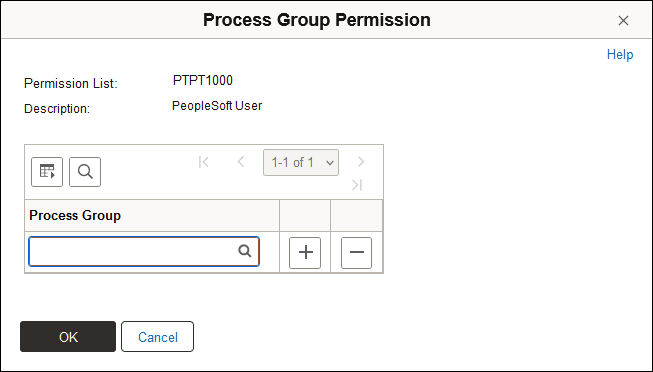
This page lists the process groups associated with a permission list. Process groups are collections of process definitions that you create using PeopleSoft Process Scheduler.
Typically, you group process definitions according to work groups within your organization, and typically that work group has a particular role associated with it. Regardless of how you organize process definitions, you must assign process groups to a permission list.
Users can run only the processes that belong to process groups assigned to their roles. For example, you may have a set of process definitions that relate to your Human Resources department and another set for your Manufacturing department.
Process Profile Permissions
Access the Process Profile Permission page (select the Process Profile Permissions link on the Permission Lists - Process page).
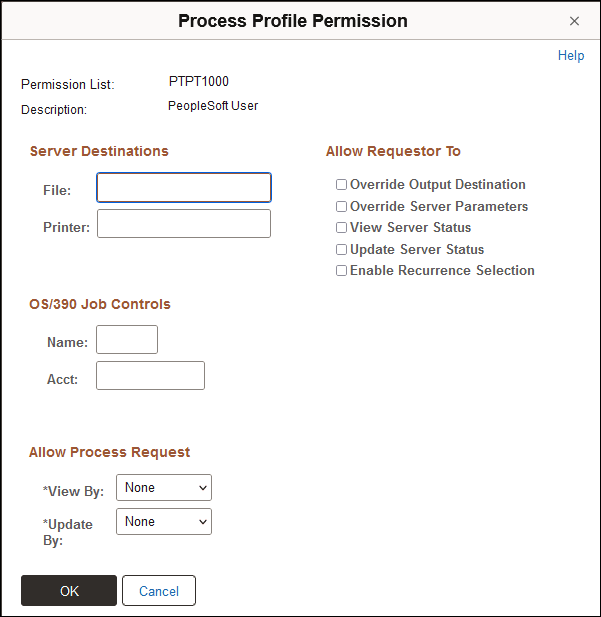
This example illustrates the fields and controls on the Process Profile Permission page.
| Field or Control | Description |
|---|---|
|
Server Destinations |
You can specify output variables when running processes or jobs on a server. You have the following options:
|
|
OS/390 Job Controls |
Note: This functionality is no longer supported. |
|
Allow Process Request |
These options apply to using PeopleSoft Process Monitor. You can restrict which users are permitted to view or update a given process based on the user who launched (and owns) the process. You can specify restrictions as follows:
Note: Be careful as you grant update authority to submitted processes. An inexperienced user can easily disrupt batch processing by deleting or holding processes, especially when restarting processes. If a program is not coded for a restart, then users should not be able to restart it. Restarting a program that is not properly coded to acknowledge the previous program run can threaten data integrity. Remember, the process profile permissions are based on the profile of the user who is submitting the process, not the user viewing the process monitor. |
The Allow Requestor To options apply to using PeopleSoft Process Monitor and PeopleSoft Process Scheduler Request pages. These options enable you to restrict the authority that a user has while monitoring scheduled processes.
| Field or Control | Description |
|---|---|
|
Override Output Destination |
Select to allow a user to change the value in the Output Destination column on the Process Scheduler Request page. |
|
Override Server Parameters |
Select to enable users to select the server name and modify the run date/time group on the Process Scheduler Request page. |
|
View Server Status |
Select to enable users to access the Server List page in PeopleSoft Process Monitor. |
|
Update Server Status |
Select to allow a user to suspend, restart, or bring down a server using the Server Detail page from the server list in PeopleSoft Process Monitor. |
|
Enable Recurrence Selection |
Select to enable a run recurrence value for processes and jobs scheduled to run on the server. |