Setting Sign-on Time Permissions
Access the Permission Lists - Sign-on Times page (select and click the Sign-on Times tab).
This example illustrates the fields and controls on the Permission Lists - Sign-on Times page.
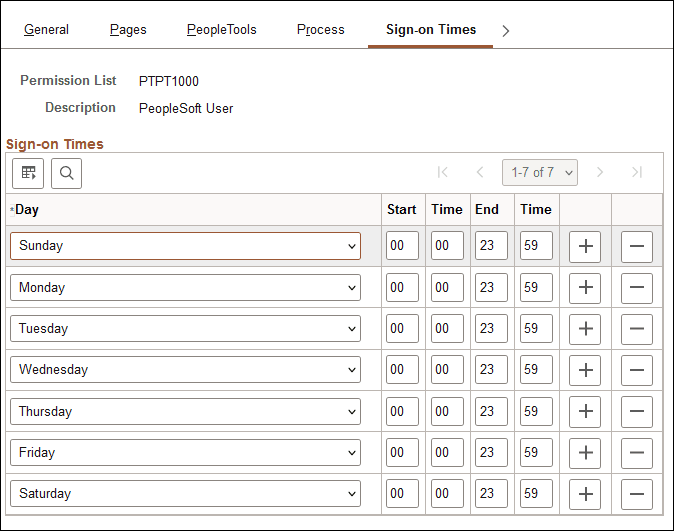
Pick a day and set a sign-on duration.
Sign-on times use the 24-hour clock and run through the end time value. For example, a user with an end time of 16:30 can use the system until 4:31 p.m.
To create a sign-on time that spans multiple days, use adjoining sign-on times. For example, to create a sign-on time running from 8 p.m. Tuesday to 6 a.m. Wednesday, you need a Tuesday start time of 20:00 and end time of 23:59. Then you need to add a Wednesday sign-on time with a start time of 00:00 and an end time of 05:59.
By default, all start times are 00:00 and end times are 23:59, and all days are listed. Delete days and change the times to restrict access.
A single day can have more than one sign-on period as long as the periods do not overlap. If a single day has multiple non-overlapping sign-on periods, then that day appears once for each period.