Setting PeopleTools Permissions
Access the Permission Lists - PeopleTools page (select and click the PeopleTools tab).
This example illustrates the fields and controls on the Permission Lists - PeopleTools page.
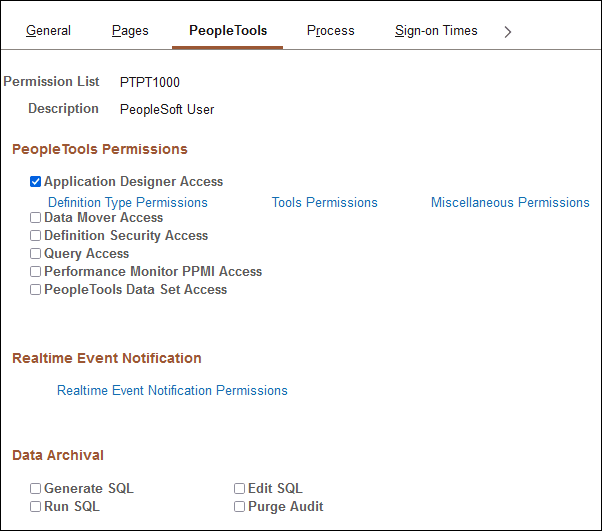
The PeopleTools Permissions section of this page applies to standalone PeopleTools applications. They are not PeopleSoft Pure Internet Architecture-based, but are Microsoft Windows programs that were not developed using PeopleSoft Application Designer. They include:
-
PeopleSoft Application Designer.
-
PeopleSoft Data Mover.
-
PeopleSoft Definition Security.
-
PeopleSoft Query (Microsoft Windows interface, not the browser interface).
The Performance Monitor PPMI Access check box does not control access to an application; rather, it enables PeopleSoft Performance Monitor data collators to insert performance data into the database, which enables you to view the data.
To grant access to these PeopleTools features, select the check box next to the appropriate item.
With PeopleSoft Application Designer, the procedure for applying permissions is slightly more complex, because security for PeopleSoft Application Designer also controls what object definition types can be accessed and what degree of modifications can be made. The Definition Type Permissions, Tools Permissions, and Miscellaneous Permissions links enable you to provide more detail to PeopleSoft Application Designer access permissions.
Definition Type Permissions
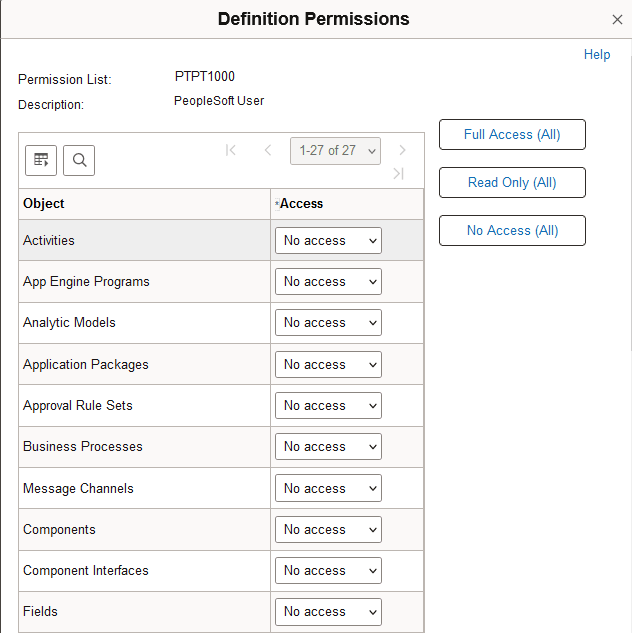
Use the Definition Permissions page to control access to definition types in PeopleSoft Application Designer. If you want to control access to definition types at runtime, you must use the Definition Security tab to set the access permissions. For more information on setting runtime access permissions, see Working with Definition Security Permissions.
Access the Definition Permissions page (click the Definition Type Permissions link on the Permission Lists - PeopleTools page).
This example illustrates the fields and controls on the Definition Permissions page.
| Field or Control | Description |
|---|---|
|
Access Code |
Select the appropriate access level. Options are: Full access: Definitions of the specified type can be modified. For records, this setting allows access to the Build dialog box. No access: No definitions of the specified type can be opened. Read-only access: Definitions of the specified type can be opened and viewed, but not modified. Update translates only: This level applies only to fields. This setting allows a user to modify only Translate table values. Data admin only: This level applies only to records. It allows a user to modify only those record attributes found in the Tools, Data Administration menu (tablespaces, indexes, and record DDL). Note: Projects cannot be set to No access because Application Designer requires access to a project to launch successfully. |
|
Full Access (All), Read Only (All), and No Access (All) |
Click to set all definition types in the list to the same access level. |
Tools Permissions
Access the Tools Permission page (click the Tools Permissions link on the Permission Lists - PeopleTools page).
This example illustrates the fields and controls on the Tools Permission page.
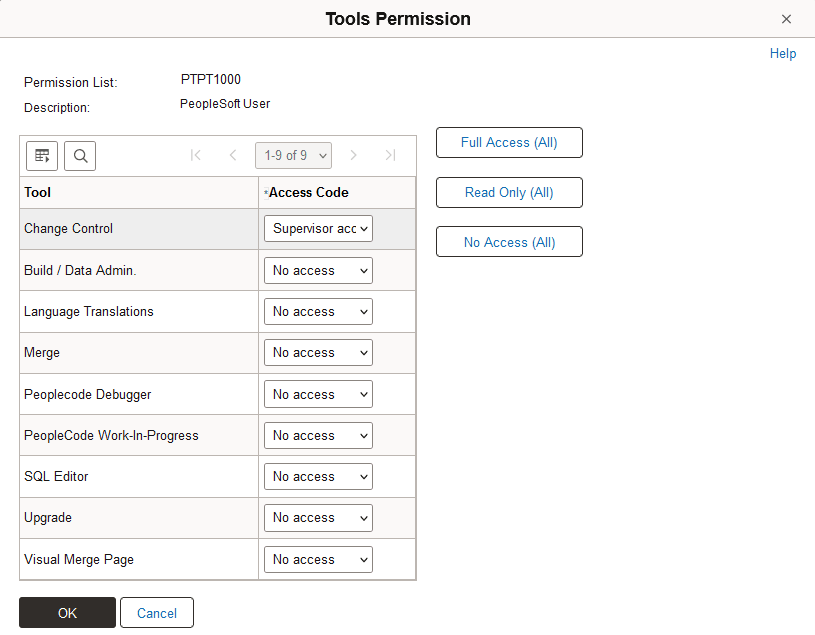
In addition to securing definitions, PeopleSoft Application Designer security also involves a collection of tools, such as Build and the PeopleCode Debugger, to which developers need access.
The tools within PeopleSoft Application Designer include:
-
Change Control (select ).
-
Build/Data Admin (select ).
-
Language Translations (select ).
-
PeopleCode Debugger (select ).
-
SQL Editor (the PeopleSoft Application Designer utility for adding SQL objects and statements to applications and application engine programs).
-
Upgrade (select ).
This tool includes Copy Project, Compare and Report, and so on.
You can set the access level individually for the Tools Permissions page options or your can use the Full Access (All), Read Only (All), or No Access (All) buttons to set across-the-board settings. Remember that every button affects every access level for the tools.
| Field or Control | Description |
|---|---|
|
Change Control |
The change control access levels are valid only when change control is enabled. You enable change control locking using PeopleSoft Application Designer. Select from:
|
|
Build/Data Admin |
Control access to the Build and Tools, Data Administration menu items. Select from:
|
|
Language Translations |
Set only two levels of access, No access and Full access. Enable this set of menu options for people involved in translating or globalizing your applications. |
|
PeopleCode Debugger |
Restrict access to the PeopleCode Debugger. |
|
SQL Editor |
Restrict developers from modifying the SQL in your applications. |
|
Upgrade |
Select No access to make all the Upgrade menu items on the Tools menu unavailable. Developers can still access the Upgrade view and modify upgrade settings in the project definition, but they cannot run any the upgrade processes. With Read-only access, users can run compare reports against the database, but they cannot copy objects into the database. |
The following table shows the relationship between the permissions that are set up within the source and the target databases, which you should consider in upgrade situations:
| Source DB | Target DB | Compare? | Copy? | Export? | Import? |
|---|---|---|---|---|---|
|
No access |
No access |
No |
No |
No |
No |
|
No access |
Read-only access |
No |
No |
No |
No |
|
No access |
Full access |
No |
No |
No |
No |
|
Read-only access |
No access |
No |
No |
Yes |
No |
|
Read-only access |
Read-only access |
Yes |
No |
Yes |
No |
|
Read-only access |
Full access |
Yes |
Yes |
Yes |
No |
|
Full access |
No access |
No |
No |
Yes |
Yes |
|
Full access |
Read-only access |
Yes |
No |
Yes |
Yes |
|
Full access |
Full access |
Yes |
Yes |
Yes |
Yes |
Miscellaneous Permissions
Access the Miscellaneous Permissions page (select the Miscellaneous Permissions link on the Permission Lists - PeopleTools page).
This example illustrates the fields and controls on the Miscellaneous Permissions page.
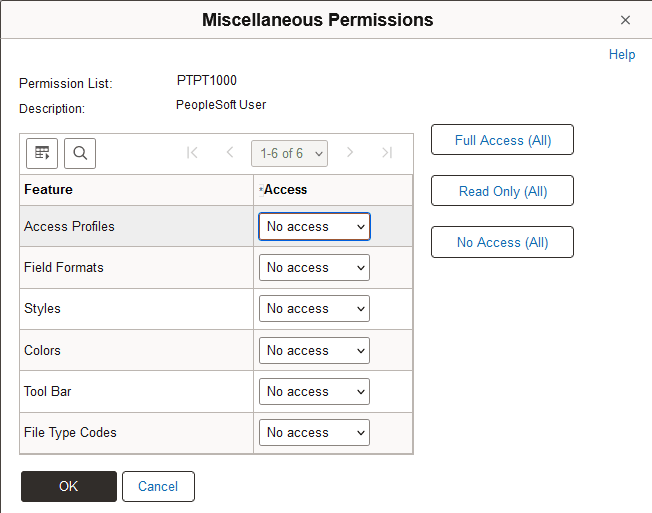
Set access levels for the Miscellaneous Definitions items that appear in the PeopleSoft Application Designer Tools menu, including Access Profiles, Color, Field Format, Style, and Tool Bar.
Each of the miscellaneous definitions can be set for No access, Read-only access, or Full access. You can select the Full Access (All), Read Only (All), or No Access (All) buttons to grant the same permissions to each item.
Real-time Event Notification Permissions
Access the REN Permissions page (click the Realtime Event Notification Permissions link on the Permission Lists - PeopleTools page).
This example illustrates the fields and controls on the REN Permissions page.
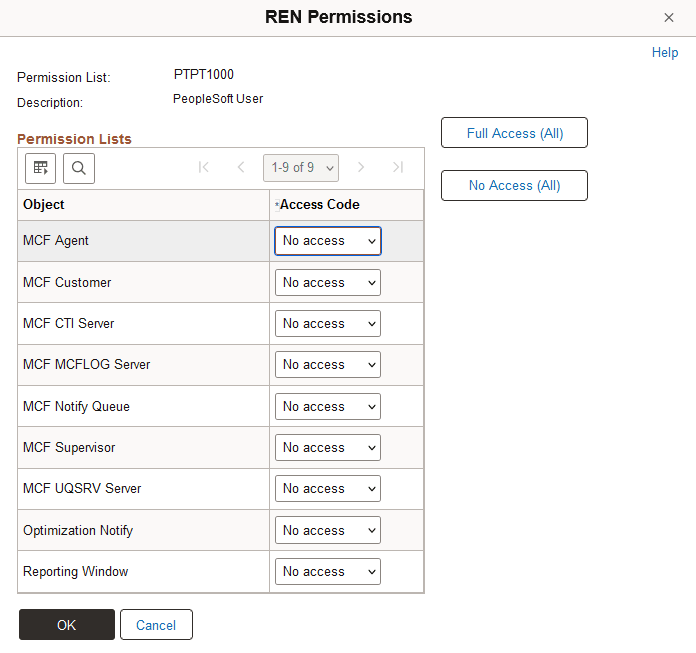
The REN Permissions page enables you to control REN server access. Before you grant any permissions to these actions, read the PeopleSoft MultiChannel Framework documentation.
See MultiChannel Framework: Configuring REN Server Security.
Data Archival
PeopleSoft Data Archive Manager is a page-driven PeopleTools application that you use to archive your application data as part of regular database maintenance. The security options in this group relate specifically to actions a system administrator would make while using PeopleSoft Data Archive Manager. The actions that a system administrator can perform within PeopleSoft Data Archive Manager are controlled by permission lists. Before you grant any permissions to these actions, read the PeopleSoft Data Archive Manager documentation.