Setting Query Permissions
Access the Permission Lists - Query page (select and click the Query tab).
This example illustrates the fields and controls on the Permission Lists - Query page.
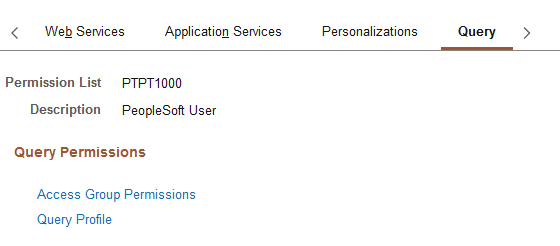
The Query page has links to the Permission List Access Groups page, where you can define the records to which the user can have access in PeopleSoft Query, and the Query Profile page, where you can define the query operations that the user can perform.
Defining Access Groups
Access the Permission List Access Groups page (click the Access Group Permissions link on the Permission Lists - Query page).
This example illustrates the fields and controls on the Permission List Access Groups page.
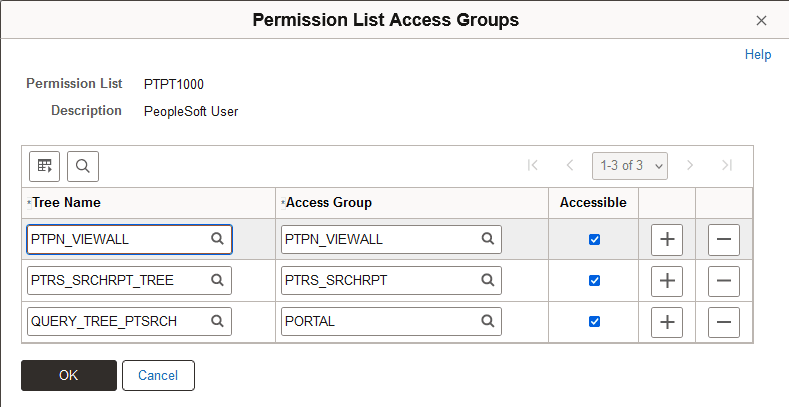
Access groups are nodes in a query tree, which you build with PeopleSoft Query Manager. After you build a query tree, you give users access to one or more of its access groups. Then, they can generate queries on any tables in the access groups accessible to them.
When you open Query Manager, it displays either an access group structure or an alphabetical list of records to which you have access. Access groups enable you to logically organize the record components to control security access within PeopleSoft Query. This listing is not a physical representation of your database.
You can generate queries on and retrieve information only from the tables whose record definitions are within these access groups. If, for example, you were querying an order table and wanted to display data from a related table (like the customer name rather than the customer code), you must have both tables—the order table and the customer prompt table—in your access groups.
To create new queries, or even to run existing ones, users must have access rights to the record components used in the queries. After you build your query trees, you must grant users access to them. You can grant and restrict access to entire query trees or portions of them through the Access Groups page.
To add an access group to a permission list:
-
Open the permission list and select Query, Access Groups Permissions.
-
Select a tree name.
-
Select the highest access group that the user can access.
The system displays access groups in the selected query tree only.
The access group that you select should be the highest-level tree group to which this permission list needs access. The Accessible check box is selected by default. For example, users in the ALLPANLS permission list have access to all record components in the EIS_ACCESS_GRP and all access groups below it in the QUERY_TREE_EIS query tree—in other words, to all record components in the tree.
-
(Optional) Deselect the Accessible check box.
To grant access to most of the record components in a high-level access group but restrict access to one of the lower-level groups, you can add a new row for the lower-level access group and deselect the Accessible check box. Users can then access all record components within the higher-level group except for those you explicitly made inaccessible.
Note:
Because it hinders system performance, do not deselect the Accessible check box for lower-level access groups. To restrict access to record components on a particular branch of a tree, consider creating a new tree for those definitions. Attempting to expand an access group that is not accessible causes all access groups below that access group to be loaded into memory.
-
Save your changes.
Note:
When the system loads an access group into memory for the first time, you will likely experience a small delay. This delay is the result of a physical database read for each record component that is associated with that access group. For this reason, do not group a large number of record components into a single access group.
Defining Query Profiles
Access the Query Profile page (click the Query Profile link on the Permission Lists - Query page).
This example illustrates the fields and controls on the Query Profile page.
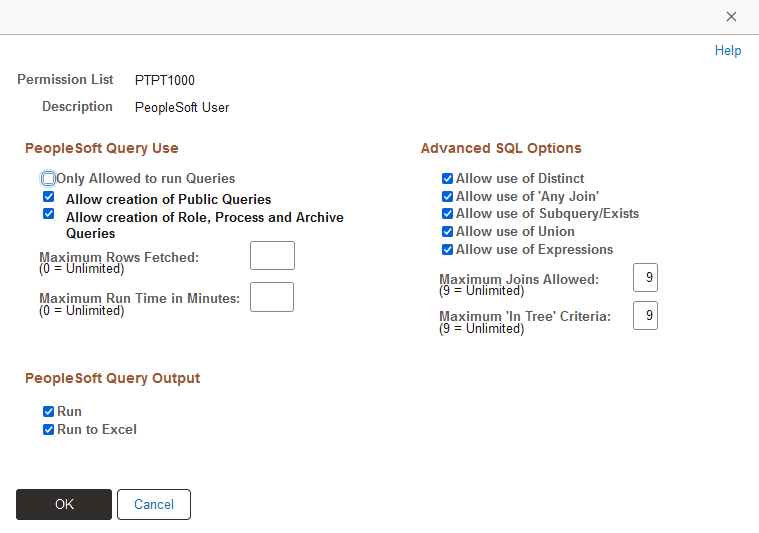
Query profiles specify available query operations. You can give users the right to run queries but not create them, or to create regular queries but not workflow queries, and you can restrict the SQL operations that users can perform. You control these options through the query profile.
Each permission list has its own query profile, and the combination of all permission lists that are assigned to a role determine the total query access for the role. User profiles inherit query access only through the roles that you assign to them.
Note:
The first level of security is access to PeopleSoft Query itself. Not every user needs to create queries. You grant access to the Windows client of PeopleSoft Query by selecting the Query Access check box on the PeopleTools page of a permission list. You grant access to Query Manager by including the QUERY_MANAGER menu and its related components on the Pages page of a permission list.
You select at least one of the options in the PeopleSoft Query Use section of this page to give users query access.
| Field or Control | Description |
|---|---|
|
PeopleSoft Query Use |
Select from:
|
|
PeopleSoft Query Output |
Select at least one of these values:
Note: If using PeopleSoft Query in the Microsoft Windows environment, you grant runtime access through PeopleSoft Navigator by selecting at least one of the PeopleSoft Query output options. |
|
Advanced SQL Options |
Restrict less experienced users from generating complex queries, as such queries can affect system performance. Select one or more of these options:
|