Using the Define Personalizations – Format Page
To access the Define Personalizations – Format page, select and click the Format tab.
This example illustrates the fields and controls on the Define Personalizations – Format page. You can find definitions for the fields and controls later on this page.
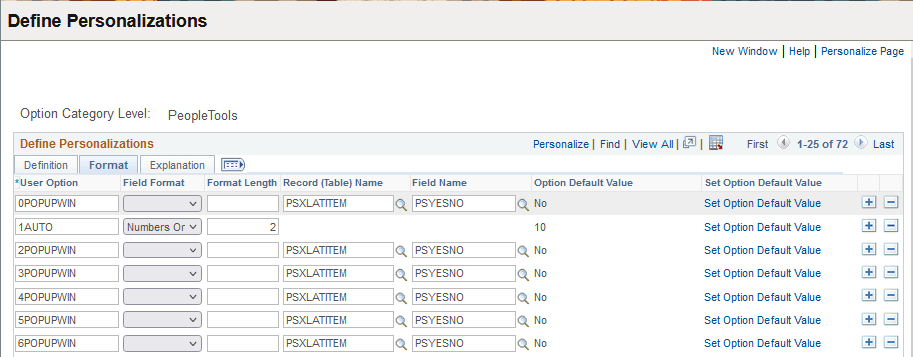
| Field or Control | Description |
|---|---|
|
User Option |
Shows the code associated with the option. |
|
Field Format and Field Format Length |
Specify the field characteristic of the option. Used for the Option Default Value for options that are not validated against the database. |
|
Record (Table) Name |
Specifies the lookup table that holds the personalization options values. |
|
Field Name |
Specifies the field on the lookup table containing the valid option values. |
|
Option Default Value |
Shows the current default for the option. To change the value, select the Set Option Default Value link. |
|
Set Option Default Value |
This is a link to the secondary page used to set Option Default Values (discussed in the following section). |
Set Option Default Value
The following items appear on the Set Option Default Value page:
| Field or Control | Description |
|---|---|
|
Option Category Level |
Shows the high-level category to which the option belongs, such as PeopleTools or HCM. |
|
User Option |
Displays the code associated with the option. |
|
Description |
Displays the description of the option. |
|
Current Default Value |
Displays the current default value |
|
Option Default Value |
Select the appropriate value from the drop-down list, or add the appropriate option manually. For options that derive default values from a prompt table, the system displays a drop-down list. Otherwise, the system displays an edit box. |