Using the Insert Definitions Page
Use the Insert Definitions page (PTDEFSECINSRT) to insert definitions into definition groups and save searches as inclusion rules.
-
Insert definitions into definition groups.
-
Save searches as inclusion rules.
To access the page:
-
Select
The Definition Groups Search page appears.
-
Access a definition group or add a definition group.
See Accessing Definition Groups (Browser Client) or Adding Definition Groups (Browser Client).
The Group Content Summary page appears.
-
Click the Group Content Detail page.
In the Object Name field select an object type.
-
Click the Insert Definitions button.
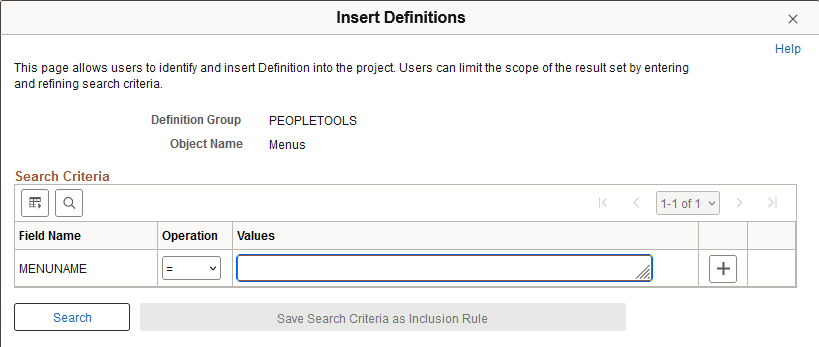
This example illustrates the fields and controls on the Insert Definitions page when no search criteria has been defined and no search results are displayed. You can find definitions for the fields and controls later on this page.
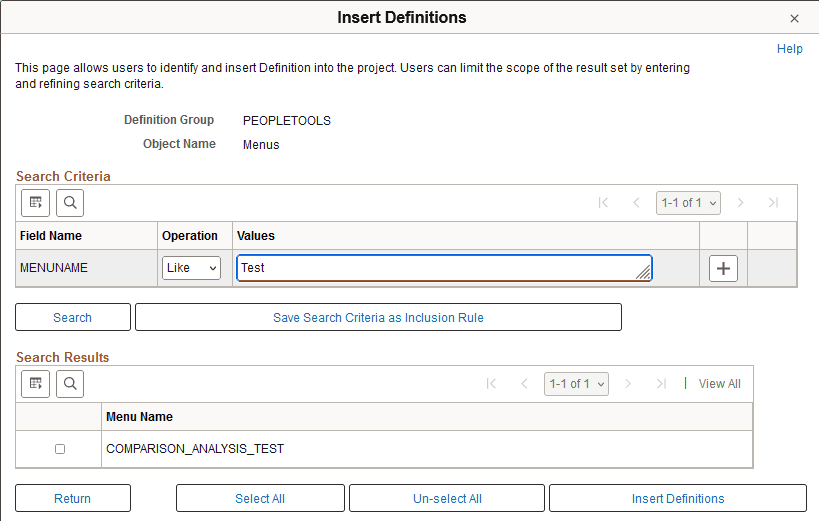
This example illustrates the fields and controls on the Insert Definitions page with search criteria defined and search results displayed. You can find definitions for the fields and controls later on this page.
Note:
The system returns values of only those definitions that are not defined in the definition group.
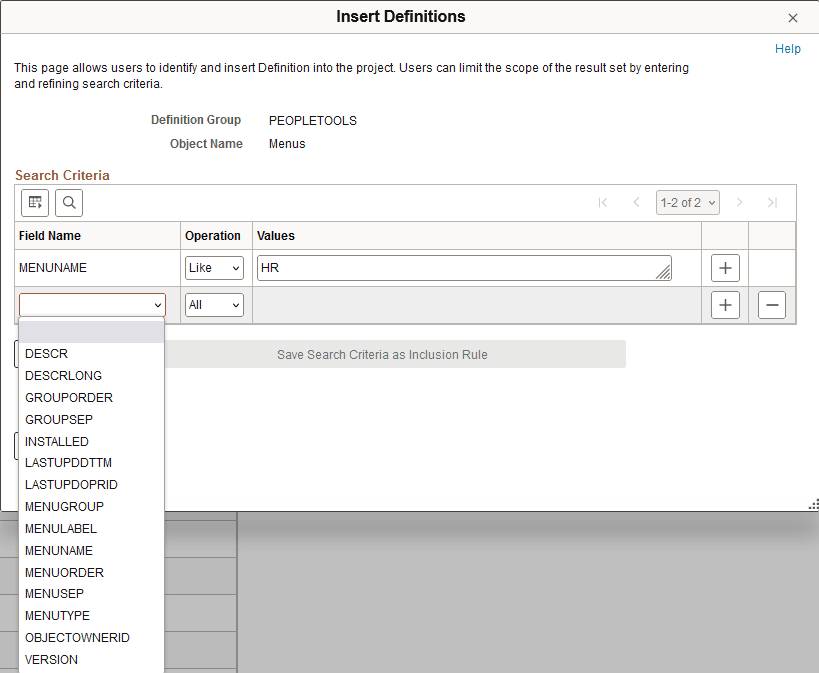
This example shows a second row added to the Search Criteria grid for defining a second search statement. A drop-down list appears displaying the record field names you can use in the search statement.
| Field or Control | Description |
|---|---|
|
Field Name |
Displays the field name from the definition. The definition name defaults in the first row of a search. You can insert additional rows to define additional search criteria using definition fields. As an example, if working with the menu definition type, you can define search criteria based on the menu group, menu label, menu type, and so on. |
|
Operation |
From the drop-down list select an operator for the search. The operator is applied to the value defined in the Value field. The options are:
|
|
Value |
Enter a value based on the operator selected from the Operation drop-down list. |
|
Search |
Click the Search button to perform a search. |
|
Save Search Criteria as Inclusion Rule |
Click the button to save a search as an inclusion rule. When you save a search as an inclusion rule, you can view the rule on the Definition Groups – Inclusion Rules page. |
|
<Definition> Name |
Displays the definition names returned by the search. |
|
Return |
Click the button to return to the Group Content Detail page. |
|
Insert Definitions |
Click the button to insert selected definitions in the Search Results grid into the definition group. |