Defining Partner Profiles
To access the Partner Profile - Profile Definition page go to .
This example illustrates the fields and controls on the Partner Profile - Profile Definition page.
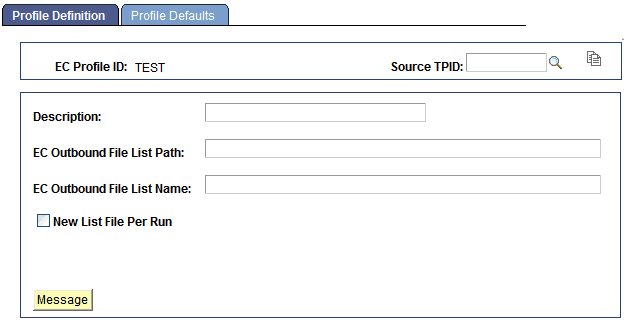
To define a partner profile:
-
(Optional) Copy the definition of a similar partner profile.
If the profile that you are creating is similar to an existing profile, you can copy the details of the existing profile definition into this component. Then, you can change just the parts that are different.
Select the existing Source TPID, and then click theEC Copy Profile Function button. The system copies the values from the selected profile.
-
Specify the directory where you want the EDI agent to write outbound transaction files for partners with this profile.
Enter the directory path in the EC Outbound File List Path text box.
Note:
If PeopleSoft EDI Manager runs on a server under MVS, it ignores this setting. Instead, it looks in the JCL for a DDNAME matching the file name that you specify in the next step.
-
Enter a name for the file that lists all pending outbound transaction files.
As the EDI agent creates transaction files, it adds the names of those files to a list file, the name of which you enter in the EC Outbound File List Name text box.
The transaction files themselves are automatically named 1.DAT, 2.DAT, and so on, except on MVS servers. On MVS, the files are named using the first eight characters of the external trading partner ID.
-
(Optional) Select New List File Per Run if you want a new list generated every run.
-
(Optional) Click the Message button to insert a standard message header or footer in the file.