Load Application Server Cache
The Load Application Server Cache page enables you to run Application Engine programs that load the shared file cache or the database cache for application server domains.
Select . Add a Run Control ID or select an existing one to access the Load Application Server Cache page.
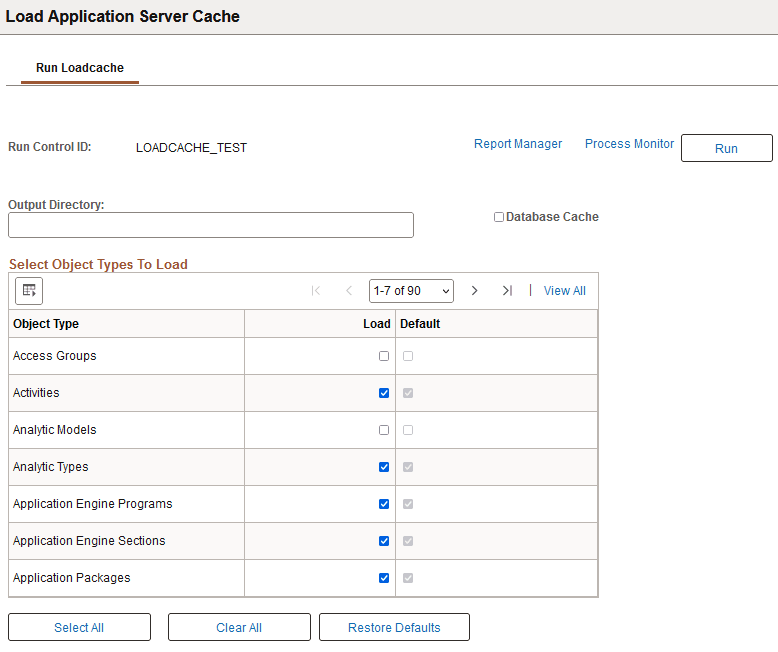
This example illustrates the fields and controls on the Load Application Server Cache page (1 of 2).
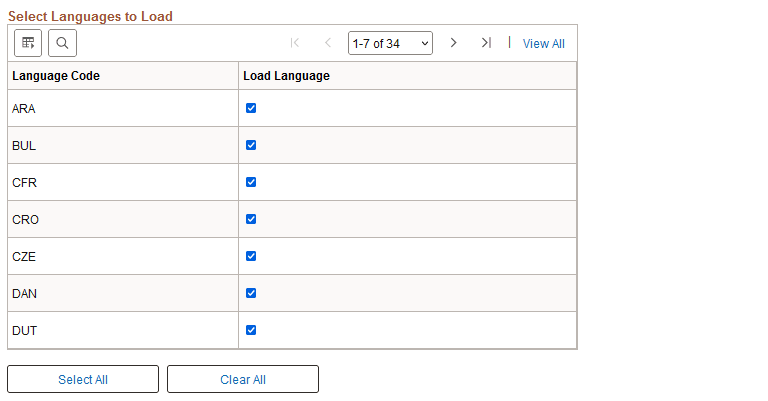
This example illustrates the fields and controls on the Load Application Server Cache page (2 of 2).
The usage of the fields and controls on the Load Application Server Cache page is described in the section Loading Shared File Cache or Database Cache.
You need to run a cache loading program described in this section only if you intend to implement shared file caching on the application server or database caching.
To load non-shared file cache or database cache with specific cache projects, you use a separate process, which is documented elsewhere in this guide.
See Configuring an Application Server Domain to Preload Cache.
See ServerCacheMode.
Understanding Application Server Caching
Each server process running within a domain has these caching features:
| Cache Type | Description |
|---|---|
|
Memory cache |
Stores PeopleTools definition metadata to improve system performance. Memory cache is always enabled for each server process in a domain. |
|
File cache |
Stores PeopleTools definition metadata, such as the metadata for pages, locally on the application server. File caching is controlled by the EnableServerCaching parameter in PSAPPSRV.CFG. |
|
Database cache |
Stores PeopleTools definition metadata, such as the metadata for pages, in database tables. Database caching is controlled by the EnableDBCache parameter in PSAPPSRV.CFG. Any domain that has EnableDBCache enabled and connects to the database uses the cache information stored in the database. |
With file caching, you have the option of implementing shared or non-shared file caching.
| File Cache Option | Description |
|---|---|
|
Shared |
With shared file caching, all of the server processes within a single domain share the same file cache location. |
|
Non-shared |
With non-shared file caching, each server processes within a single domain maintains its own file cache. For example, with non-shared caching configured, each PSAPPSRV server process uses its own file cache. |
Oracle provides cache loading programs designed specifically to load cache prior to users accessing the system, which you run from the Load Application Server Cache page. The cache loading programs retrieve all of the PeopleTools definition metadata from the database and builds either file cache that you can deploy locally on an application server or it populates the database cache tables, depending on what type of cache you are implementing.
Running a cache loading program is the equivalent of having a user access every page in the system once so that all the metadata associated with each page is retrieved from the database and stored in the local cache. With all the metadata already stored in cache, the end users experience more predictable performance.
With cache already loaded, end users don't have to wait for the system to retrieve a definition from the database and cache it, each time a definition is accessed for the first time. The system retrieves all of the required objects from the cache as opposed to querying the database for each request. This provides significant performance benefits for first-time and large transactions.
If you elect to run a cache loading program, consider the following items:
-
You need to run one of the cache loading programs at least once. Once the cache is loaded, the cache loading programs download only new or changed metadata to the cache.
Note:
Items that are outdated in the cache are marked invalid but are not deleted. This includes design time changes, upgrades, patches, and so on. However, the system uses only the most current cache definitions.
-
The first time that you run a cache loading program, it can take a significant amount of time to complete, for example 2 to 30 hours. The duration of the program run depends on a number of factors, including the number of active languages selected, the size of the database, and the power of the server machine. Subsequent program runs complete in less time if there is already valid cache data in the target cache directory or the database cache tables. The programs are designed to update only the changed objects.
-
You can copy the output of a cache loading program to other machines (for shared file caching).
-
You can select the object types and languages for cache loading.
Note:
Shared file cache output is not portable to different operating systems. For instance, if you generate the cached metadata on a Windows server, you can't copy the cache files to a UNIX server.
WARNING:
If for any reason you update PSSTATUS.LASTREFRESHDTTM, the system marks all items in the shared cache as invalid, and you will need to rerun one of the cache loading programs again.
Oracle provides these options for loading your cache:
| Preloading Cache Option | Process Scheduler Process Type | Description |
|---|---|---|
|
Serial cache loading |
Process |
Serial cache loading refers to running an Application Engine program named LOADCACHE. The LOADCACHE program, adds each applicable cache object to the cache, sequentially. Note: If you use the Run Control ID PT_LOADCACHE_ALL when running on the command line, it will load cache for all managed objects. Otherwise, it will load cache for the default set of objects, as in previous releases. |
|
Parallel cache loading |
PSJob |
Parallel cache loading is intended to reduce the time required to build the cache. Parallel cache loading splits the work of the LOADCACHE program into two separate Application Engine programs that run simultaneously within the PSJob PLCACHE. The PLCACHE job runs a basic setup program, and then runs these programs:
|
Loading Shared File Cache or Database Cache
To load shared file cache or database cache:
-
Make sure that the database that the application server runs against produces a clean SYSAUDIT report.
If SYSAUDIT is not clean, the cache loading programs can fail.
-
Access the Load Application Server Cache page, entering an appropriate Run Control ID.
Select to access the Load Application Server Cache page.
-
(For shared file cache) In the Output Directory field, enter a valid location.
Note:
In almost all situations, the system ignores any custom value entered in the Output Directory and generates output into the default cache-loading output directory: PS_CFG_HOME\appserv\prcs\ProcessScheduler_domain\CACHE\CACHE\stage\stage. However, if a cache loading program runs through a PSNT Process Scheduler server running on a remote drive, and the application server cache directory and Process Scheduler cache directory are located on the local drive, then the value entered in the Output Directory field supersedes the default output directory.
-
(For database caching) Select the Database Cache check box.
This disables the output directory field. With database caching enabled, the cache loading program inserts the cache directly into the database cache table, PSOBJCACHE.
-
Select the Load check box beside the object type for cache loading.
The list includes all cacheable object types, with display-only check marks for those that are defaults. The default set includes the minimum list of object types included for this functionality in previous releases.
Click Restore Defaults to discard your selections and return to the default set of cacheable objects.
-
Select the languages to load.
If not all possible languages are required to be loaded for a domain, you can improve performance of the program run by selecting only those languages that are required.
-
Click Run.
The Process Scheduler Request page appears.
-
From the Server Name drop-down list, select the name of the server to run the cache-loading process.
-
From the Process List, select Serial LoadCache to run the single LOADCACHE Application Engine program, or select Parallel LoadCache to run the PLCACHE PSJob to run multiple Application Engine jobs in parallel.
-
(For Parallel LoadCache) Ensure that the Process Scheduler server definition is set to run the LOADCACHE process category and that the Max Concurrent value is set appropriately.
Parallel LoadCache is assigned to the LOADCACHE process category. It will run only on servers that are configured to run the LOADCACHE process category.
For the LOADCACHE process category, set the Max Concurrent value greater than 0. The recommended value is 2.
If you modify the server definition, restart the server for your changes to take effect.
Note:
When running the cache loading programs, only one server at a time should have the MaxConcurrent value set greater than 0. This guarantees that the processes running within the Parallel LoadCache job will run on the same server. If processes within the job run on different servers, this could result in each server having an incomplete set of generated cache files.
-
Click OK to launch the cache loading program.
After you invoke the process, you can use the Report Manager and Process Monitor links to monitor the progress.
The first time that you run the program, the process may take numerous hours to complete (less time for the Parallel LoadCache option).
-
When the cache loading program completes, verify the existence of the cache contents.
For shared caching, the cache loading program creates the shared file cache in the following directory:
-
Windows: PS_CFG_HOME\appserv\prcs\ProcessScheduler_domain\CACHE\CACHE\stage\stage
-
For UNIX or Linux: PS_CFG_HOME/appserv/prcs/ProcessScheduler_domain/CACHE/STAGE/stage
Where ProcessScheduler_domain is the Process Scheduler domain in which you ran the process.
If database caching is enabled, the program loads the cache directly into the database. To verify the existence of the database cache, run the following SQL statement using your SQL editor:
SELECT * FROM PSOBJCACHE; -
-
Once you've determined that the cache has been successfully loaded, shut down the application server domain(s), and modify the domain configuration to recognize the generated cache.
For shared file caching, edit the PSAPPSRV.CFG file, and enable shared caching, by uncommenting and setting
ServerCacheMode=1for all appropriate domains.For database caching, edit the PSAPPSRV.CFG file, and enable database caching, by uncommenting and setting
EnableDBCache=Yfor all appropriate domains. -
(For shared file cache) Create a \SHARE directory within the CACHE directory for the appropriate application server domains, and copy the output of the load caching program into the \SHARE directory.
For example, copy the output of the load caching program to PS_CFG_HOME\appserv\domain\CACHE\SHARE directory for the appropriate application server domain(s).
Note:
UNIX and Linux systems expect an uppercase \SHARE directory. For Windows, the \SHARE directory can be mixed case.
-
Boot (or reboot) the application server domain(s).
Working with Database Cache
Database caching provides another implementation option. Determining which caching option works best for your site requires analysis and testing. For many cases, file caching will continue to be the preferred method.
The benefits of database caching include:
-
Cache loading only needs to be run once for all domains connecting to a database as they will all share the same database cache.
-
New domains can immediately take advantage of the database cache once EnableDBCache is set in the domain configuration. That is, no additional cache loading programs need to be run or additional output that needs to be copied.
-
Eliminates administrative overhead of managing disk space and cache files on the file system.
Note:
The database cache stores the cached metadata as a BLOB (binary large object) in a single table for the most efficient retrieval.
Note:
The database cache is generated specific to the system's byte-order (little-endian or big-endian). The database cache is shared by all systems that have the same byte-order.
Maintaining the Versions of Cached Definitions
PeopleTools uses version numbers to keep cached objects synchronized with the data in the database. When a system undergoes change (such as during custom configurations, updates, or upgrades) versions can get out of sync, and they need to be reset.
Use the VERSION Application Engine program to maintain the definition version synchronization in your system. VERSION can run in these modes.
| Mode | Invoked From | Run Control ID | Description |
|---|---|---|---|
|
Reset All Versions |
Command line only |
Must start with RESETVERSIONS. For example, the run control ID could be RESETVERSIONS, RESETVERSIONS2, RESETVERSIONS3, and so on. Note:The run control ID is not case sensitive. |
Resets all versions to 1. Before running in this mode, shut down all servers and client connections. After running, regenerate cache. |
|
Reset Differences Only |
Command line or Process Scheduler |
Any run control ID, not beginning with RESETVERSIONS or REPORTONLY. |
Synchronizes only the definition versions where discrepancies exist. Severs can remain running and clients can remain connected. Cache does not need to be regenerated. |
|
Report Only |
Command line or Process Scheduler |
Must begin with REPORTONLY. For example, the run control ID could be REPORTONLY, REPORTONLY2, REPORTONLY3, and so on Note:The run control ID is not case sensitive. |
Generates a report indicating where version discrepancies exist, but does not update any versions. Severs can remain running and clients can remain connected. Cache does not need to be regenerated. |
When running VERSION in any mode, the system generates a report and writes it to %PS_SERVDIR%\log_output.
When running VERSION through Process Scheduler, keep these items in mind:
-
Invoke VERSION from
-
Create the appropriate run control ID (or use an existing run control ID), such as REPORTONLY.
-
Set Process Frequency to Always so that the run control ID can be used more than once.
Working with the Dynamic Cache Repair Utility
PeopleTools provides a dynamic cache repair utility that enables you to configure the system to monitor and adjust automatically a domain’s cache while it runs, requiring no intervention from system administrators, and without requiring the domain or a server process to be restarted.
For more information on enabling and using the cache repair utility, see EnableCacheRepair.