Log Export
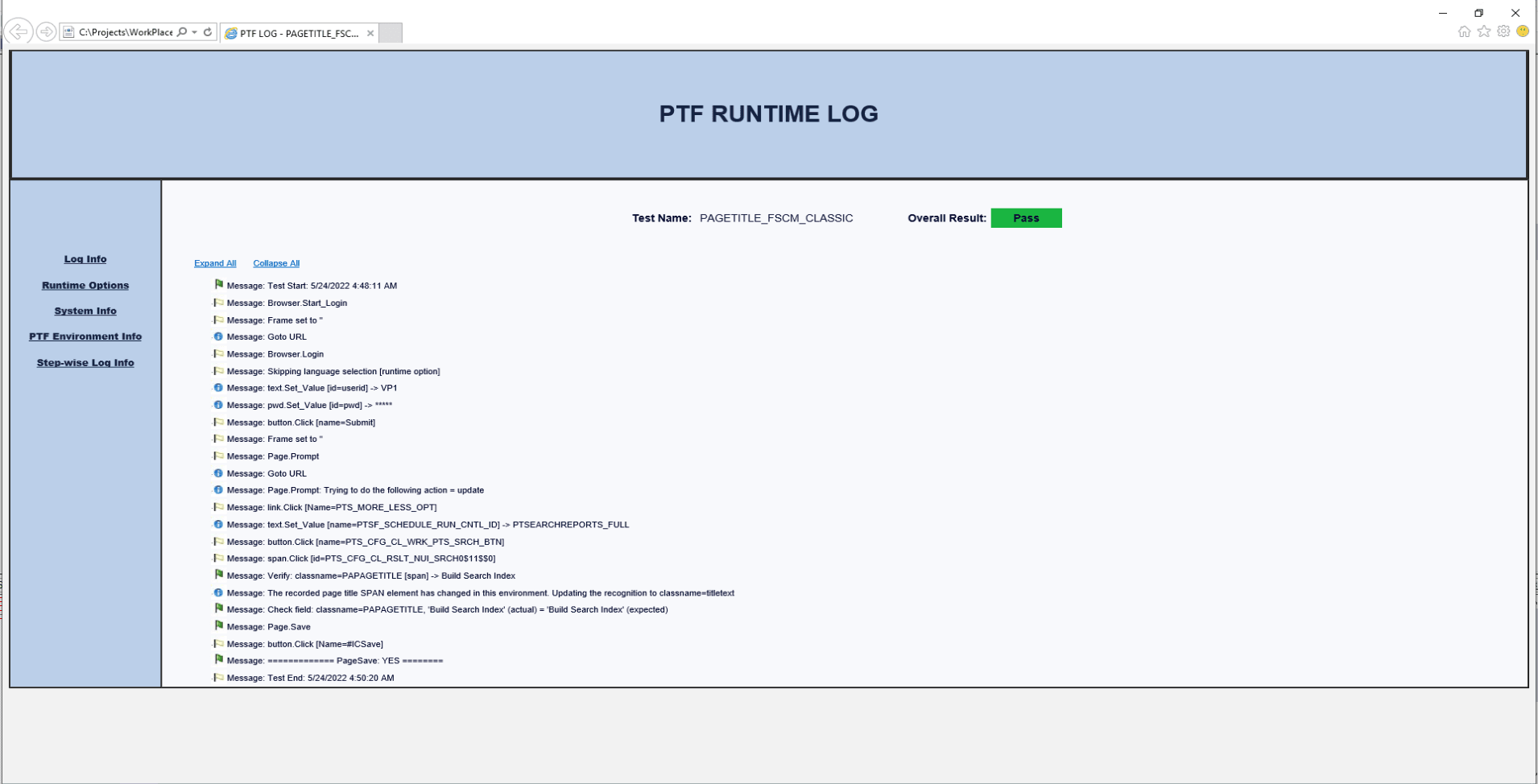
The Log Export tab allows you to archive the result logs to a file system in XML + XSL format at the end of each test runtime, which provides the following benefits:
-
The logs are accessible from any browser.
-
The PTF client is not required to verify test results.
-
The logs are available even after the environment or database is brought down or upgraded.
-
Since the log is in XML format, you can write customized utilities to parse or interpret the logs as needed.
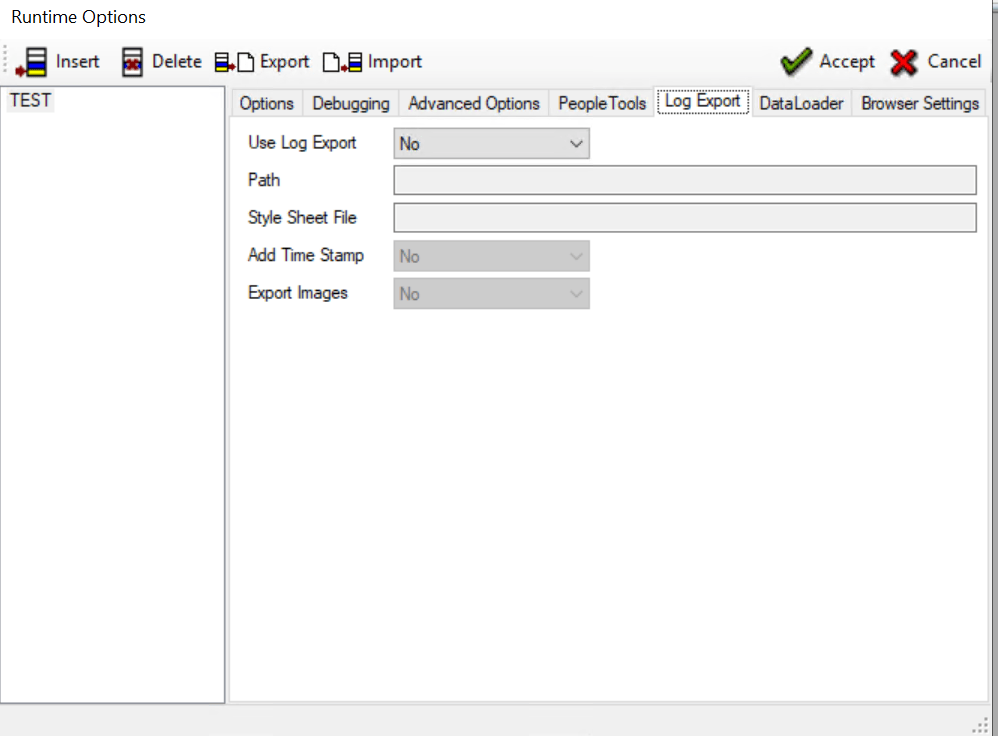
This example illustrates the fields and controls on the Runtime Options dialog - Log Export tab. You can find definitions for the fields and controls later on this page.
| Term | Definition |
|---|---|
|
Use Export Log |
Select Yes to activate the export log functionality. |
|
Path |
Specify the shared drive to store the log files. Note: Ensure that the shared drive path allows users full read/write access. The path can be customized using existing system variables. See System Variables |
|
Style Sheet File |
(Optional) Specify the path to the stylesheet. If specified, the exported XML log will be saved with the stylesheet. You can create your own stylesheet to format the XML. If this field is left blank, the XML will not be saved with a stylesheet. Note: Ensure that the shared drive path allows users full read/write access. The path can be customized using existing system variables. See System Variables |
|
Add Time Stamp |
If set to Yes the XML filename will be appended with the Time Stamp in the following format: <TEST_NAME>-<LOG_ID>-T<YYYYMMDD>_<HHMMSS> Example: FSCM_INS_VER-LOG5-T20121128_163649.XML |
|
Export Images |
If set to Yes the Image will be saved in the same Log folder as the XML Log in the following format: <TEST_NAME>-<LOG_ID>-T<OPTIONAL_TIME_STAMP>-<LINE_NUMBER_AS_SHOWN_IN_LOG> Example: FSCM_INS_VER-LOG5-T20121128_163649-Line30.JPEG |
This example illustrates an exported log file using customized stylesheet.