Step 2 of 4: Analyze Compare Data
This example shows Step 2 of 4:
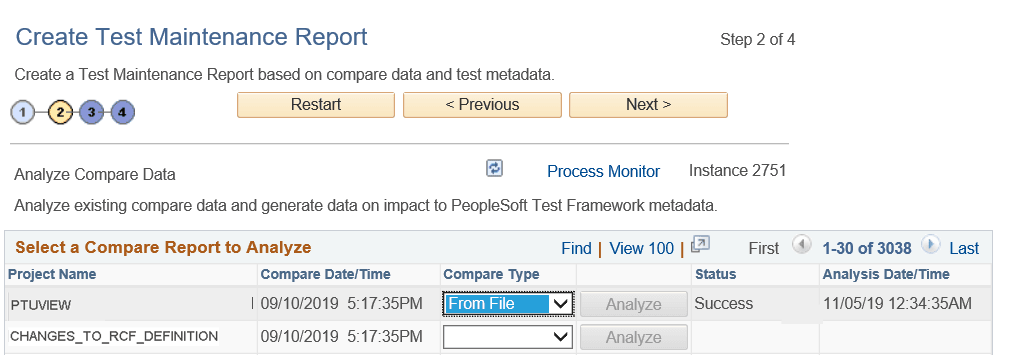
This example illustrates the fields and controls on the Create Test Maintenance Report Wizard: Step 2 of 4.
For a given change project the tasks for Step 2 only need to be run once. This analysis is based only on the compare data, not on the test data; so changes to tests do not affect the result. The relationship between this analysis and test data is calculated in Step 3: Generate Impact Report. You may generate multiple Impact Reports based on a single analysis as tests change.
In this step, PTF analyzes data from the compare you performed in Wizard Step 1, Task 5.
-
For the project compare report you created in Wizard Step 1, Task 5, specify whether the Compare Type is From File or To Database.
-
Click Analyze.
This will launch the Application Engine program PSPTANALYSIS in Process Scheduler.
Note:
A pop-up appears stating that the request is submitted to Process Scheduler. Click OK to proceed.
-
You can click the Process Monitor link or check the Status column to know the progress of the Application Engine program.
-
When the analysis is complete, the Status column shows Success or Fail. Click Next to continue.
Note:
A project name can appear more than once in the list because the Compare Output to Table feature stores data by both project name and compare date/time. The most recent compare will appear first in the list.