Understanding Dynamic Detail Trees
In a normal detail tree, the detail values that fall under each node are defined by a specific value or range of values. With a dynamic detail tree, detail values are determined by matching the node name with a field on the detail value table. The system dynamically determines appropriate values from the detail value table at the time it uses the tree. Instead of specific or range of values, the detail values appear as blank on the PeopleSoft Tree Manager display.
Note:
Do not create trees that contain a combination of dynamic details and range details if the tree is used by PeopleSoft Query or PeopleSoft nVision. Trees with this combination of details may yield incorrect reporting results when used with these reporting tools.
For dynamic detail trees, the parent node value defines part of the primary key for the detail values.
This example illustrates a dynamic detail tree.
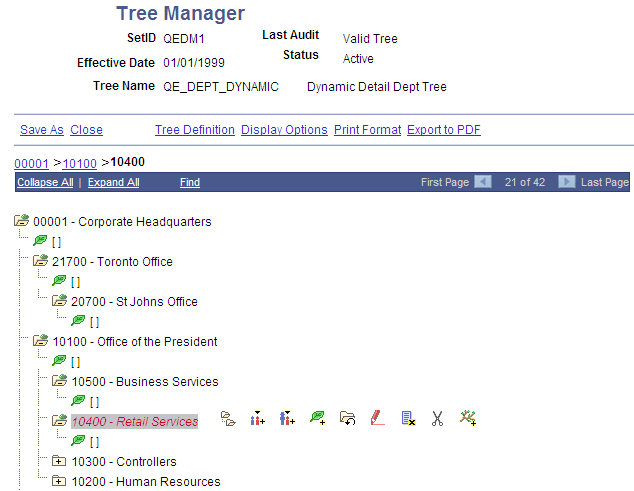
In the preceding illustration, each node represents a value of the DEPARTMENT_ID field. The structure of the tree determines the relationships between departments and their groups, so that your reports can roll up department data. Departments are not the lowest level of detail, though. Each department consists of employees, and when you assign a department cost, you assign it to a particular department and an employee. These two fields, DEPARTMENT_ID and EMPLID, are both key fields for the department data. So to capture these costs, the department tree needs to group the employees for each department. That is where the detail values come in.
The detail values in this tree represent values for EMPLID. Rather than listing each EMPLID value separately, however, you tell PeopleSoft Tree Manager to use all of the employees associated with the parent DEPARTMENT_ID. For example, if you ask for a report on the RETAIL SERVICES department, the system will roll up the data whose DEPARTMENT_ID is RETAIL SERVICES and whose EMPLID is any value.
You can select to display all detail values for a selected node or to display detail values based on the tree’s current effective date.