Defining Component Data Variables
To access the Component Data Variables page, select PeopleTools, Workflow, Notifications, Component Template Variables, Define Template Variables, Component Data Variables, Edit.
This example illustrates the fields and controls on the Component Data Variables page.
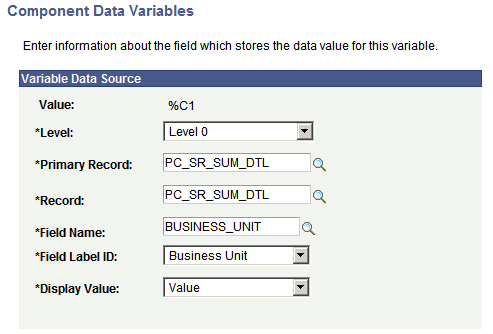
| Field or Control | Description |
|---|---|
|
Level |
Select the level of the component buffer: Level 0 or Level 1. |
|
Primary Record |
Specify the record name where the data on the component buffer will be. This name might be the same as the primary record name within a scroll area or a grid. |
|
Record |
Specify the record name where the data on the component buffer will be. This name might be the same as the primary record name within a scroll area or a grid. |
|
Field Name |
Specify the name of the field where the data on the component buffer will be. |
|
Field Label ID |
Select the label that the user who creates the component template sees in the variable list. |
|
Display Value |
Select from the Display Values drop-down list box. The most common choice is Value, which is the data value of the field that you selected in Field Name. This is the only valid choice when using Component Templates from the Notify toolbar button. If you are using component templates from custom PeopleCode, you have two additional options: Formatted Value: The value that is used is exactly what the user sees on the page, but it is not necessarily the actual value that is stored in the field. For example, if the page field is displaying Xlat values, the template variable is populated with the Xlat value. If the page field shows a formatted date, the template variable is populated with the formatted date. If the page field shows a value from a prompt table, the template variable is populated with the value of the prompt table shown on the page. Field Name: The template variable is populated with the long description of the field label that is selected in the Field Label ID field. If no field label exists, it uses the field name in the database table (for example, TRXTYPE). |
How Display Values Are Used
The value format for component template variables is %C1, %C2, and so on.
If you specify the Display value as Value, then the variable will resolve to be the value that is stored in the database for that field. In the following screen, note that the value %C5 is assigned a label ID of Transaction Type and the display value is Value (values for this field can be IA, IS, OA, or OS, as defined in the translate table).
This example illustrates a sample display value of Value for the variable data source value %C5.
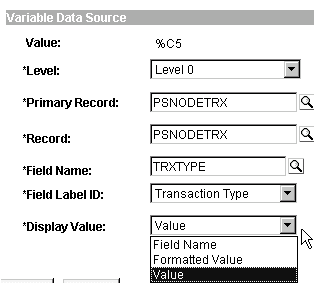
If the Display Value is set to Formatted Value, then the variable will resolve to be the value that the end user sees on the page for that field.
This example shows the Displayed Text property.
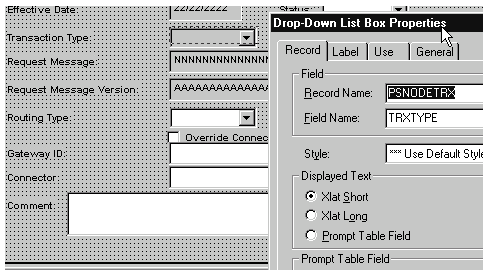
In this example, if the display value selected is Formatted Value and the field property displayed text is Xlat Short, then %C5 values could be InAsync, Insync and so on (as shown in the following Field Properties example).
This example shows sample translate values.
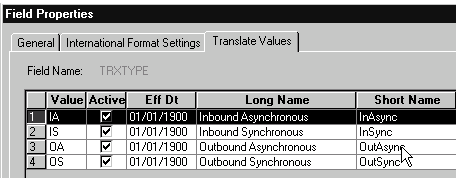
If you set the display value to Field Name, then the variable will resolve to be the field label of that field. If no field label exists, then it will resolve to be the field name in the database table (for example, TRXTYPE).
Note:
If the component template is activated by a Notify button (not using user-defined PeopleCode), the display values of Field Name and Formatted Value are not used (the variable will always resolve to the field Value).