Access a Deployed Starter Configuration
When your Starter Configuration is deployed and ready for use, you'll receive an email from Success Navigator. This email will include instructions on how to access your environment. To log in, use the default password you provided while requesting the Starter Configuration, and be sure to change it immediately after your initial login.
Step 1: Navigate to the access page
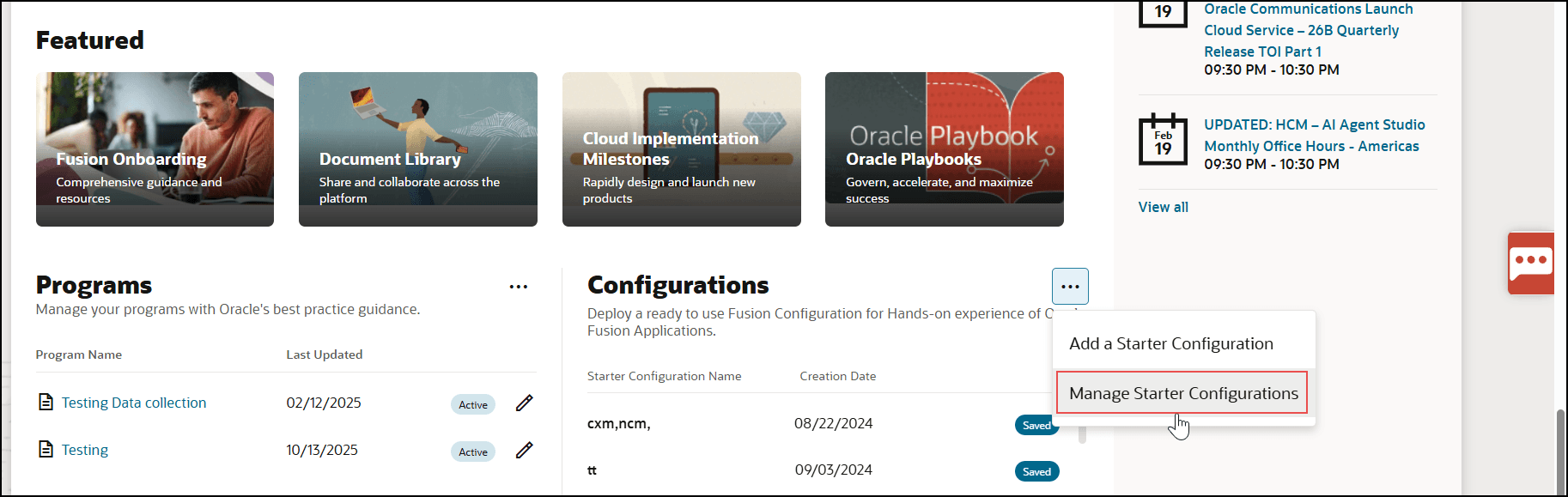
- Go to the Manage Starter Configurations page. On the home page, select
 in the Configurations section, and then select Manage Starter Configurations.
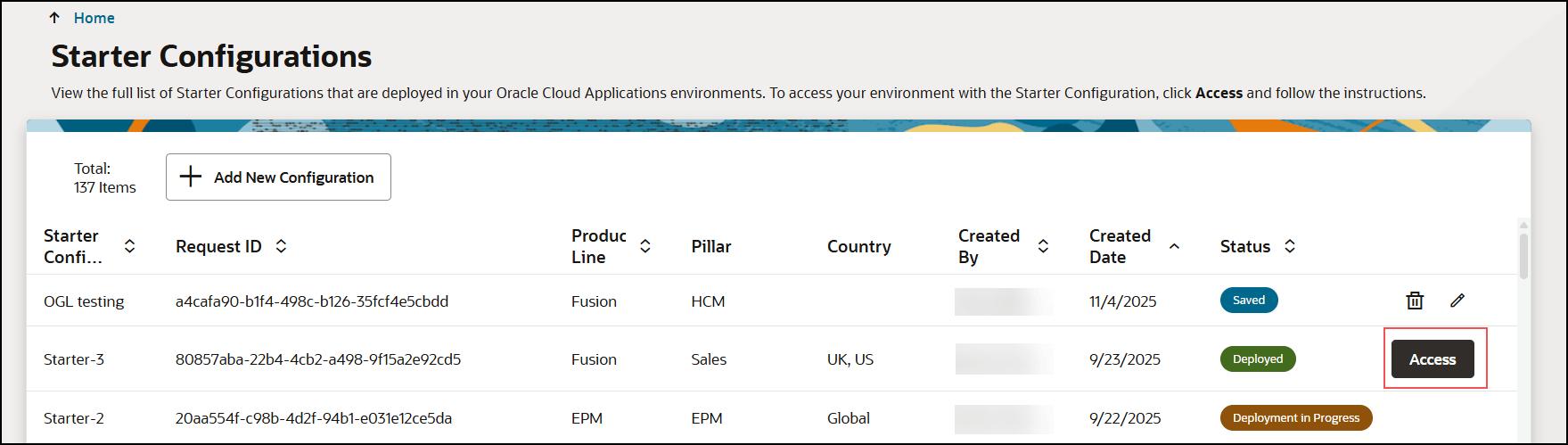
- Select Access for any Starter Configuration that has Deployed status.
Step 2: Review Business Process and personas used in Starter Configuration
On the Starter Configuration Access page, take some time to familiarize yourself with the business processes and Personas. These help you:
- Understand the key business processes and workflows configured according to Oracle’s leading practices.
- Identify the roles (personas) and scenarios each user is designed to support.
- Use the predefined personas and use cases to validate processes and tailor testing to your organization's needs.
- Gain insights into the best practice processes configured in the environment and to align testing with relevant user roles and scenarios.
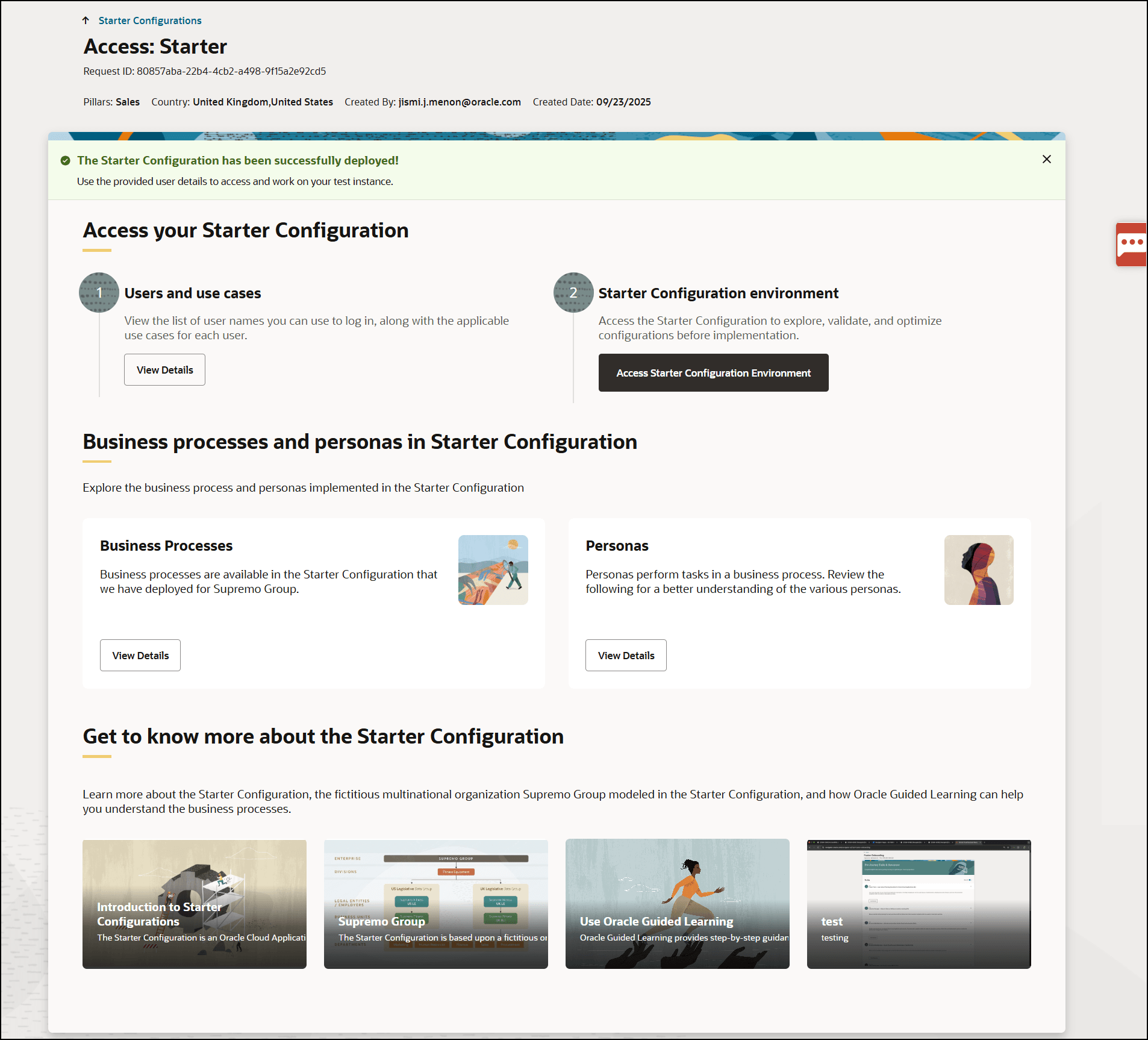
Step 3: Identify users by use cases or Business Process
You can find the list of users designated for each use case or OMBP configuration.
- Review the Use Cases section to view user names and the use cases associated with each user.
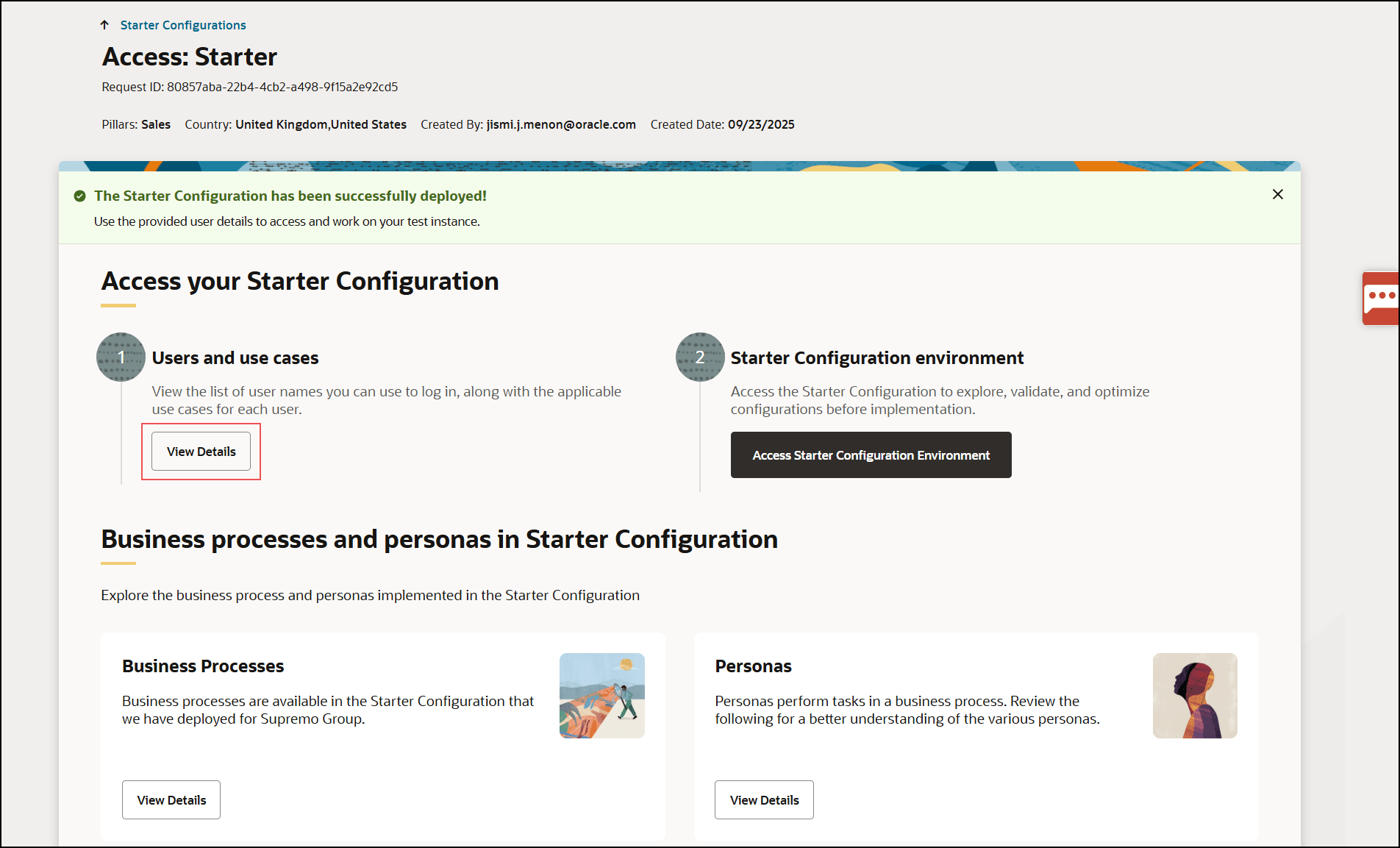
- Capture the user names associated with the use cases or business process you plan to test.
Note:
You'll use the user name and the password set up during the initial Starter Configuration request. - When ready, select Access Starter Configuration.
- Sign in using the password set up when you requested the Starter Configuration.
Log in to the Environment
Once the deployment of the Starter Configuration in your Test environment is complete, you will be notified via email. To access the configuration:
- Log in to the Success Navigator.
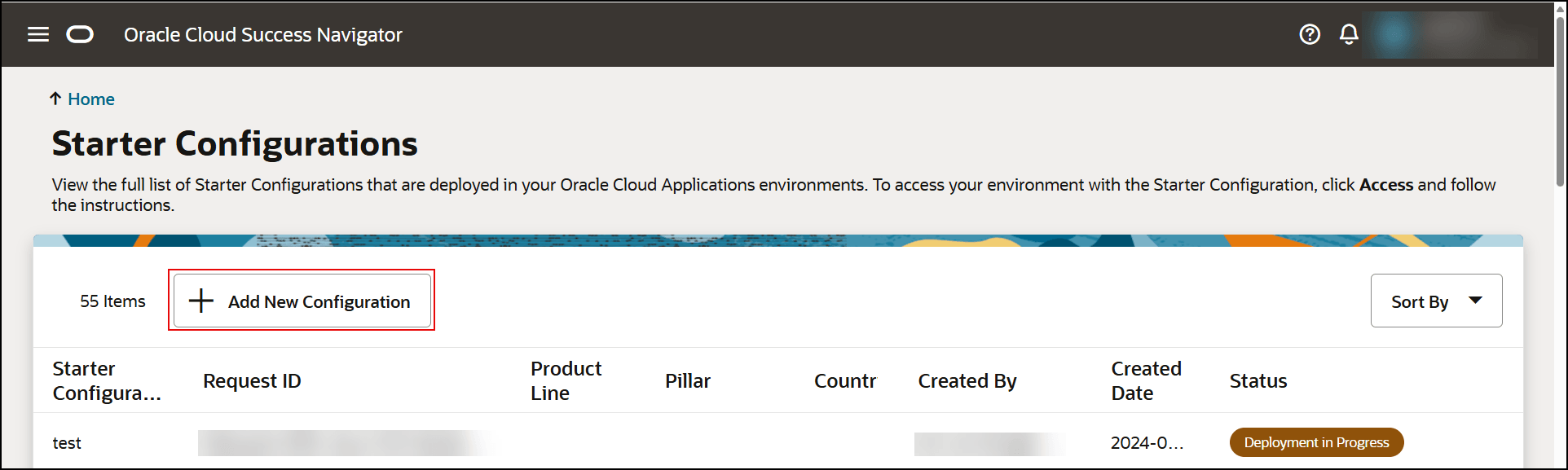
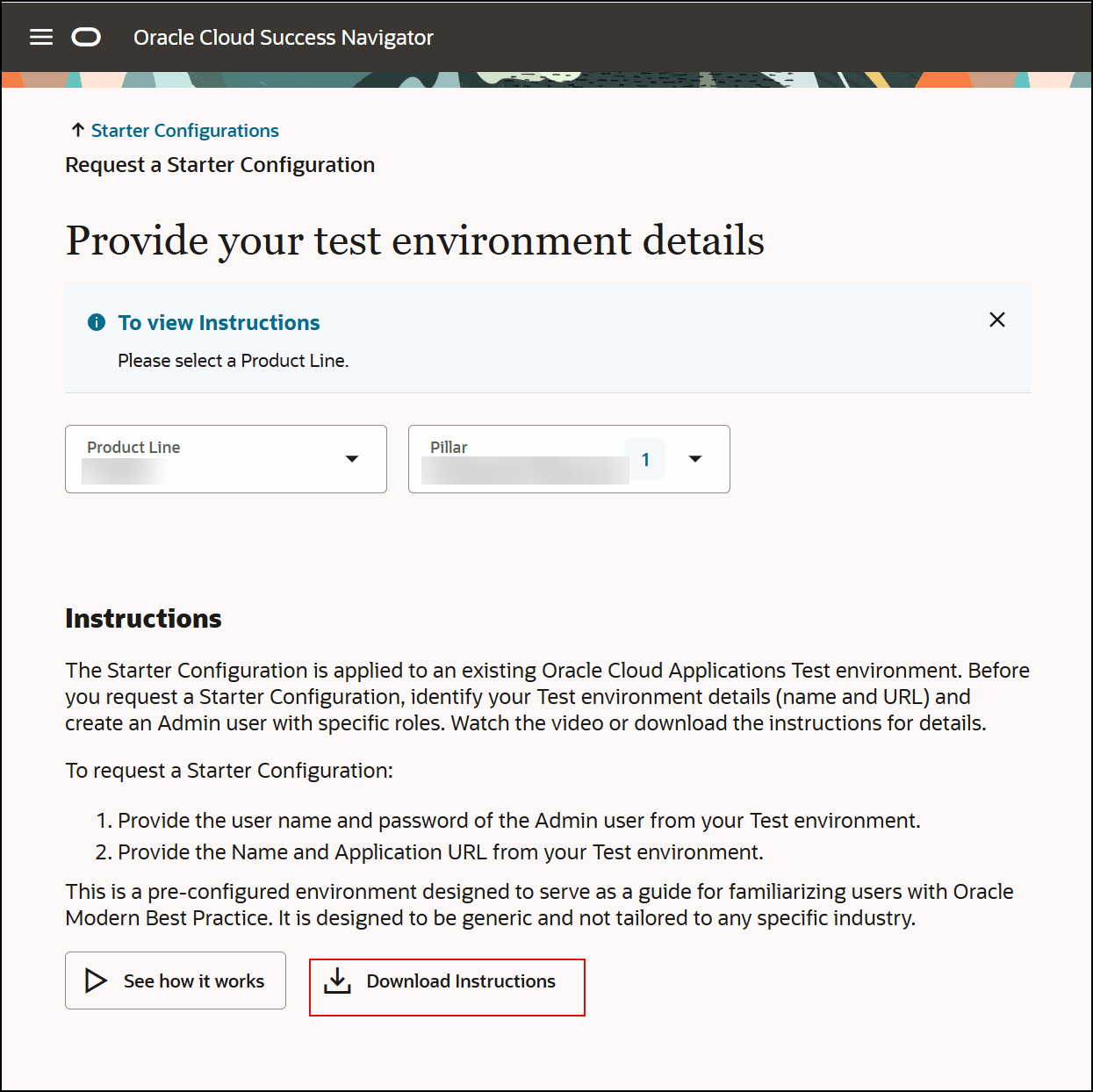
- Select Add New Configuration to begin the configuration process. On the Provide Your Test Environment Details page.
- Select the Product Line and Pillar.
- Once the product line and pillar are selected, the download option within the instruction section will be enabled, allowing you to download the Starter Configuration instructions document for further reference.