19 Knowledge Bases
Knowledge bases leverage Oracle Database 26ai Vector Search capability to store vector embeddings from documents stored in Oracle AI Data Platform.
Through Oracle Database 26ai’s vector search capabilities, knowledge bases empower AI agents to perform semantic searches and retrieve semantically relevant documents. In AI Data Platform, knowledge bases are created in a schema of a catalog under the Knowledge Bases type.
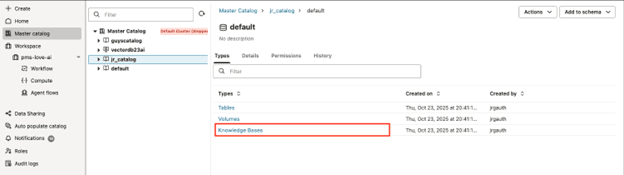
In AI Data Platform, knowledge bases are created in schemas of standard catalogs using the Knowledge Base type. The ingestion of PDF, DOCX, and TXT files stored in either managed or external volumes is supported in knowledge bases. By default, vectors are stored in Oracle Database 26ai Vector Search instance that is provisioned in your tenancy when your instance of AI Data Platform is created.
- ALL_MINILM_L12_V2: A sentence-transformers model that maps sentences and paragraphs to a 384 dimensional dense vector space. Used for tasks like clustering or semantic search.
- MULTILINGUAL_E5_SMALL: Generates vector embeddings for text in multiple languages. Its compact design enables effective performance across various languages, suitable for diverse datasets and multilingual scenarios.
When creating a knowledge base, you need to select Chunk size and Chunk overlap. Chunk size is the number of characters in each piece of text used when searching the knowledge base. Chunk overlap is the number of characters shared by consecutive pieces of text. Overlap helps preserve context when a sentence or idea spans more than one chunk.
Note:
By itself, a knowledge base object in AI Data Platform cannot be directly queried. You query a knowledge base by creating a RAG tool attached to an agent and selecting the relevant knowledge base. For more information about RAG tools, see RAG Tool. For more information about AI Agents, see AI Agents.Ingest Data Sources
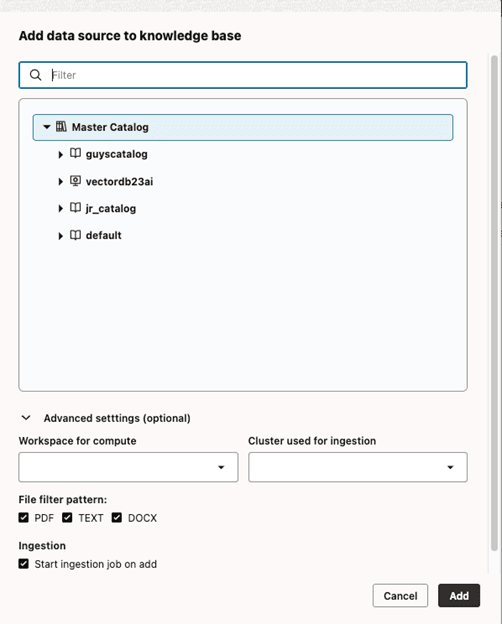
After you create a knowledge base in AI Data Platform, you need to go into that knowledge base and specify a data source to ingest data from. You can select an entire volume or a folder in a volume as a source for ingestion, but you cannot select individual files.
You can see your data sources in the Data Source tab of your knowledge base and see the information about that data source by clicking its name. The Parameters tab provides information about the selected volume, file path, attached cluster, and file types.
Note:
AI Data Platform does not support scheduled ingestion jobs. You can ingest data immediately by clicking Ingest now in the Parameters tab of your data source.You can see more detailed information about your data source in the Details tab and see a history of data ingestion jobs in the Job runs tab.
Create a Knowledge Base
Creating a knowledge base in Oracle AI Data Platform is a one-time setup that allows you to register a document source, automatically chunk, embed, and index files, and enable semantic search and RAG retrieval via agent flows.
- Click
 Create Knowledge Base.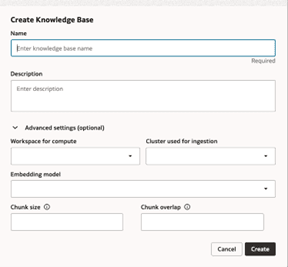
Edit a Knowledge Base
You can modify the name, description, cluster, model, or chunking details for an existing knowledge base if you have the relevant permissions.
- Navigate to your knowledge base folder.
- Next to the knowledge base you want to edit, click
 Actions, then click Edit.
 - Make any changes to the attributes of the knowledge base.
- Click Save.
Delete a Knowledge Base
You can delete knowledge bases you no longer need or use from your catalog.
- Navigate to your knowledge base folder.
- Next to the knowledge base you want to delete, click Actions, then click Delete.
- Click Delete.
Add a Data Source to a Knowledge Base
After you have created a knowledge base, you need to assign it a data source for ingestion.
- Click Add data source to knowledge base.
Ingest Data to a Knowledge Base
Once a data source is added to a knowledge base, you can manually start a data ingestion job run from the Parameters tab.
- Navigate to your knowledge base.
- In the Data Source tab, click the name of the data source you want to run an ingest data job for.
- In the Parameters tab, click Ingest now.
View Ingestion Job Run Status
You can view a list of all ingestion jobs for the data source from the Job Runs tab of the data source.
- Navigate to your knowledge base.
- In the Data Source tab, click the name of the data source you want to view the status for.
- Click the Job runs tab.
- Use the filters to narrow the list of displayed job runs.
Delete a Data Source
You can delete data sources you no longer need or use from your knowledge base.
- Navigate to your knowledge base. Click the Data Sources tab.
- Next to the data source you want to delete, click Actions, then click Delete.
- Click Delete.