7 Notebooks
This chapter provides information on using and managing notebooks in your workspace.
Develop Code in Notebooks
Data engineers and data scientists can use notebooks in their Oracle AI Data Platform as a common tool for interactively developing code and exploring data.
Oracle AI Data Platform currently supports Python, SQL, and Scala languages in notebooks. Notebooks can be scheduled or configured to run as part of a workflow. To run notebooks, you need to attach a compute cluster.
Your AI Data Platform comes with integrated managed notebooks for an intuitive developer experience.
You can use the sample code in the Oracle AI Data Platform Samples Git repository for examples of code you can use with your notebook.
Auto-save
Notebooks are automatically saved every two minutes.
Importing and Exporting Notebooks
You can currently import a notebook file (*.ipynb) from your local machine to your workspace.
Exporting notebooks is not currently supported.
Create a Notebook
You can create a notebook in any workspace you have administrator permissions.
- On the Home page, navigate to your workspace.
- Click Create and click Notebook.
- Fill in the name and description, then click Create.
Attach an Existing Cluster to a Notebook
Notebooks require an attached cluster to provide compute power for developed code.
Create a Cluster for a Notebook
You can create a new cluster directly from the notebook interface and attach it immediately.
- On the Home page, navigate to your workspace and open your notebook.
- Click Actions then click Create cluster.
- Select Runtime version.
- Select the driver options for your cluster.
- Select the worker options for your cluster. These options apply to all cluster workers.
- Select whether the number of workers is static or scales automatically.
- If Static amount, specify the number of workers.
- If Autoscale, specify the minimum and maximum number of workers the cluster can scale to.
- For Run duration, select whether the cluster will stop running after a set duration of inactivity. If Idle timeout is selected, specify the idle time, in minutes, before the cluster will time out.
- Click Create.
Default Language
You can use notebooks to develop and run Apache Spark code in Python, SQL, or Scala.
The default language for notebooks is Python. You can change the default language for the whole notebook or for individual cell(s) to SQL, Scala, or Markdown or raw text. You can combine Python, SQL, and Scala code in different cells within the same notebook.
Notebooks have syntax highlighting for Python, SQL, and Scala. New notebook cells will be created based on the default language of the notebook.
Widgets in Notebooks
Widgets let you define input values in a notebook.
You can provide values when running the notebook interactively. Jobs, workflow task, or parent notebooks can also provide values at run time.
You use widgets when the same notebook must run with different values, such as a processing date, environment, region, or dataset name. Defining inputs with widgets lets you reuse the notebook without editing its code for each run.
Notebooks can include the following widget types
| Widget Type | Description |
|---|---|
text |
Accepts any string value. |
dropdown |
Users select one value from a defined list. |
combobox |
Users select a defined value or enter a custom value. |
multiselect |
Users select one or more values from a defined list. |
Widget names must be unique within a notebook. All widget values are returned as strings. A multiselect widget returns selected values as a comma-separated string.
Note:
You need at least USE permissions for the notebook to change widget values for interactive notebook runs. You need MANAGE permissions to create or remove widgets.Notebook Widget Examples
The following examples demonstrate different use cases for widgets in your notebooks.
When you run the notebook interactively, the widgets display in the widget panel. You can change their values before running the notebook.
Text Widget
This example creates a single text widget takes the provided string value, in this case the processing date:
   aidputils.widgets.text(
       name="date",
       defaultValue="2026-01-01",
       label="Processing date"
   )
Dropdown Widget
This example creates a single dropdown widget that allows users to select one value from a defined list:
   aidputils.widgets.dropdown(
       name="environment",
       defaultValue="dev",
       choices=["dev", "test", "prod"],
       label="Environment"
   )
Combobox Widget
This example creates a single combobox widget, which provides defined values for a user to select from a list, and a field to enter a custom value:
   aidputils.widgets.combobox(
       name="campaign",
       defaultValue="renewal_outreach",
       choices=["renewal_outreach", "win_back", "loyalty_offer"],
       label="Campaign"
   )
Multiselect Widget
This example creates a single multiselect widget, which provides defined values for a user to select multiple options from:
   aidputils.widgets.multiselect(
       name="regions",
       defaultValue="North America",
       choices=["North America", "Europe", "Asia Pacific", "Latin America"],
       label="Regions"
   )

   regions = aidputils.widgets.get("regions")
Multiple Widgets
aidputils.widgets to create multiple widgets in your notebook. This example creates a text widget that has the processing date as a string and a dropdown widget for selecting an environment from a defined list, then outputs the results. aidputils.widgets.text(
name="date",
defaultValue="2026-01-01",
label="Processing date"
)
aidputils.widgets.dropdown(
name="environment",
defaultValue="dev",
choices=["dev", "test", "prod"],
label="Environment"
)
date = aidputils.widgets.get("date")
environment = aidputils.widgets.get("environment")
print(date)
print(environment)Widget Value Overrides
A notebook uses the default value when no other value is provided. To use a different value for a workflow job run, you add a parameter to the notebook task that overrides the original value.
Note:
The parameter key must match the widget name.environment widget with a default value of dev can receive the following task parameter: environment = prodWhen the task runs, the notebook uses prod instead of dev.
parameters argument in aidputils.notebook.run(): aidputils.notebook.run(
"process_data",
parameters={
"date": "2026-03-01",
"environment": "test"
}
)date and environment, the values passed by the parent notebook override the widget defaults for that execution. For more information about configuring workflow parameters, see Parameterization.
Widget Management
You can remove one or more widgets from a notebook with remove() and removeall() commands from the aidputils library.
Note:
You need MANAGE permissions to create or remove widgets.remove() to remove one widget from your notebook:aidputils.widgets.remove("environment")removeAll() to remove every widget from a notebook:aidputils.widgets.removeAll()Manage Notebooks
You can rename and delete notebooks your own. You can also clone notebooks to copy their contents and work with its code in a new notebook.
You rename and delete your notebooks from their action menu in your workspace. You clone your notebook by opening it and selecting the Clone option from the File menu.
Rename a Notebook
If the name of your notebook is no longer helpful or relevant, you can change it at any time.
- On the Home page, navigate to your workspace.
- Next to the notebook you want to rename, click Actions then Rename.
- Enter a new name and click Save.
- Optional: You can also change the name of an open notebook by clicking the name and entering a new one.
Delete a Notebook
You can delete notebooks that you have administrator permissions for.
- Navigate to your workspace.
- Next to the notebook you want to delete, click Actions then Delete.
- Click Delete.
Clone a Notebook
You can clone an existing notebook to create a copy of the content of that notebook you can modify while retaining the original.
- Open the notebook you want to clone.
- In the notebook toolbar, click File then click Clone.
- Enter a new name for the cloned notebook.
- Click Browse to select the workspace folder to save the cloned notebook into. If no folder is selected, the cloned notebook is created in the same folder as the notebook you are cloning.
- Select whether to include or exclude outputs. Outputs are included by default. Clear the selection to exclude outputs.
- Click Clone. The cloned notebook is created in the workspace folder you specified.
Browse Resources While Editing Notebook
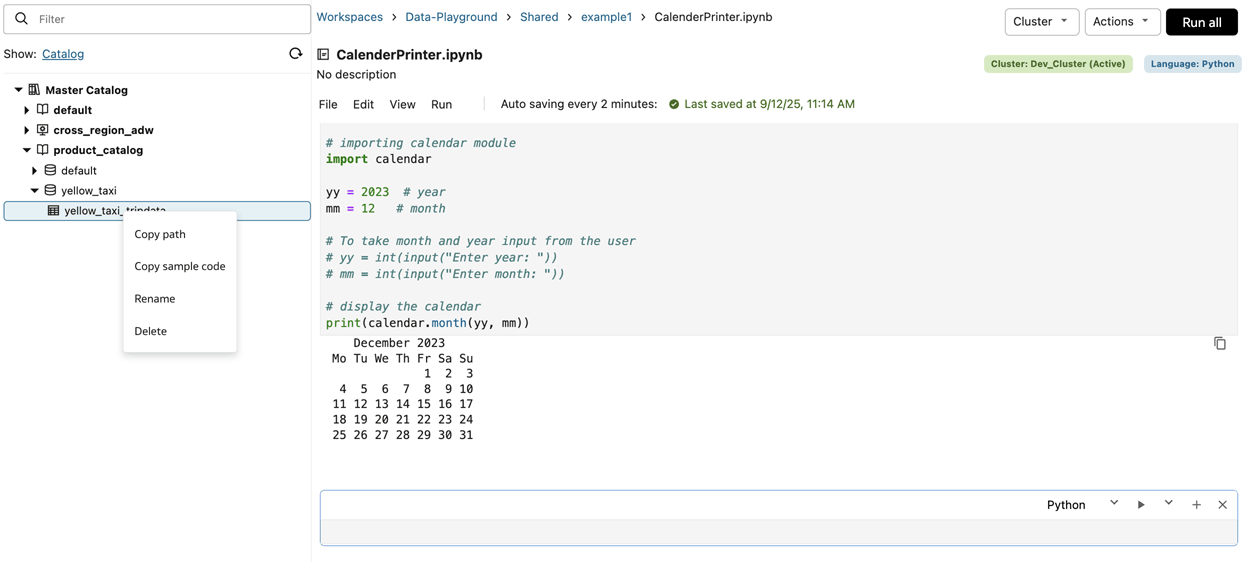
When you are in a notebook, you can browse the Catalog or workspace objects on the left side without leaving your notebook.
If you drag and drop any object from the left hand pane to the notebook, the object name or the full path is copied and pasted to the notebook cell (depending on the context).
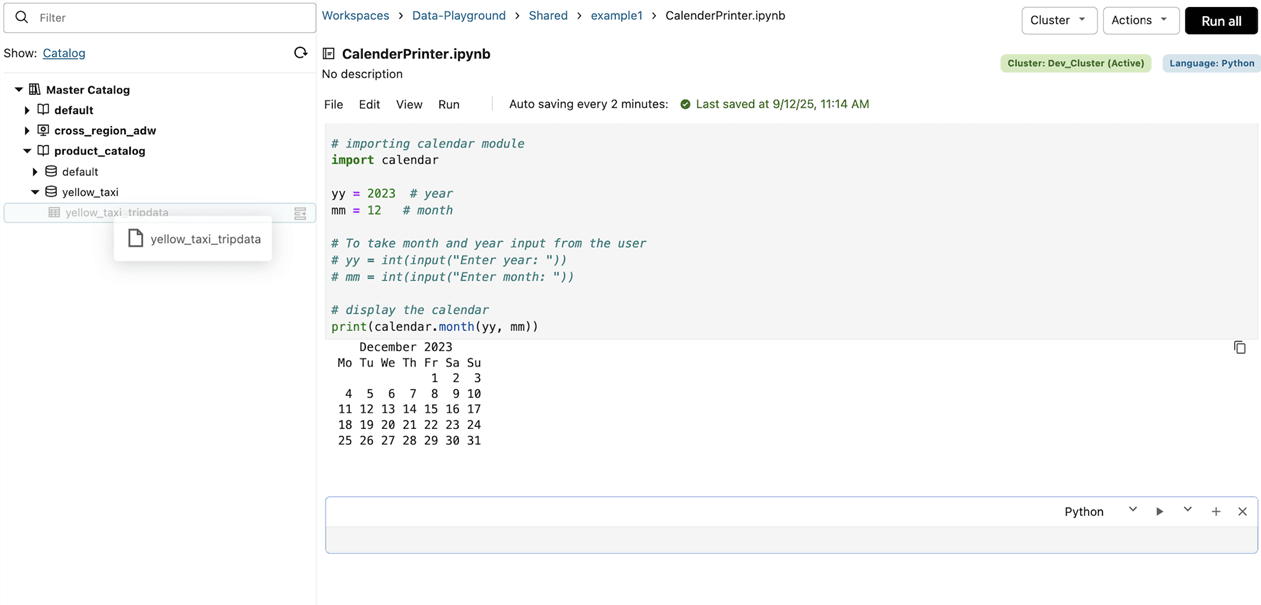
You also have a button and context menu options available for each catalog or workspace object in the left hand pane. The context menu at the left navigation has options to copy sample code, copy name, or copy path and so that you can paste to your notebook cell.
Run Notebooks
You can run code in notebooks you own or from notebooks that are shared with you.
Code can be run from a notebook using three methods: running on demand, running as a one-off manual run, or creating a scheduled notebook job. Jobs run on demand are run only once.
Running Terminal Commands Within a Notebook
You can run basic terminal commands or shell commands within a notebook by prefixing with an '!'. For example, you can use the unzip command to extract from ZIP files in the workspace.
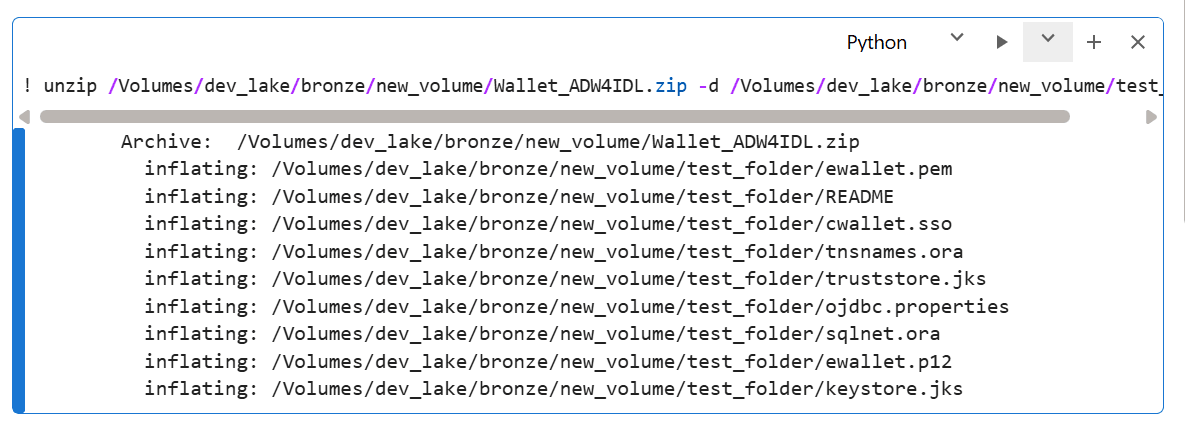
You can also use the subprocess module in Python for shell script execution.

You can also use native Python modules like zipfile for tasks like unzipping files as an alternative to shell commands.
Limitations
Currently, Oracle AI Data Platform does not have native support for pip install, CI/CD, Git, or version control systems.
Run Options for Notebook Cells
The Run menu in notebooks provides you with options for running cells in a notebook.
You can find all options for running cells in your notebook from the Run menu at the top of your notebook.
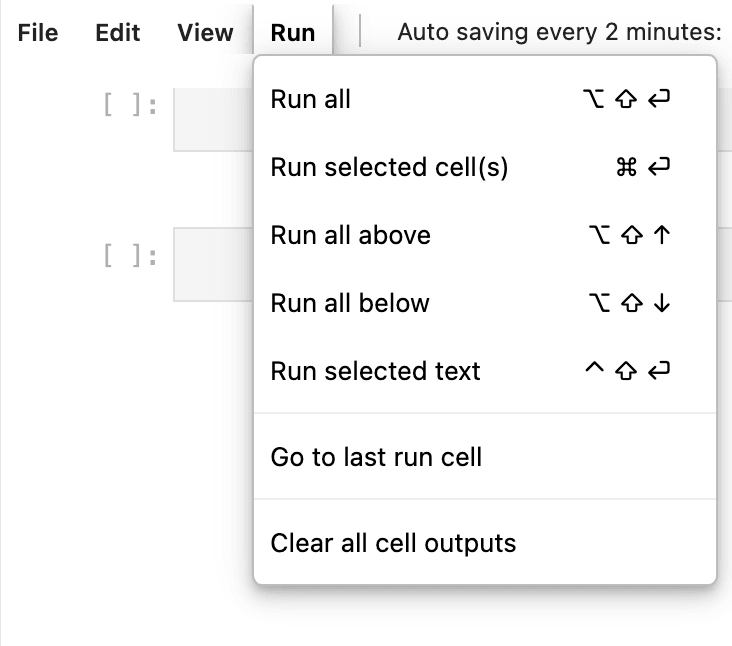
Table 7-1 Run Options for Notebook Cells
| Option | Description |
|---|---|
| Run all | Runs all cells in the notebook sequentially. |
| Run selected cell(s) | Runs the currently selected cell or cells. |
| Run all above | Runs the currently selected cell and any cells that appear above the currently selected cell in the notebook. |
| Run all below | Runs the currently selected cell and any cells that appear below the currently selected cell in the notebook. |
| Run selected text | Runs the selected segment of code in a cell. |
| Go to last run cell | Navigates you to the most recently run cell in the notebook. |
| Clear all cell outputs | Removes outputs from all cells in the notebook. |
Run Code from a Notebook
You can choose to run all code developed in a notebook at once, or one cell at a time.
- MacOS: Cmd + Return
- Windows: Ctrl + Enter
You can run code in a single cell by clicking the Play button, or run the whole notebook by clicking
Run all.
Play button, or run the whole notebook by clicking
Run all.
- On the Home page, click Workspace.
- Navigate to your notebook.
- Click Run all.
- Check the status of your notebook job run by clicking Workflow then Job Runs.
Run Code from Another Notebook
You can use %run magic command in a notebook to include code from another notebook.
After following these steps, the notebook named called-notebook.ipynb is immediately run using your user principal (i.e. caller-notebook.ipynb) and using the attached cluster of caller-notebook.ipynb. All the functions and variables defined in called-notebook.ipynb immediately become available in the notebook named caller-notebook.ipynb.
Share Notebook Output with oidlUtils
You can capture and share content output by your notebook tasks by using utilities available in oidlUtils.
oidlUtils is a set of utilities available to all users of Oracle AI Data Platform. When sharing content between notebooks, oidlUtils can be called to pass arguments to one notebook and pass output back to the caller notebook, and it can be called in a job task in a notebook to pass output back to the parent task, meaning the task calling on the notebook. Used this way, you can capture and use structured output returned by your notebook tasks.
These oidlUtils modules are available for use with notebooks:
| Module | Description | Example |
|---|---|---|
| notebook | Orchestrate notebook task runs and return a single structured result (commonly a JSON string) to the caller. | |
| notebook | Allow a notebook to exit a task run and return a single string result (commonly a JSON payload) to the caller notebook or job/task output API. | |
Example 1: Notebook to Notebook Sharing
In this example you use Notebook A to invoke Notebook B. Notebook B returns a result payload that Notebook A is set up to capture and use.
Notebook A
result = oidlUtils.notebook.run("NotebookB", 0)
print("Output from Notebook B:", result)
import json

payload = {
"status": "SUCCESS",
"rows_processed": 1234,
"output_table": "sales_gold",
"run_id": "run_2026_02_11"
}

json_payload = json.dumps(payload)
oidlUtils.notebook.exit(str(json_payload))
Output from Notebook B
{"status": "SUCCESS", "rows_processed": 1234, "output_table": "sales_gold", "run_id": "run_2026_02_11"}Example 2: Passing Output through Job Tasks
In this example, you return a JSON file when your notebook is run as a task: oidlUtils.notebook.exit(json.dumps(payload)).
import json

payload = {
    "status": "SUCCESS",
    "output_table": "sales_gold",
    "rows_processed": 1234
}

oidlUtils.notebook.exit(json.dumps(payload))
Next you run the job with your notebook task and get the task output through the API call: endpoint = f"https://<workspace-url>/jobs/runs/get-output?run_id={task_run_id}" and response = requests.get(endpoint, headers=headers).json().
import requests

task_run_id = "<task_run_id>"

endpoint = f"https://<workspace-url>/jobs/runs/get-output?run_id={task_run_id}"
response = requests.get(endpoint, headers=headers).json()
Last, you capture the output returned by the notebook with job_result = response['notebook_output']['result'].
job_result = response["notebook_output"]["result"]
payload = json.loads(job_result)

print(payload["output_table"])   # Output : sales_gold
print(payload["rows_processed"]) # Output : 1234
Notebook Navigation
You can create and maintain a table of contents that can be used to organize and navigate your notebook.
You can click the table of contents icon in the top left of your notebook to display a notebook outline. The table of contents is automatically generated based on markdown headings you can create, enabling easy organization and navigation.
You can added formatted text, headings, lists, and documentation as markdown to organize and explain notebook content for yourself and other users.
Create a Markdown Cell
You can create markdown cells to provide headings in your notebook table of contents for ease of organization and navigation.
- From the Home page, navigate to your notebook.
- From the cell type drop-down list, select Markdown.
- Add your markdown to the cell.
- Markdown cells can include formatted text, headings, lists, and other documentation.
- To create a heading, start a line with # followed by a space. Heading 1 uses one #, heading 2 uses ##. Add additional # for each additional heading level.
Python Wheel Files
You can use Python wheel files to quickly and easily add Python code to notebooks in your workspace.
Python wheel files (.WHL files) allow you to package and distribute your Python code in a single file. This makes installing existing Python code to your notebooks a simpler process.
You need to have Python wheel and setuptool packages installed. You can use pip to install these packages from your notebook. For example:
%pip install wheel setuptoolsYour Python wheel files should follow a format similar to this:
/Workspace/<project>/
   setup.py
   customer_churn/
      __init__.py
      analytics.py
      predictor.py
      utils.py
      data/
         samples_customers.csv
In your wheel file, you should:
- Keep
setup.pyat the project root - Keep importable package code inside the package folder. In the example given, the package folder would be
customer_churn/ - Put reusable logic libraries in .PY files, not in .IPYNB files.
A setup.py file looks like this:
from setuptools import setup, find_packages

setup(
   name="customer_churn",
   version="1.0.0",
   author="admin",
   author_email="admin@corporation.com",
   description="A package for customer churn analysis and prediction",
   packages=find_packages(),
   classifiers=[
      "Development Status :: 4 - Beta",
      "Programming Language :: Python :: 3",
      "License :: OSI Approved :: MIT License",
   ],
   python_requires=">=3.6",
   install_requires=[
      "pyspark>=3.0.0",
   ],
   package_data={
      'customer_churn': [
         'data/*.csv',
         '*.ipynb', # Include notebook files
      ],
   },
   include_package_data=True,
)
A customer_churn/__init__.py file looks like this:
"""
Customer Churn Analysis Package
Provides tools for calculating and predicting customer churn
"""

__version__= "1.0.0"
__author__ = "admin"

from .analytics import ChurnAnalyzer
from .utils import load_customer_data, calculate_churn_rate

__all__= [
   'ChurnAnalyzer',
   'load_customer_data',
   'calculate_churn_rate'
]
Every import in __init__.py must point to a real .PY file in the package. For example, both utils.py and analytics.py should be inside the customer_churn folder.
Build and Install a Wheel
To build a wheel, you run these commands from your notebook:
%%bash
cd <project_folder_location> python setup.py bdist_wheel
ls -lh dist     #wheel file is created inside dist/ folder
For example, for our customer churn model, our build looks like this:
%%bash
cd /Workspace/<projectName>/customer_churn_whl
python setup.py bdist_wheel
ls -lh dist
To install our customer churn wheel file, run the following commands:
pip install /Workspace/<project>/dist/customer_churn-1.0.0-py3-none-any.whlOnce installed, you can verify the installation with the following:
pip show customer_churnFinally, you can test the installation with the following:
import customer_churn
from customer_churn import ChurnAnalyzer, load_customer_data

print("Package imported successfully!")
print(f"Version: {customer_churn.__version__}")Notebook Output and Results
You can see notebook outputs and results in a new cell that appears right after the cell with code.
While a cell is in progress, you can cancel the execution of the cell. If a notebook is run as a workflow job, the output is not visible in the same notebook. In that case the output is visible in the output area of the corresponding workflow job run.
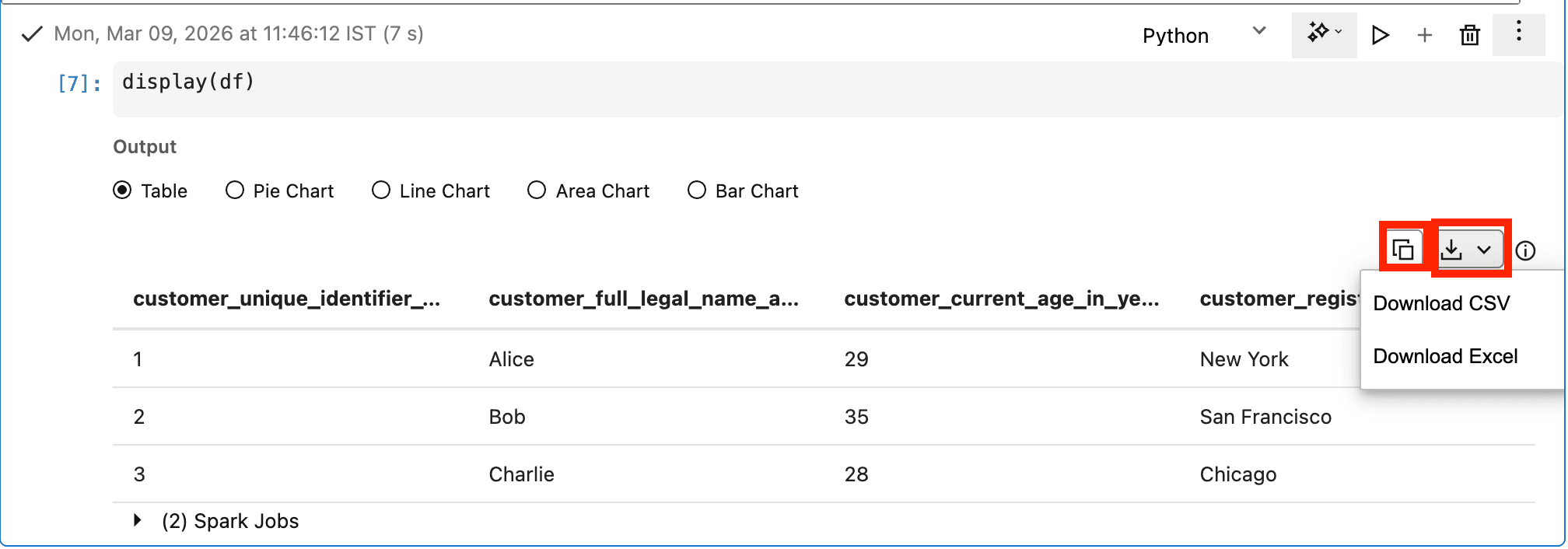
You can download the output from the output cell as a CSV or Excel file. You can also copy the contents of the output cell directly to your clipboard.
Download Notebook Output
You can download the resulting output of a notebook cell directly from the results panel.
- In the top-right of the cell you want to download output from, click Download.
- From the menu, select the format you want to download output as.
Copy Notebook Output
You can copy the resulting output of a notebook cell directly from the results panel.
- In the top-right of the cell you want to download output from, click Copy.
- The contents of the output cell are copied directly to your clipboard. You can paste it elsewhere in your notebook or to an external location.
Notebook Appearance
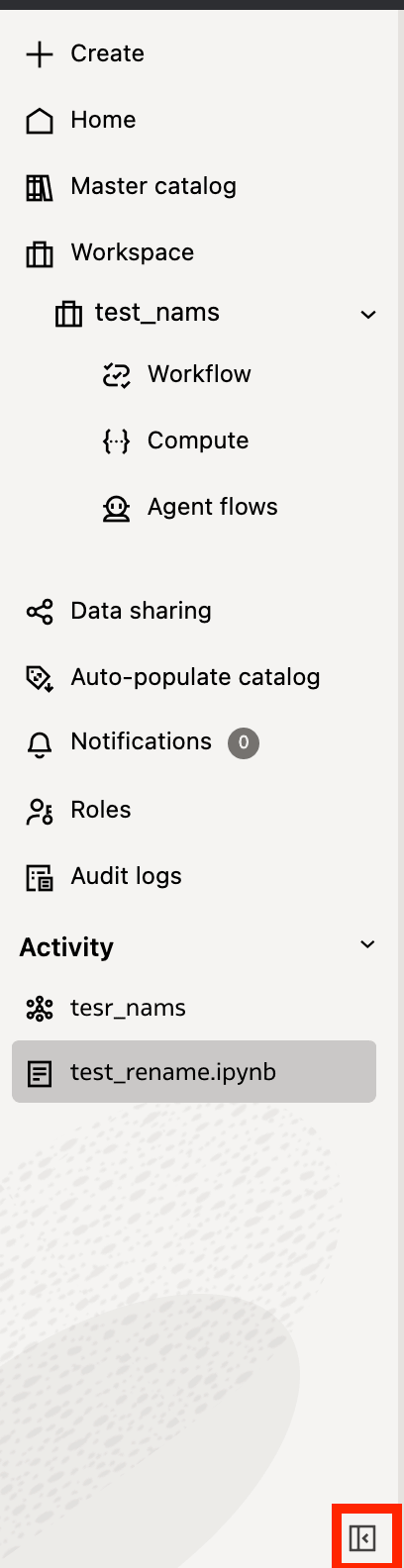
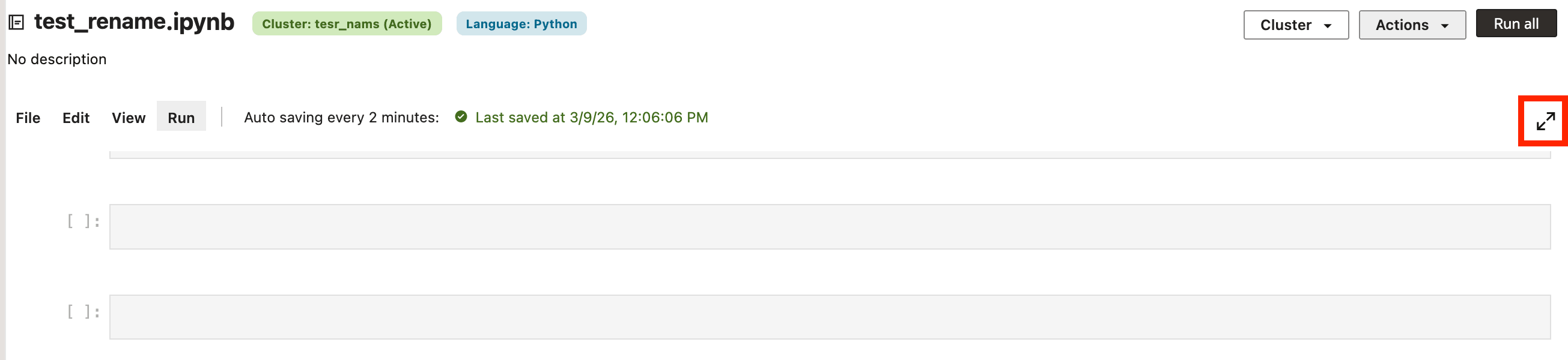
You can alter the screen space available for working in notebooks by minimizing the left navigation panel or expanding the notebook view.
You can minimize the Oracle AI Data Platform left navigation panel while working on your notebook to increase the usable screenspace by clicking Minimize panel on the bottom-right of the navigation panel.
You can also expand the notebook by clicking Expand at the top right of the notebook, expanding the space available and making larger cells and outputs easier to read.
Cell Run Numbers
Each notebook cell displays a run number that indicates the order in which cells were run. This number updates every time the cell is run. You can run cells in any order, so the run numbers may not match the physical order of cells in your notebook.
Manage Job Runs
You can create job runs to manage how and when code is run from your notebooks.
Manual job runs can be run again or later set up to run on a schedule. Scheduled job runs are automatically triggered based on the schedule you set. Unless a schedule is configured, manual jobs are only run once.
Create a Manual Run Job from a Notebook
You can create an unscheduled job that you can run manually from code you've developed in your notebook.
- On the Home page, click Workspace.
- Navigate to your notebook.
- Click Actions, then click Schedule.
- Provide a name and description for the job.
- Click Browse and select the location to store your job. Click Select.
- Select a compute cluster from the Cluster dropdown.
- For Schedule, select Manual Run.
- Click Create.
Create a Scheduled Job Run from a Notebook
You can create a scheduled job that runs automatically from code you've developed in your notebook.
- On the Home page, click Workspace.
- Navigate to your notebook.
- Click Actions, then click Schedule.
- Provide a name and description for the job.
- Click Browse and select the location to store your job. Click Select.
- Select a compute cluster from the Cluster dropdown.
- For Schedule, select Schedule.
- Select a Schedule Status.
- Select Active if you want the schedule to be enabled immediately.
- Select Paused if you want to manually enable the scheduled run at a later time.
- Provide a time zone for the schedule to be based on.
- Select the Schedule Type.
- For Calendar, you must specify the frequency and which hours or days the schedule will repeat on.
- For Cron Expression, you must provide the schedule in the form of a cron expression.
- Check the listed run time at the bottom to confirm your schedule is correct. Click Create.
Notebook Keyboard Shortcuts
You can use keyboard shortcuts to simplify using commands in your notebook.
| Windows | macOS | Action |
|---|---|---|
| Ctrl + Enter | Cmd + Return | Execute cell |
| Shift + Enter | Shift + Return | Execute cell and advance to next cell |
| Ctrl + S | Cmd + S | Save notebook |
| Ctrl + N | Ctrl + N | New notebook |
| Ctrl + Z | Cmd + Z | Undo |
| Ctrl + Y | Cmd + Y | Redo |
| Ctrl + C | Cmd + C | Copy |
| Ctrl + X | Cmd +X | Cut |
| Ctrl + V | Cmd + V | Paste |
| Ctrl + Alt + F | Ctrl + Option + F | Find and Replace |
| Ctrl + Shift + A | Ctrl + Shift + A | Insert cells above |
| Ctrl + Shift + B | Ctrl + Shift + B | Insert cells below |
| Ctrl + Alt + Up | Ctrl + Option + Up | Move cell up |
| Ctrl + Alt + Down | Ctrl + Option +Down | Move cell down |
| Ctrl + D | Ctrl + D | Delete cell |
| Alt + Shift + Enter | Option + Shift + Return | Run All |
| Alt + Shift + Up | Option + Shift + Up | Run all above cells |
Migrate Existing Apache Spark Code to Oracle AI Data Platform
You can adapt your Apache Spark code to migrate it for use in Oracle AI Data Platform notebooks.
If you are migrating existing Spark code from other platforms, you can use the following guidelines to adapt your code for use in notebooks.
Table 7-2 Apache Spark to AI Data Platform Migration Guidelines
| Guideline | Details |
|---|---|
| Remove SparkSession creation commands | AI Data Platform automatically creates a SparkContext for each compute cluster. We recommend removing the session creation commands or replacing them with SparkSession.builder().getOrCreate().
|
Remove session termination commands, like sys.exit() or spark.stop() |
All purpose compute clusters are shared clusters, so if any users stop the SparkSession, by using sys.exit() or spark.stop() for example, the cluster needs to be restarted for everyone. To avoid disruption, we recommend avoiding those commands in the notebooks.
|