21 Session Variables
You can use custom, agent-defined session variables to provide additional contextual data points to your agents during a user session.
What are Session Variables?
Custom, agent-defined session variables provide additional contextual datapoints to the agent during a user session. The variables can be used for a variety of purposes, including setting values of parameters in tools, giving overall instructions to an agent, and providing contextual information about the caller and/or the application where the agent is embedded.
Here’s a simplified scenario where we are building a customer support agent. The customer support agent is integrated within a retail website. When a user logs into the retail website, information about that user is captured by the client application (userID, username, geo location, device used, shopping cartID, etc.) and that information could be used by the downstream support agent. Let’s look at an example of how these session parameters could be used within the agent instructions field in AIDP:
You are a customer support agent for the retail website belts-and-buckles.com, specializing in the sales of belts and buckles. Your objective is to answer questions that customers have about their current and past orders, answer questions about items they put in their shopping cart, and answer general questions about belts-and-buckles.com.
A few guidelines before your start:
You are interacting with user {{sessionVariable.userName}}. Always start with a welcome message: Hello {{sessionVariable.preferredSalutation}} {{sessionVariable.userName}}! What’s the weather like today in {{sessionVariable.currentUserGeo}}? - userName
- PreferredSalutation
- currentUserGeo
The agent has no prior knowledge of the user interacting with the retail website, doesn’t know what the user location is or has no context about what’s in the user’s shopping cart. In principle, the client application could know all or a subset of those values and pass those values in a request to the agent. Here's an example of what a request to the agent could look like, including the session parameters.
Note:
This example illustrates what this request could look like. It is not representative of an implementation decision."input": [
{ "role": "user",
"content": [
{ "type": "input_text”,
"text": "What material is the belt Mr Outcast made of?",
“variables”: [“userName”: “Paul”, “preferredSalutation”: “Hon”, “cartID”: NULL, “currentUserGeo”: “Cancun, MX”]
}
]
}
] The agent would answer back: “Hello Mr Paul, what’s the weather like today in Cancun, Mx?”
Another use of these session parameters is in setting parameter values in tools. For example, a SQL query could retrieve the content of a shopping cart by using the session parameter {{sessionParam.CartID}} :
Select productID, productName, productDescription,
productPrice from cartTable where cartID ==
{{sessionVariable.cartID}}
The session variables are defined by the agent developer when they create their agents and the values of those attributes are set by the client application when a session is created or resumed.
You can configure the following settings when create a new session variable:
| Setting | Description |
|---|---|
| Required variable | Enable to make this session variable required for each invocation call of the agent. Disabling makes the session variable optional for each invocation call. |
| Log variable | Enable to capture the value of the session variable in logs and traces. Disabling prevents the variable from appearing in logs. We recommend disabling this setting for variables with sensitive data. |
| Name | Name of the session variable. Use a descriptive name to make it easy for you and other users to determine the purpose of the variable. |
| Default value | If defined, the default value is assigned to the session variable if another value is not defined in the invocation call. If left blank, a value must be assigned as part of the invocation call. |
| Description | Description of the session variable. Provide a helpful description so that you and other users are able to understand the function of the session variable. |
Example: Using Session Variables in Tools Configuration
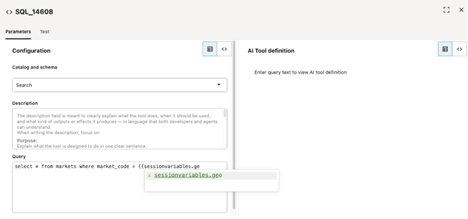
You can use a session variable in a SQL tool configuration as part of the SQL query itself.
In this example, the session variable geo is used to filter the result of the SQL query:
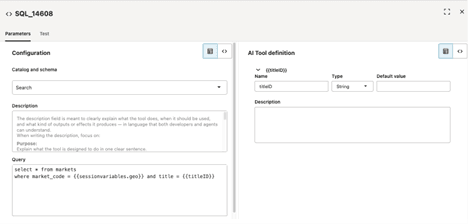
You can use session variables and tool parameters within the same query. In the example below, the titleID parameter is set by the agent while the session variable geo is provided by the calling application.
System-generated Session Variables
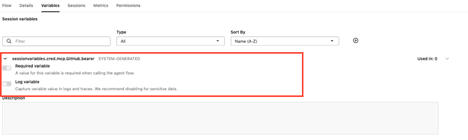
Session variables are automatically generated when a remote MCP server is connected to an agent and that MCP server requires authentication, like a bearer token.
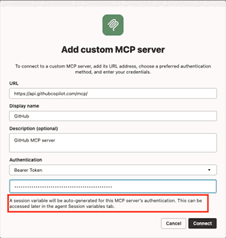
The session variable holds the value of the bearer token. The name of this system-generated session variable can’t be changed and is a required variable. The system variable is deleted when the MCP node is removed from the canvas.
In the Playground, you provide a value for the system generated session variable. In this case, you need to provide a bearer token to use the MCP server. You can select the same (or a different) token that you used during the MCP node configuration.
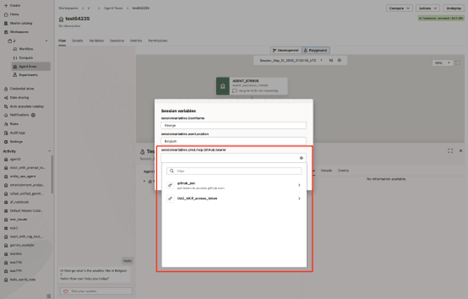
The same applies if you deploy the agent. You will need to provide an authorization token. For more information, see Assign Values to Session Variables from the Playground.
Example: Assigning Values to Session Variables When Calling a Deployed Endpoint
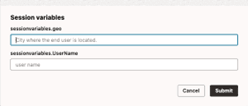
In this example, you have two session variables: userLocation and UserName the client application is passing session variable values through the metadata field of the body. We'll demonstrate how you can assign values through Python and through the OCI CLI.
If you use the Python requests library, the payload is the following:
body = {

            "isStreamEnabled" : False,

            "trace" : False,
            "input" :[{
                "role":"User",
                "content":[{
                    "type" : "INPUT_TEXT",
                    "text" : “Hello how can you help me?”
                }]
            }],

            "metadata": {
            "sessionvariables.userLocation": "Canada",
            "sessionvariables.UserName": "George"
        }
        }

response = requests.post(
url = <insert-chat-url>,
params = None,
auth = <insert-oci-signer>,
json = body,
headers={“x-session-id": <insert-a-session-key>,}
)
Alternatively, if you use the OCI CLI, the payload is the following:
oci raw-request \
  --http-method POST \
  --auth security_token \
  --request-body '{
    "isStreamEnabled": false,
    "input": [
      {
        "role": "user",
        "content": [
          {
            "type": "INPUT_TEXT",
            "text": "Hello how can you help me?"
          }
        ]
      }
    ],
    "metadata": {
      "sessionvariables.userName": "George",
      "sessionvariables.userLocation": "Canada"}"
    }
  }' \
  --request-headers '{
    "x-session-id": "george-session-may11"
  }' \
  --target-uri "<insert-your-agent-flow-uri>"
Create a Session Variable in the Agent Variables Tab
You can create a new session variable and add it to your agent from the Variables tab.
- Click the Variables tab.
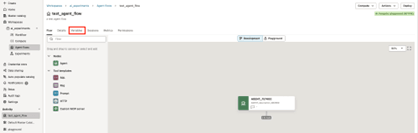
- Click
 Add session variable.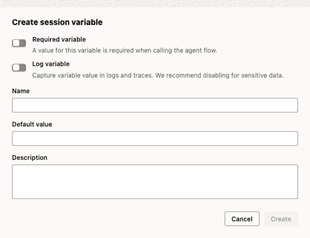
Refer to Session Variables in Agent Flow Instructions
You can refer to session variables in agent instructions and tool configurations, including the SQL and Prompt tool query.
- Click the SQL or Prompt tool node in the Playground.
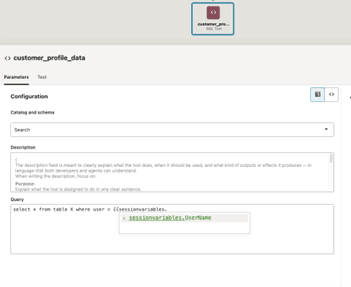
View Agents and Tools using a Session Variable
You can view a list of agents and tools using a specific session variable from the Variable tab in your agent.
- Navigate to an agent using the session variable you want to view related agents and tools for.
- Click the Variable tab.
- Next to Used in: for your session variable, click the drop-down menu. A list of agents and tools using the session variable is displayed.
Assign Values to Session Variables from the Playground
You can assign values to session variables at any time from the Playground tab.
- At the top of the Playground, click
 Session Parameters. A list of all session variables in your agent is displayed.
- Modify your session variables. After resuming your Playground session, the last assigned session variables values are used.