11 Streaming
The section covers the use of streaming data or continuously produced data in Oracle AI Data Platform.
About Streaming
You can process streaming data or continuously produced data in near real-time in Oracle AI Data Platform using the Apache Spark Structured Streaming capability.
Both notebooks and workflows support Apache Spark structured streaming. You can use the following sources and sinks for reading stream data from, writing stream data to, and for checkpoint locations.
Table 11-1 Supported Sources and Sinks
| Source or Sink | Supported? |
|---|---|
| Volume path (/Volume/bronze/bucket1) | Supported for all formats |
| Workspace path (/Workspace/folder1/) | Supported for all formats |
| Tables in catalogs with three part names (catalog.schema.table) | Supported for Delta format only
Not supported for Parquet, CSV, JSON, ORC formats Example 1: Supported code
Example 2: Unsupported code
|
| Kafka | Supported for any Kafka compatible streams without three-part-naming convention
Not supported for Kafka based catalog following three-part-naming convention) |
| OCI Streaming service | Supported |
| OCI Object storage path (using oci://) | Unsupported |
| Oracle Autonomous AI Lakehouse, Oracle AI Database, Oracle Autonomous AI Transaction Processing | Unsupported for streaming (readStream or writeStream) |
Structured Streaming Using Notebooks
You can write Python code to process stream data in a notebook. Either volume paths or workspace paths are valid as a checkpoint location, but object Storage paths (oci:// format) are not supported as a checkpoint location. We recommend using volume paths as a checkpoint location.
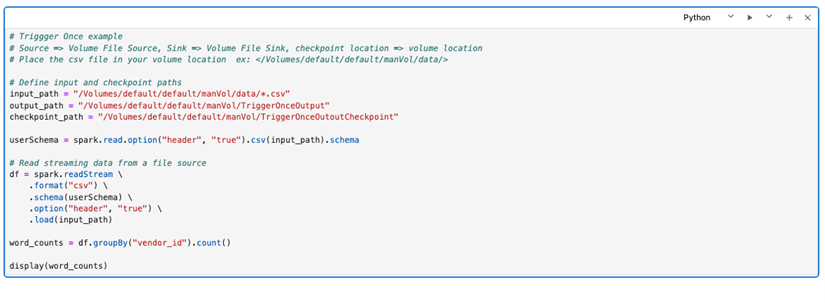
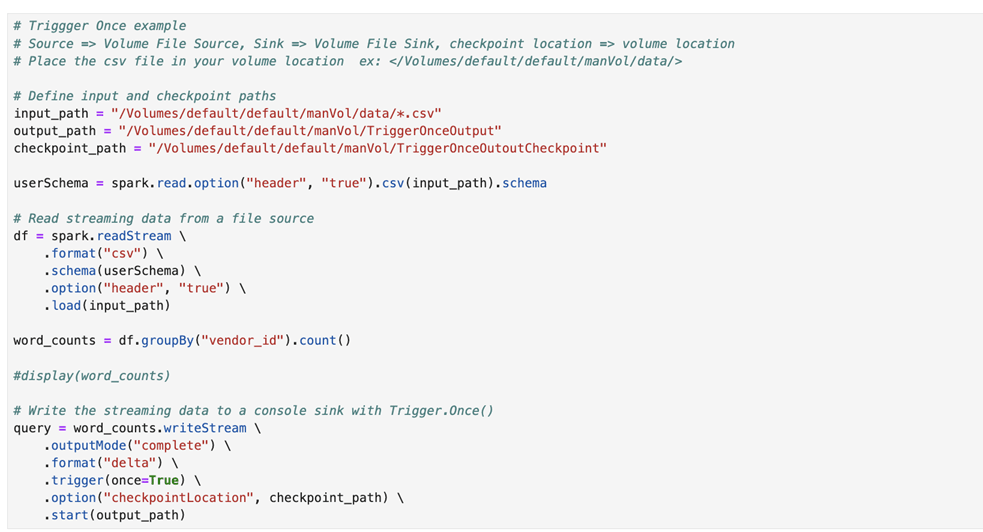
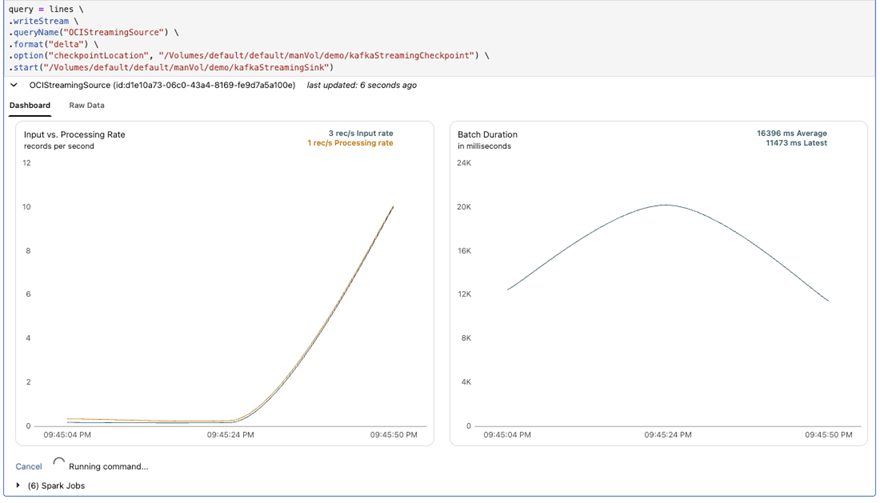
You can see Apache Spark streaming-related events, like input rate, processing rate, and batch duration from the Dashboard tab in your notebook while running streaming code.
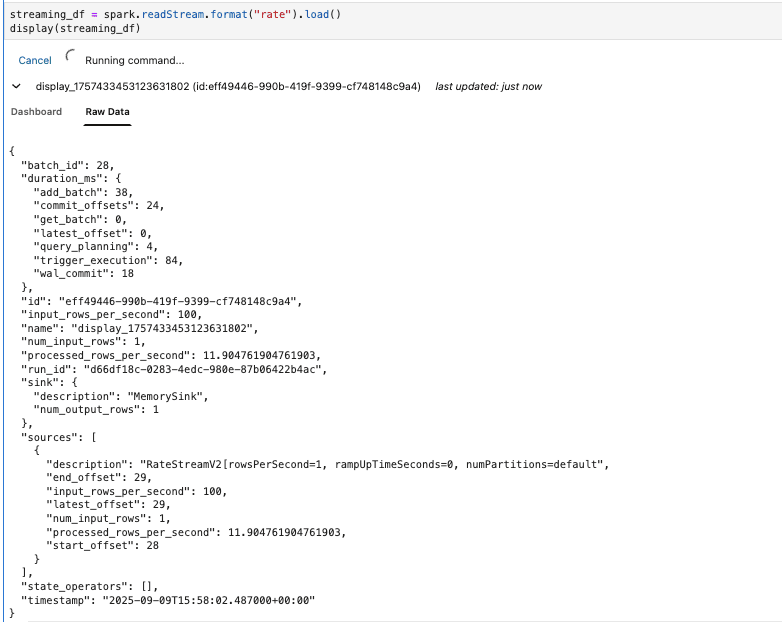
You can also view the raw streaming-related events from the Raw Data tab while you incrementally develop your code.
Configuring Spark Structured Streaming using Workflows
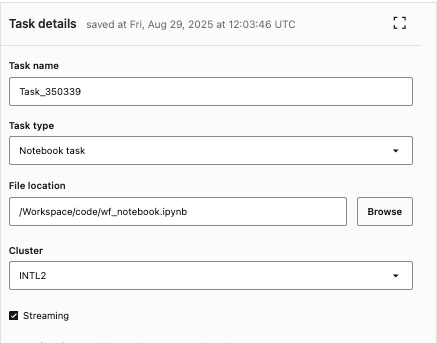
You can configure a streaming task inside a workflow for continuous processing of stream data.
- Click
 Create Job.
 - Select the Streaming checkbox. Selecting Streaming disables execution timeout and task dependencies as options.
- Select the number of retries a task should attempt on failure. If you select more than 0, you must also specify how much time the job run should wait between retries and if retries should be attempted on timeout.
