Apply Generative AI in a Workbook in Oracle Analytics
Use the workbook editor to apply generative AI to your data in Oracle Analytics. For example, you might might classify reviews as positive, negative, or neutral, or generate summaries of customer feedback comments.
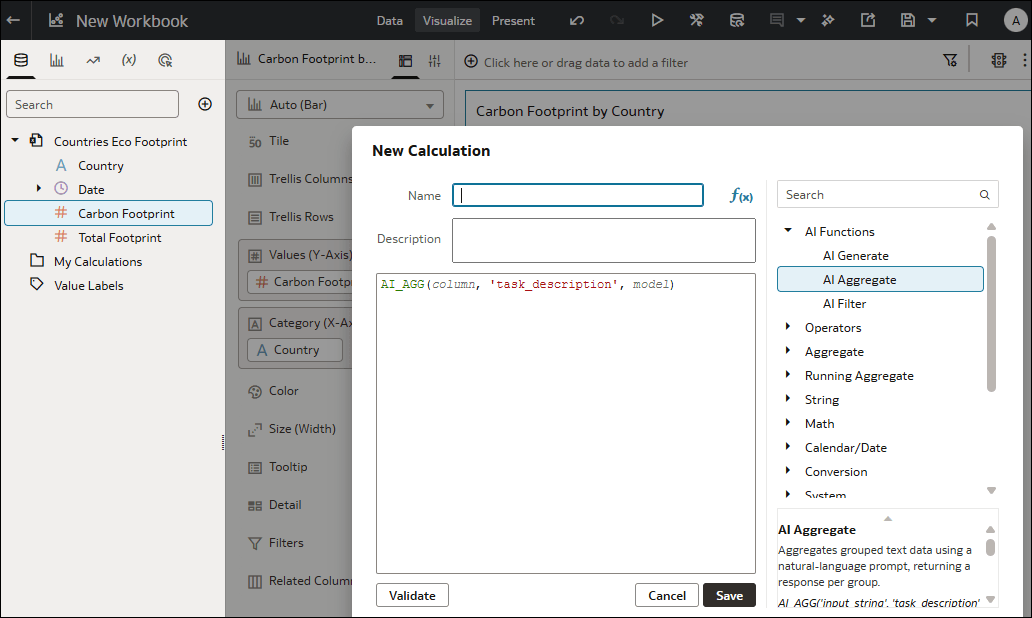
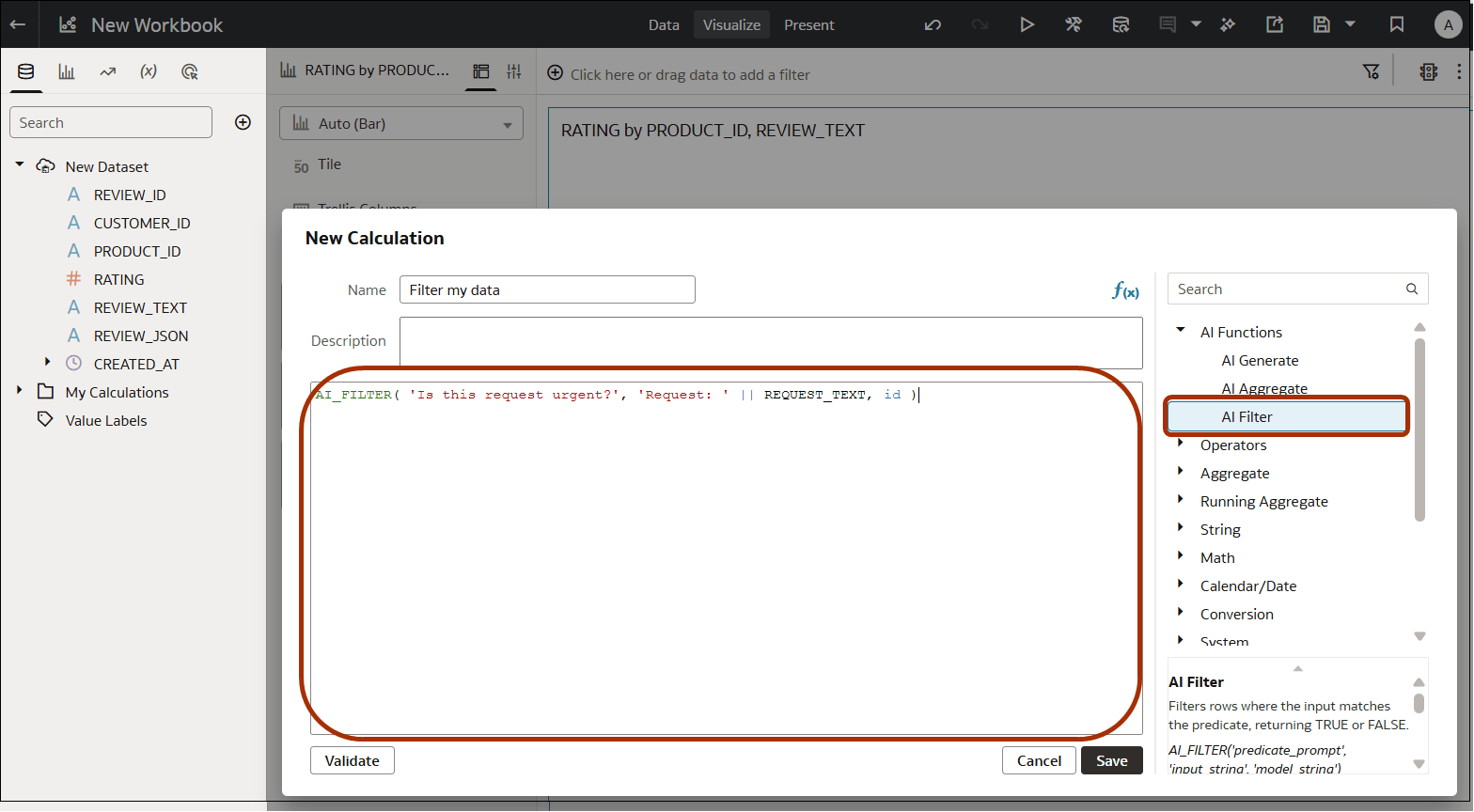
- In the Workbook editor, add a calculation or expression filter , and under AI Functions in the function picker, add a generative AI function.
- AI Generate - Use this function to use Generative AI to analyze your textual data, such as doing classification, sentiment analysis, or ask free-form questions. For example:
AI_GENERATE( 'Comment: ' || REVIEW_TEXT, 'Is the customer happy with this product?', 'model'.'id' )See AI Generate Function.
- AI Aggregate - Use this function to generate a group summary, such as classifying customer feedback comments as positive, negative, or neutral. For example:
AI_AGG( 'Review: ' || REVIEW_TEXT, 'Summarize the reviews for this product in 2 sentences. Return only the summary.', 'model'.'id' ) - AI Filter - Use this function to apply a semantic filter, such as displaying only positive customer feedback comments. For example:
AI_FILTER( 'Is this request urgent?', 'Request: ' || REQUEST_TEXT, 'model'.'id' )
Note:
If the dropdown for themodelargument doesn't show the model you want to use, check that your model is registered in the Shared Folders area in the catalog, and that the model owner has granted you Read-Only or higher permissions. See Make a Generative AI Model Available in Oracle Analytics. - AI Generate - Use this function to use Generative AI to analyze your textual data, such as doing classification, sentiment analysis, or ask free-form questions. For example:
After you finish authoring content, either you (if you have Full Control of the model) or the Generative AI model owner must grant intended 'readers' at least Read-Only permission to access the content.