Make a Generative AI Model Available in Oracle Analytics
Make an Generative AI model available in Oracle Analytics so that analysts can use it with AI functions in workbooks, data flows, datasets, and semantic models.
Before you start, make sure that you have created a connection to your OCI tenancy or Oracle Autonomous AI Lakehouse. If your connection to OCI uses an API key, due to the latency between creating an API Key in OCI and it being active in a tenancy, wait several minutes before trying to create the connection.
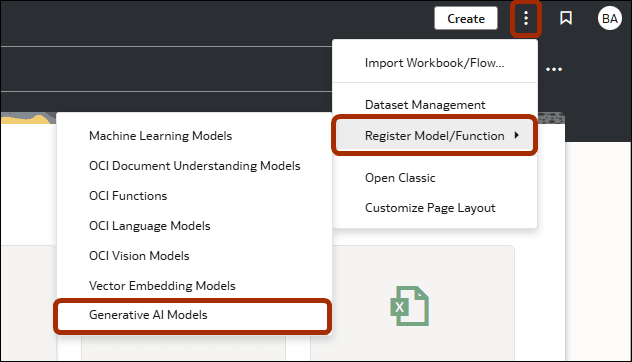
- (In Oracle Analytics) On your home page, click Page Menu
 , select Register Model/Function, and then select Generative AI Models.
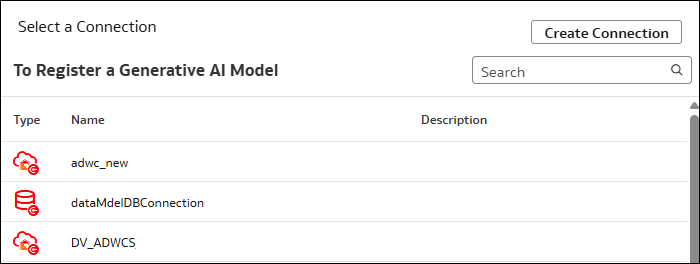
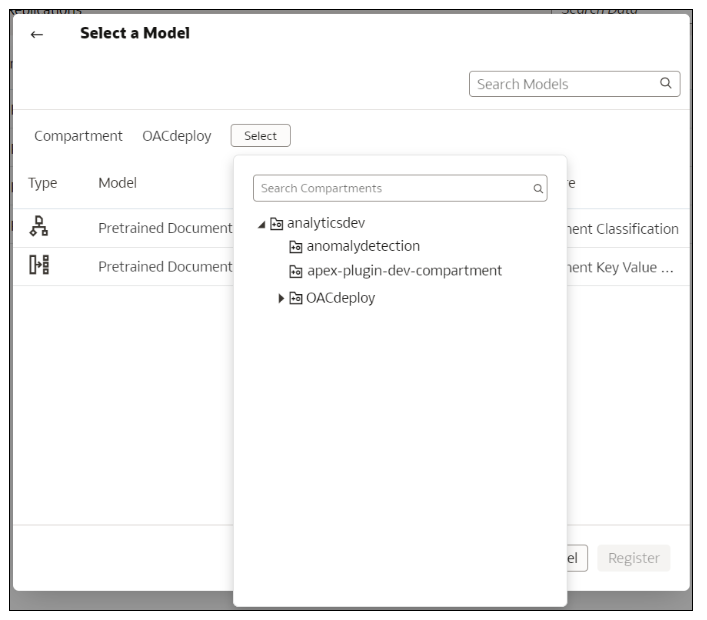
 - At the Select a Connection dialog, select the connection that you created to OCI or Oracle Autonomous AI Lakehouse. See Create a Connection to Your Oracle Cloud Infrastructure Tenancy or Connect to Oracle Autonomous AI Lakehouse.If you're sourcing models from Oracle Cloud Infrastructure, use the Select option to specify the compartment where the models are located.
Note:
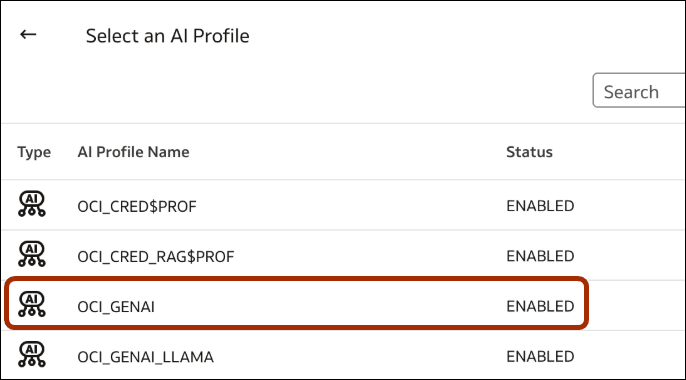
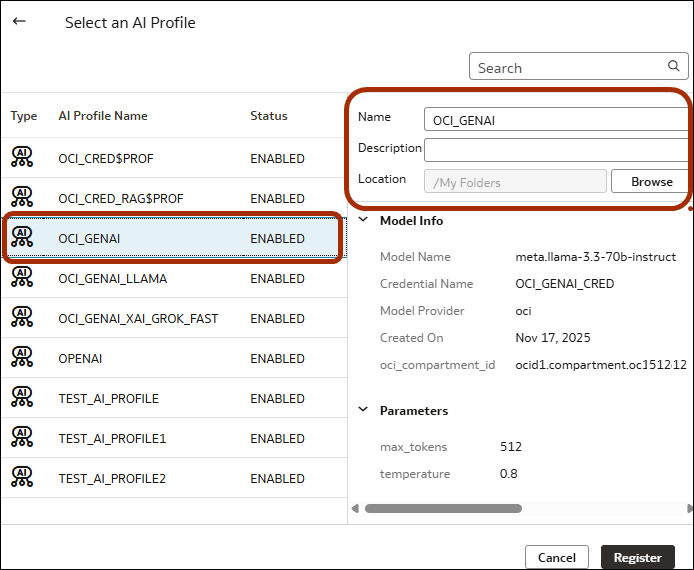
If you don't see Generative AI Models in your compartment, you must provision them in the OCI compartment, and give Oracle Analytics permission to access them. See Typical Workflow to Integrate Oracle Analytics with Generative AI Models.If you're sourcing models from Oracle Autonomous AI Lakehouse, create the AI profile in the database. See DBMS_CLOUD_AI documentation (CREATE_PROFILE procedure). - Select the generative AI model you want to use.
When you select a model, the popup details pane enables you to configure it.