Create an AI Agent to Accept a Workbook's Filter Values
Create and configure an AI agent that you can add to a workbook and map to receive and apply the workbook's filter values in AI Assistant responses.
Creating the agent is the first step in a mulit-part process to
configure an agent to apply a workbook's filter values to the Assistant's responses.
After you create the AI agent to accept filter values, you must configure the workbook
with parameters to facilitate passing the workbook filter values to the AI agent, add
the agent to the workbook, and map the agent's filter to the parameters you configured.
See Prepare a Workbook for AI Agent Filter Binding.
After you created the AI Agent, prepared the workbook filters, parameters, and parameter bindings, you then add the agent to the workbook and specify the filter mappings. See Attach an AI Agent and Configure Filter Mapping in a Workbook.
- On your home page, click Create then click AI
Agent.
- Select a dataset then click Add to Agent.
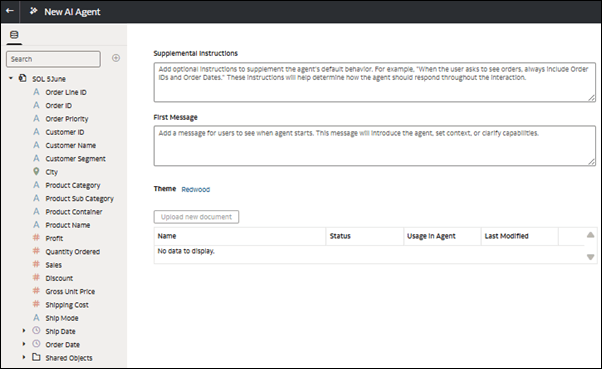
- In New AI Agent, name and configure the agent. Click Save.
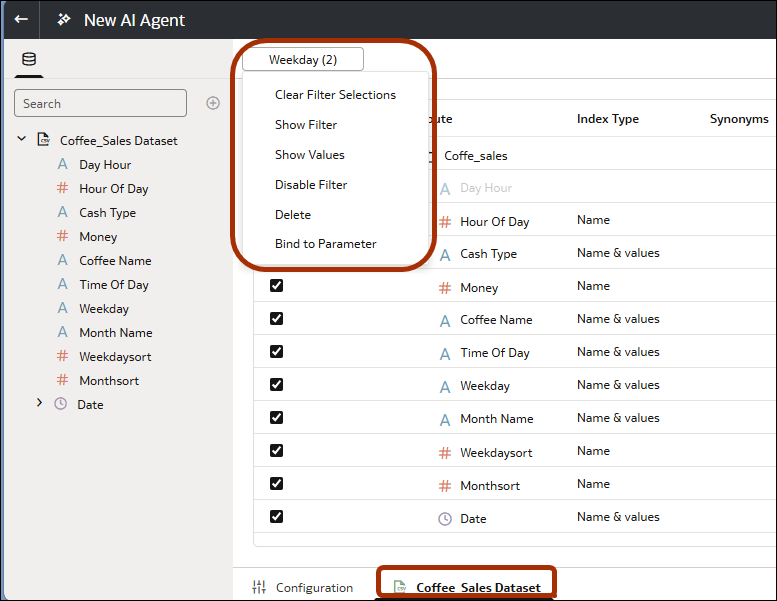
- Click the dataset tab, go to the Data pane, locate, and drag and drop the columns you want to filter to the filter bar.
- Right click the filter you want to bind to the workbook filter and right-click.
- Optional: Click Show Filter to display filter values in workbook consumer mode. This is useful because it helps the workbook user know which filter values are applied to the data displayed in the Assistant.
- Click Save.